
How to Add a One-Time Product in the Funnel Builder
Follow these steps to add a one-time product to your funnel. Ensure that the product is created in Payments -> Products before proceeding.
Step 1: Configure the Product for Your Funnel
Select the Funnel:
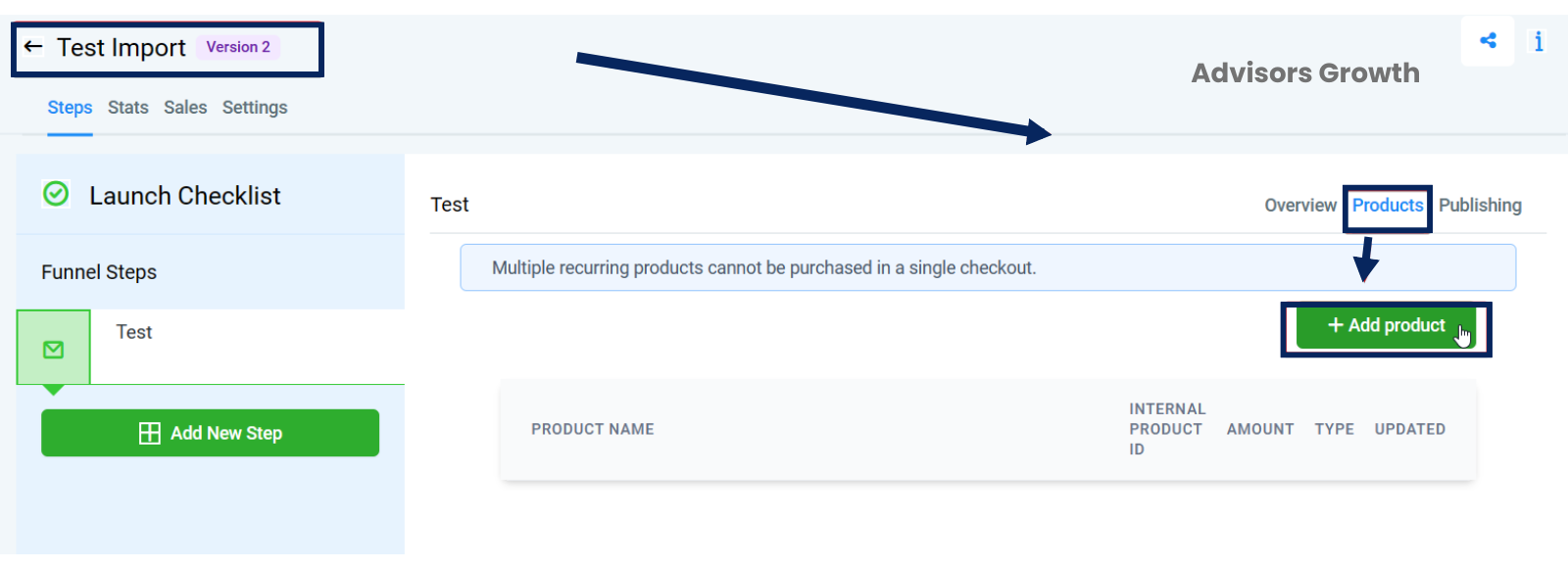
Navigate to the funnel you want to add the product to.
Go to the Products tab.
Add the Product:
Click the +Add Product button.
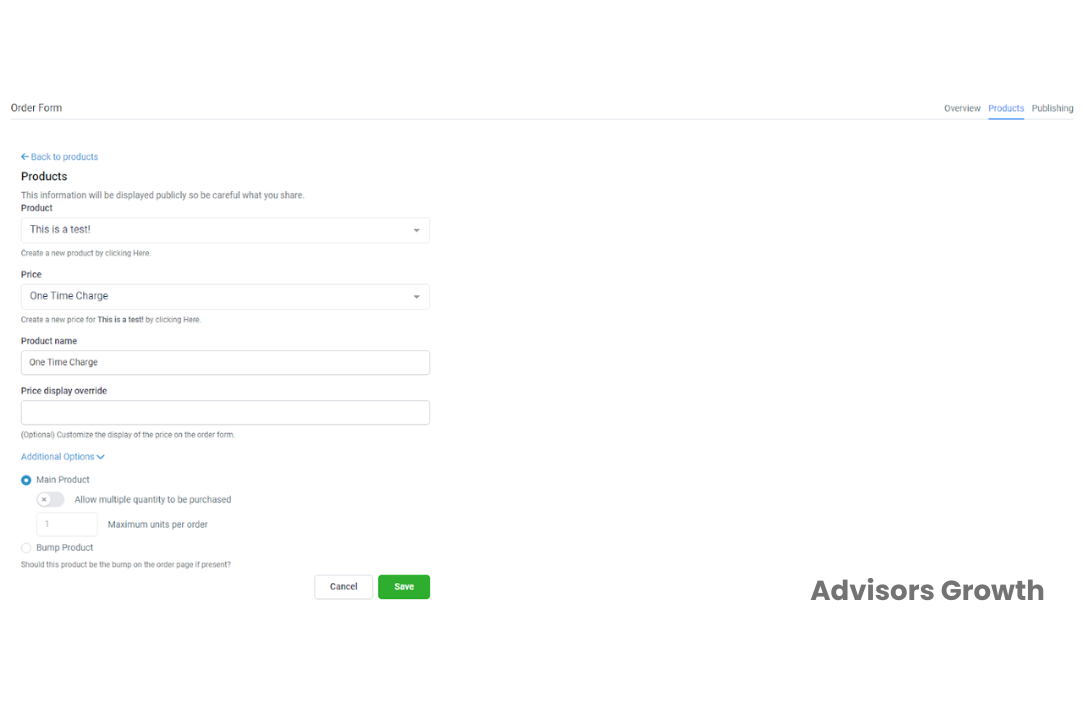
Select your product and price from the provided dropdowns.
Identify if the product is a main product or a bump product.
Click Save to confirm your changes.

Step 2: Add the Product to Your Funnel
Enter the Funnel Builder:
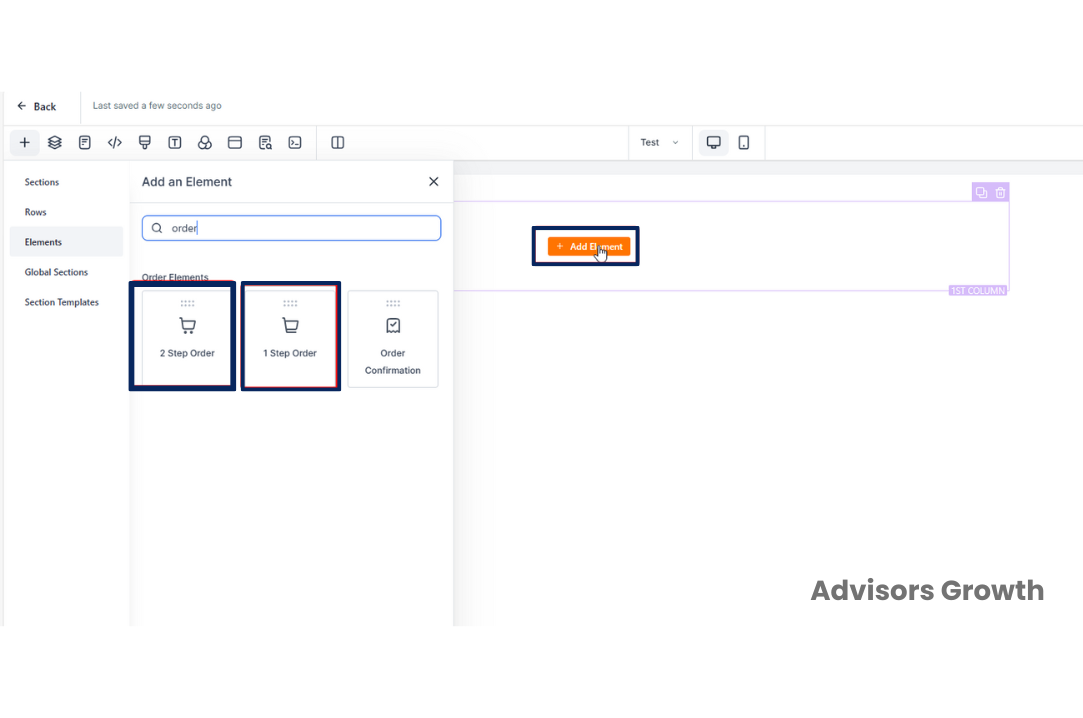
Go to Overview and click Edit Page to open the funnel builder.
Add an Order Form Element:
In the builder, add an element by dragging an order form onto the page.

Customize the Order Form:
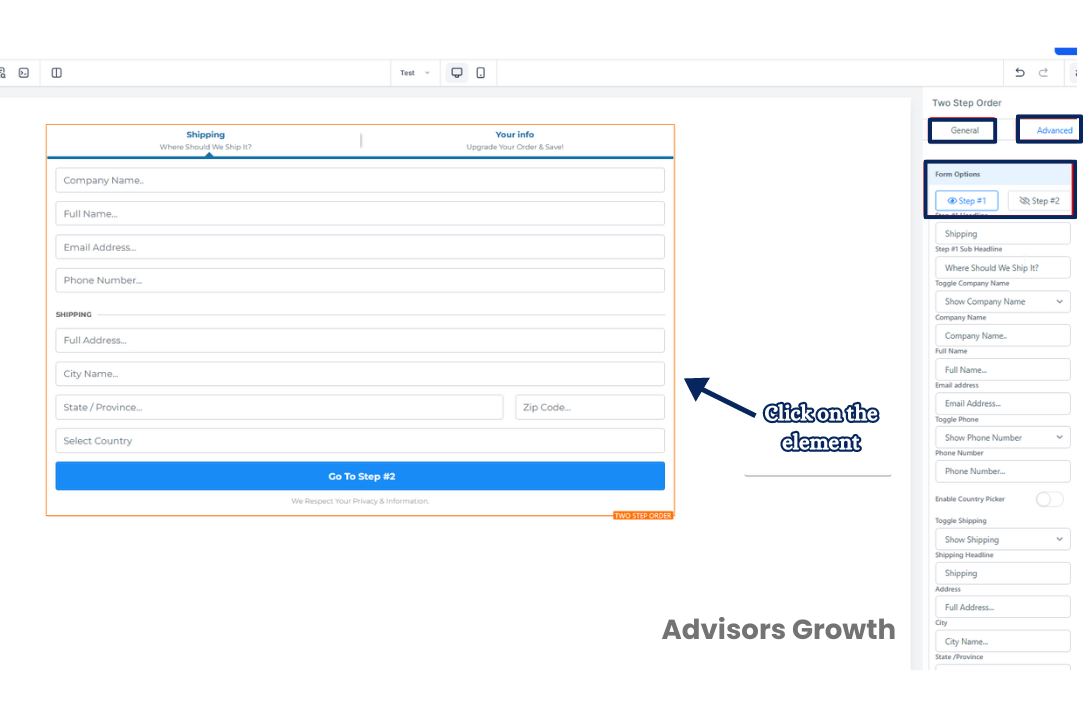
Update the Two-step/One-step order form settings from the panel on the right-hand side.
Customize the Shipping and Info tabs as needed.
Use General Settings to modify visual aspects.
Use Advanced Settings to customize the fields and other aspects of the order form.

Note: Changing the text in a two-step order form field does not change the data's destination in a contact record. For instance, the email address field will always populate the customer's email address field in their record. Thus, avoid changing "Email Address" to "Phone Number." Instead, customize it to say something like "Personal Email Address" or "Best email address to reach you at?"
Note on “Dynamic Item” and “Price”: In Step #2 of the order form, where it says “Dynamic Item” and “Price”, these are placeholders. If you’ve followed Step 1 and added the product before adding the form into the funnel builder, the preview mode will display your product and price.