
How to Add a Facebook Pixel to a Funnel
Using a Facebook Pixel to track events for your ads can significantly enhance your marketing efforts by providing deeper insights into user behavior and conversion metrics. This guide will walk you through adding the Pixel code to your funnel and funnel steps.
Key Features
Facebook Pixel Integration: Easily send event data to Facebook by submitting your Pixel ID.
Conversion API Support: Send event data via Facebook Conversion API by entering an access token.
Flexible Tracking Options: Choose between Funnel-level tracking or Page-specific tracking.
Event Types: Track events on page views or specific triggers such as order form submissions.
Multiple Pixels: Manage multiple Pixel IDs for comprehensive tracking.
Summary Table: View and manage all your tracking configurations in a user-friendly summary table.
What You Will Need
Facebook Pixel Code
Events you want to track
Steps to Add a Facebook Pixel to a Funnel
Step 1: Configure Facebook Pixel in the Funnel
Login to Your Account
Navigate to Sites and choose any funnel by clicking on the Funnels tab.
Open the Funnel/Website
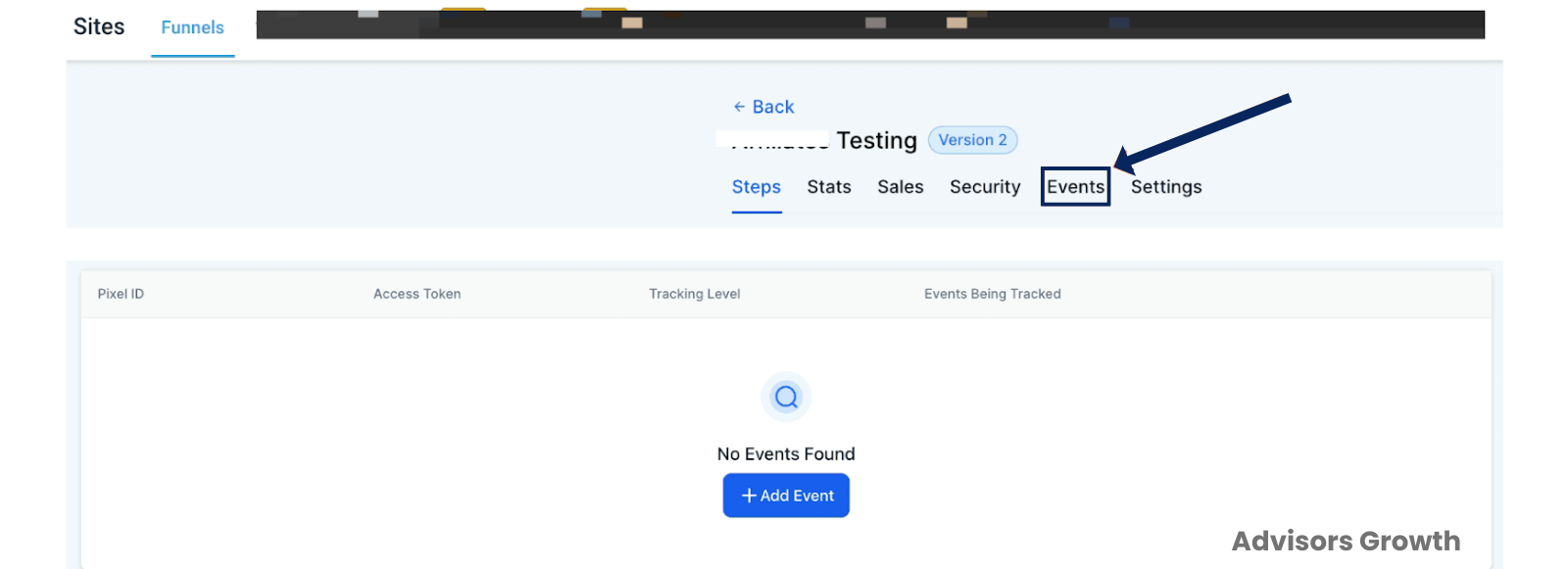
Go to the Events tab in the funnel/website overview screen.
Add Event
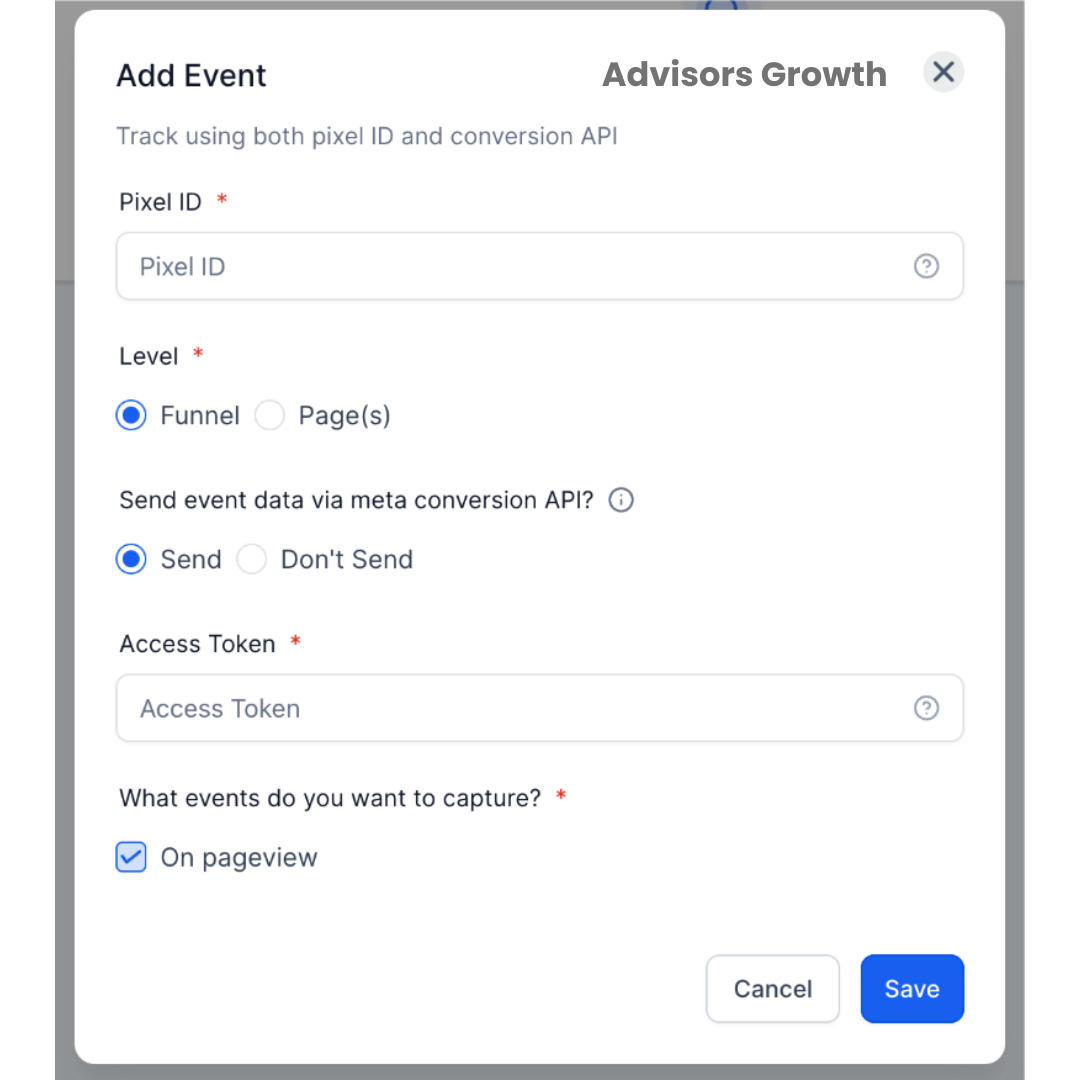
Click 'Add Event' and enter your Pixel ID.
Instructions for finding and adding your Pixel ID can be found within Facebook's documentation.
Choose Tracking Level
Decide whether you want to track events at the funnel level or on specific pages.
Enable Conversion API
Select this option and enter your access token if you wish to send data using the Conversion API.
Manage Multiple Pixel IDs
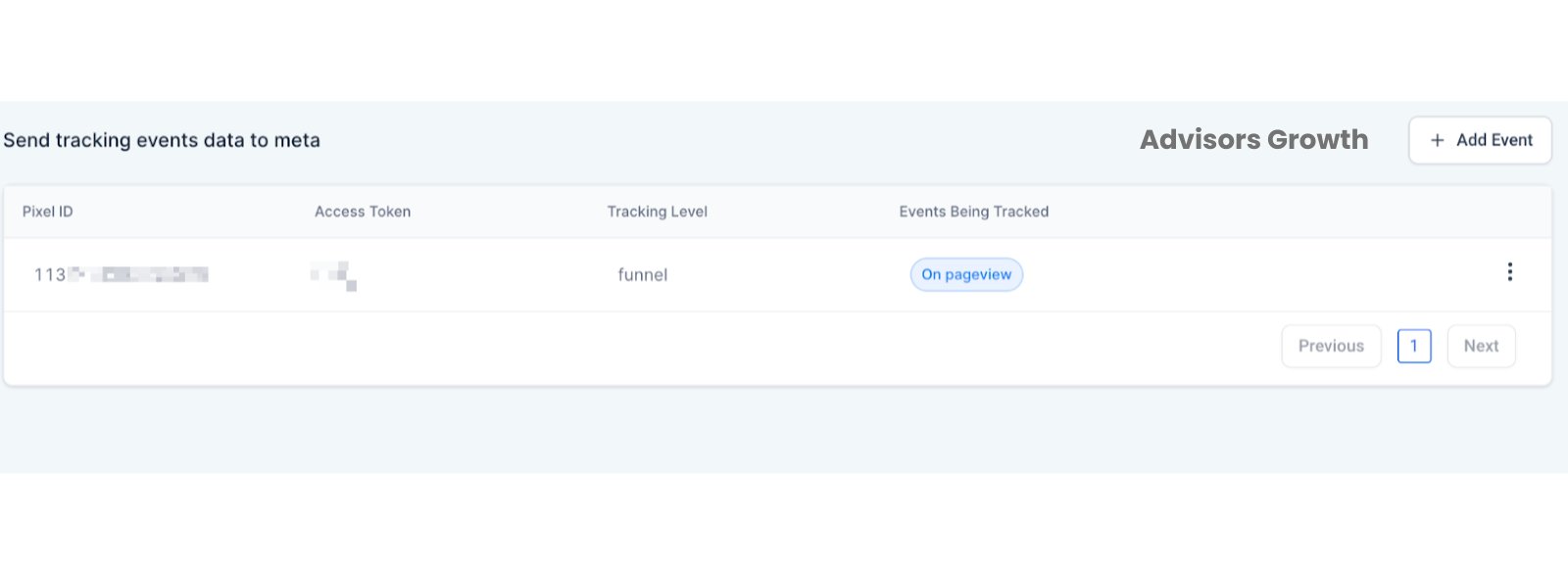
Add and configure multiple Pixel IDs as needed.
View them in the summary table for easy management.
Step 2: Add Event-Specific Code to Individual Pages
Select the Step
Choose the step where the event in question is occurring (e.g., Lead would occur after an Opt-In).
Edit the Step
Click on the step you want to edit.
Insert Event Code
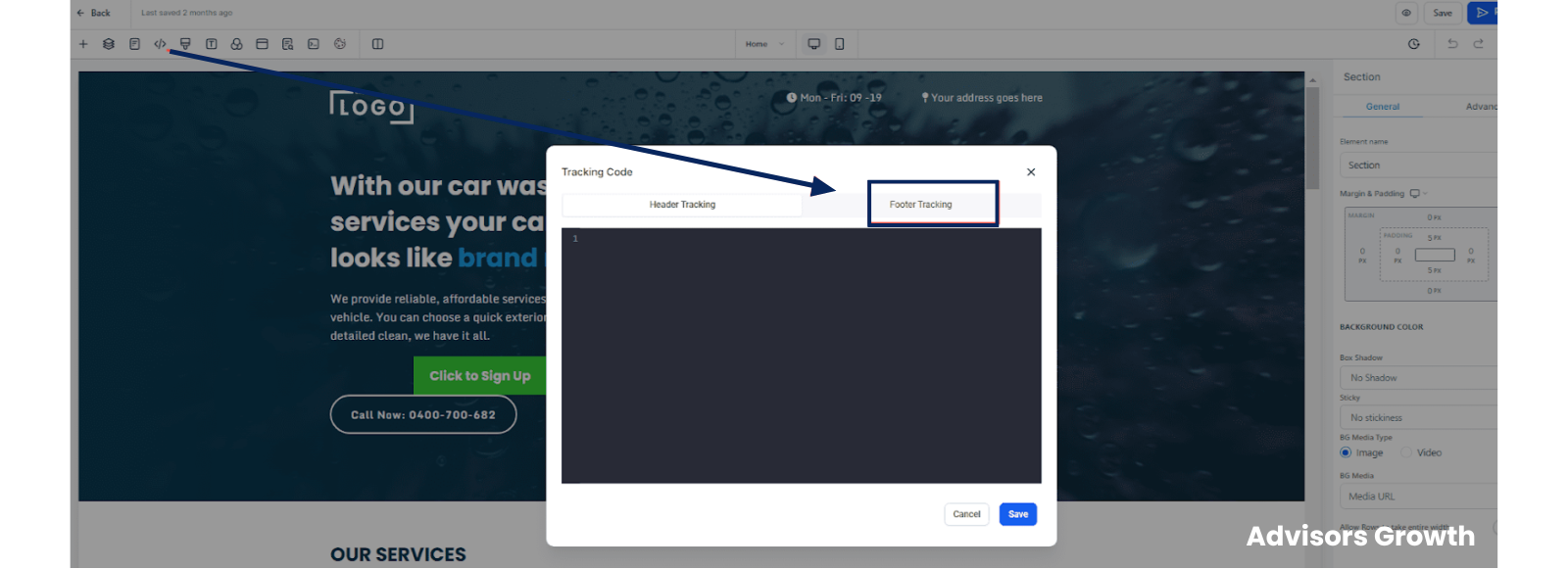
Click on the Tracking Code option on the top left.
Click on Footer Code and paste in the Event Code.
Save Your Changes
Resources
Facebook Pixel Code
Insert your Pixel ID in the IDHERE part of the code:
html
Copy code
<!-- Facebook Pixel Code -->
<script>
!function(f,b,e,v,n,t,s)
{if(f.fbq)return;n=f.fbq=function(){n.callMethod?
n.callMethod.apply(n,arguments):n.queue.push(arguments)};
if(!f._fbq)f._fbq=n;n.push=n;n.loaded=!0;n.version='2.0';
n.queue=[];t=b.createElement(e);t.async=!0;
t.src=v;s=b.getElementsByTagName(e)[0];
s.parentNode.insertBefore(t,s)}(window, document,'script',
'https://connect.facebook.net/en_US/fbevents.js');
fbq('init', 'IDHERE');
fbq('track', 'PageView');
</script>
<noscript><img height="1" width="1" style="display:none"
src="https://www.facebook.com/tr?id=IDHERE&ev=PageView&noscript=1"
/></noscript>
<!-- End Facebook Pixel Code -->
Facebook Event Code
Replace EVENTHERE with the specific event you want to track:
html
Copy code
<script>
fbq('track', 'EVENTHERE');
</script>
List of Facebook Standard Events
Refer to Facebook's documentation for standard events: Facebook Standard Events
Benefits of Facebook Pixel Integration
Deeper Insights: Gain a better understanding of user behavior and conversion metrics.
Optimized Advertising: Use accurate event data to enhance your advertising strategies.
Improved Marketing Efficiency: Target users more effectively based on detailed event tracking.
By following these steps and utilizing the Facebook Pixel and Conversion API, you can significantly improve the tracking capabilities and efficiency of your marketing campaigns.