
Converting Funnel Steps and Website Pages in Advisor's Growth
If you need to integrate or replicate a funnel step or website page into a new funnel or website, Advisor's Growth offers an easy import feature. This helps streamline your workflow and avoid starting from scratch. Here’s how to efficiently convert or import content:
Step-by-Step Guide:
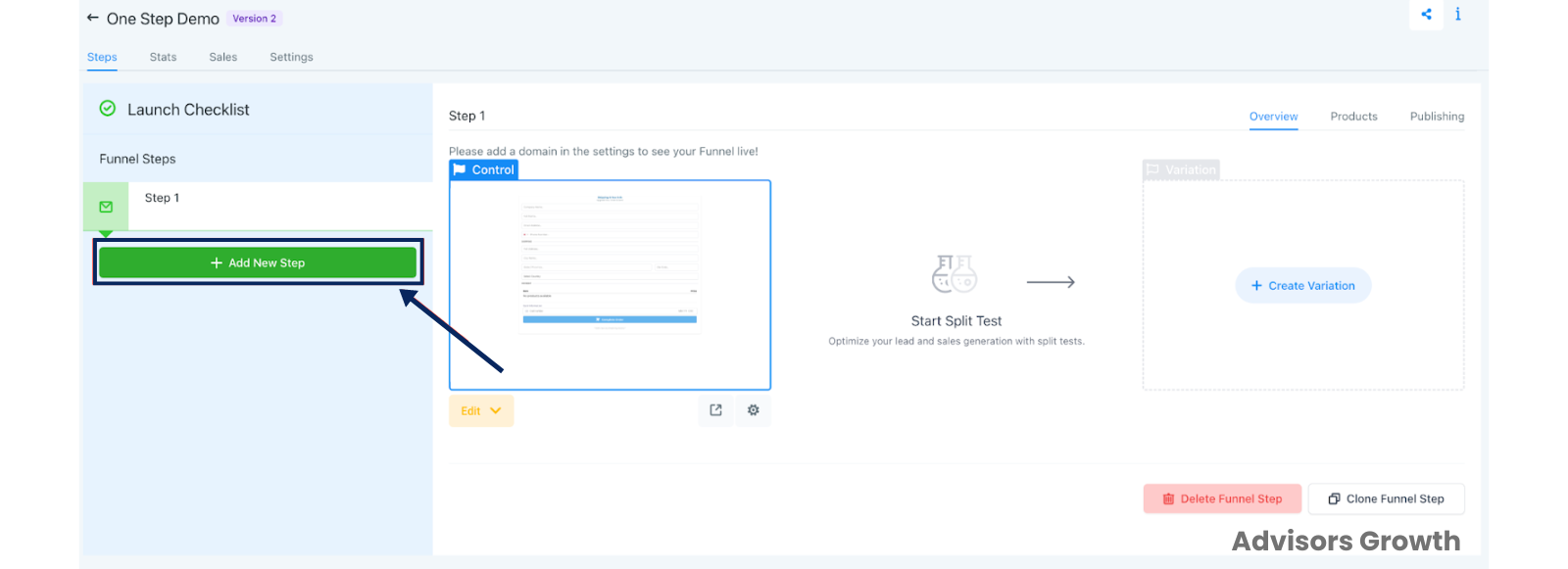
Add a New Step/Page:
Go to the funnel or website section.
Click on the "+Add New Step" button to insert a new page into your funnel or website.
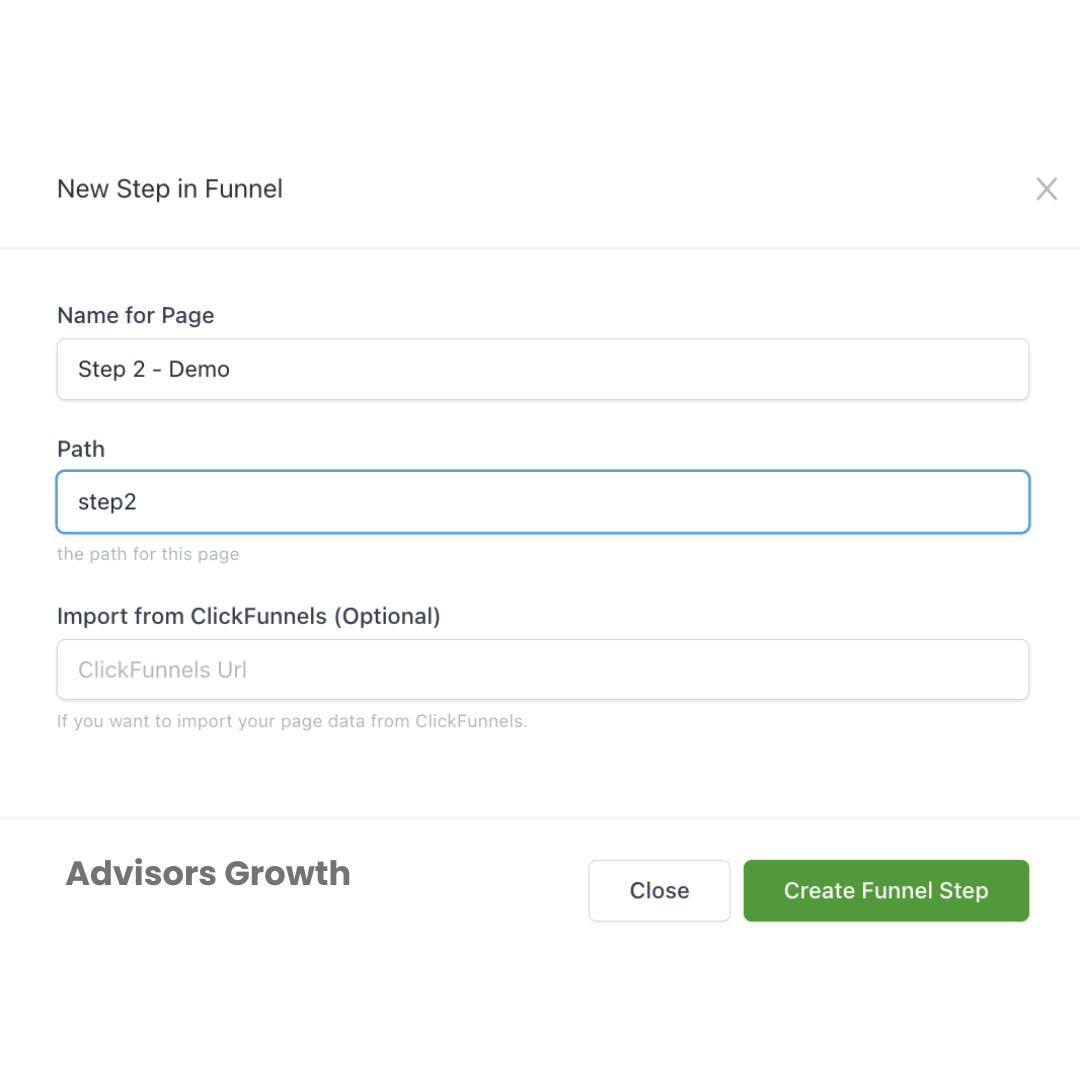
Configure the New Step/Page:
Enter a name for the path and page in the popup that appears.
Click "Create Funnel Step" to finalize this step. A new window will open in the funnel preview area.
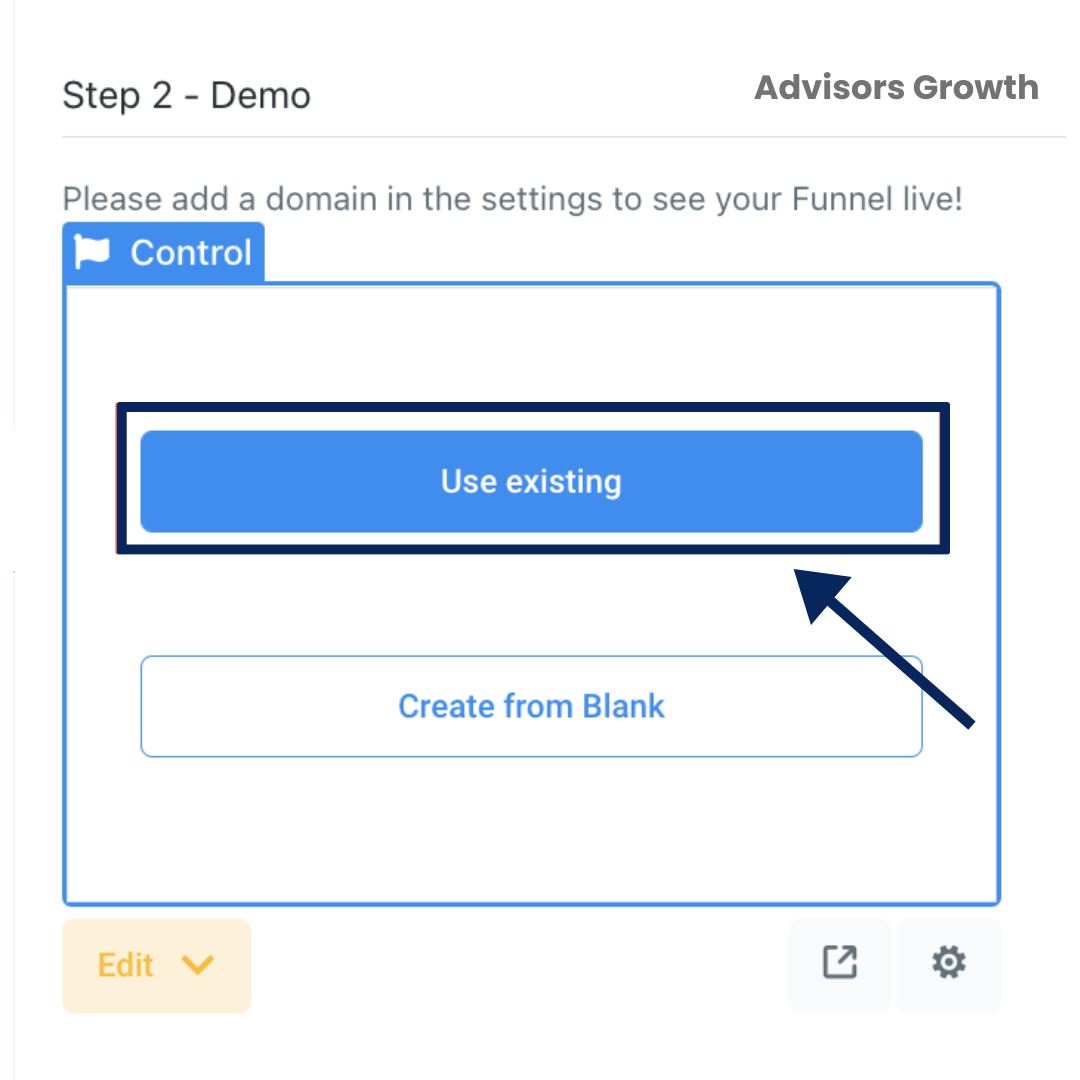
Import Existing Content:
Click on “Use Existing” to select a funnel step or website page you wish to import.
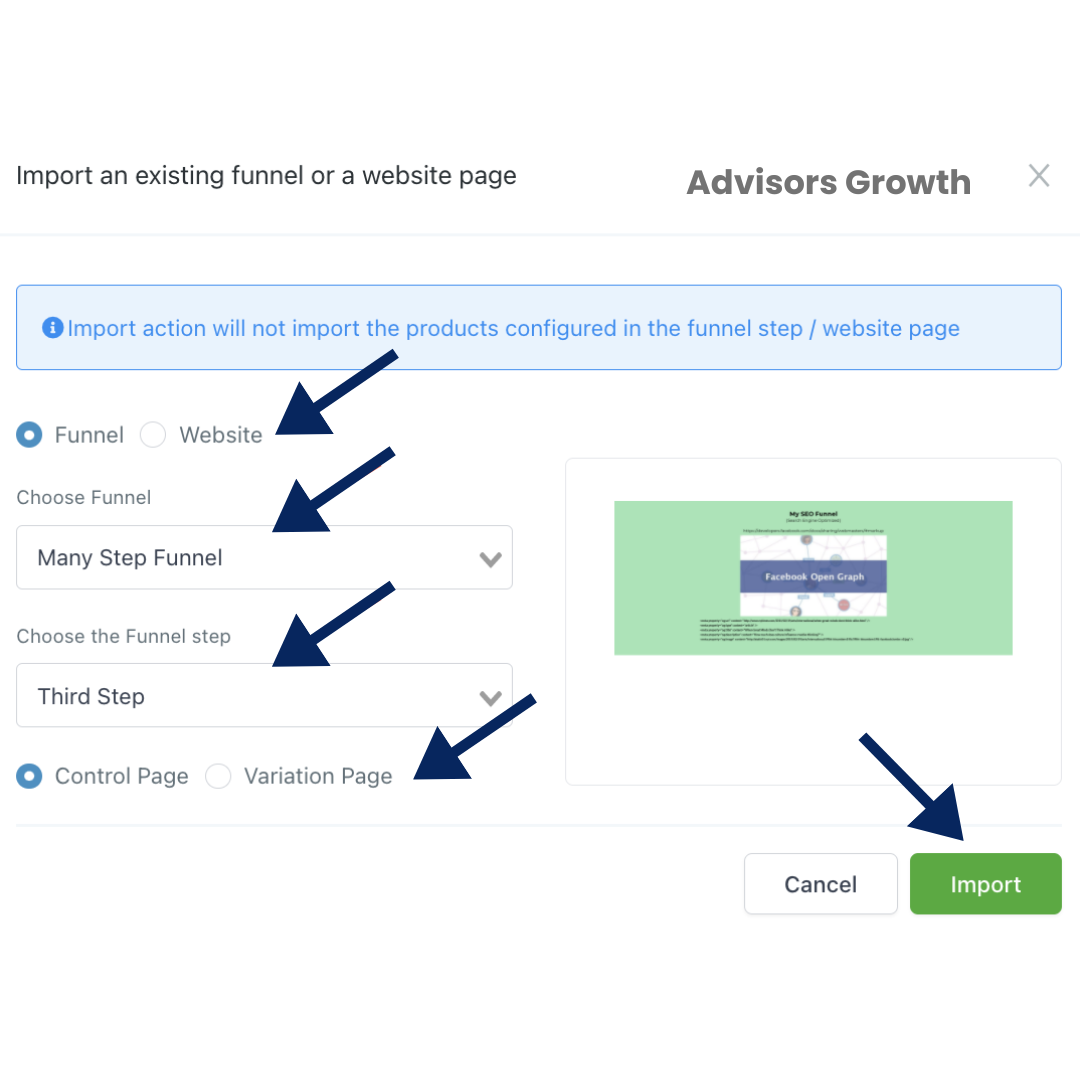
In the subsequent popup, choose either “Funnel” or “Website,” then select the specific funnel and step or website and page from the dropdown menus.
You can also decide whether to use this page as a control or variation if you are setting up a split test.
Complete the Import:
Click "Import" to bring the selected page or step into your current project.
Pro Tips:
Single Step/ Page Import: The import feature only brings in a single funnel step or website page at a time, not the entire funnel or website.
Advisor's Growth Only: This feature is applicable for funnels and websites within Advisor's Growth. It does not support importing from external providers.
No Reflection of Changes: Any changes made to the imported step or page will not affect the original content from which it was copied.
Product Configuration: Imported steps/pages do not carry over configured products or associated statistics. You will need to set these up anew for the imported step.
This streamlined process allows you to efficiently incorporate pre-existing content into your new projects, saving you time and ensuring consistency across your funnels and websites.