How to Configure Buttons on Your Website
In this guide, we'll walk you through configuring buttons on your website to perform various actions when clicked. We'll also cover configuring buttons in your navigation menu.
Step 1: Getting Started with Button Configuration
Navigate to the Page:
Open the website page you want to edit.
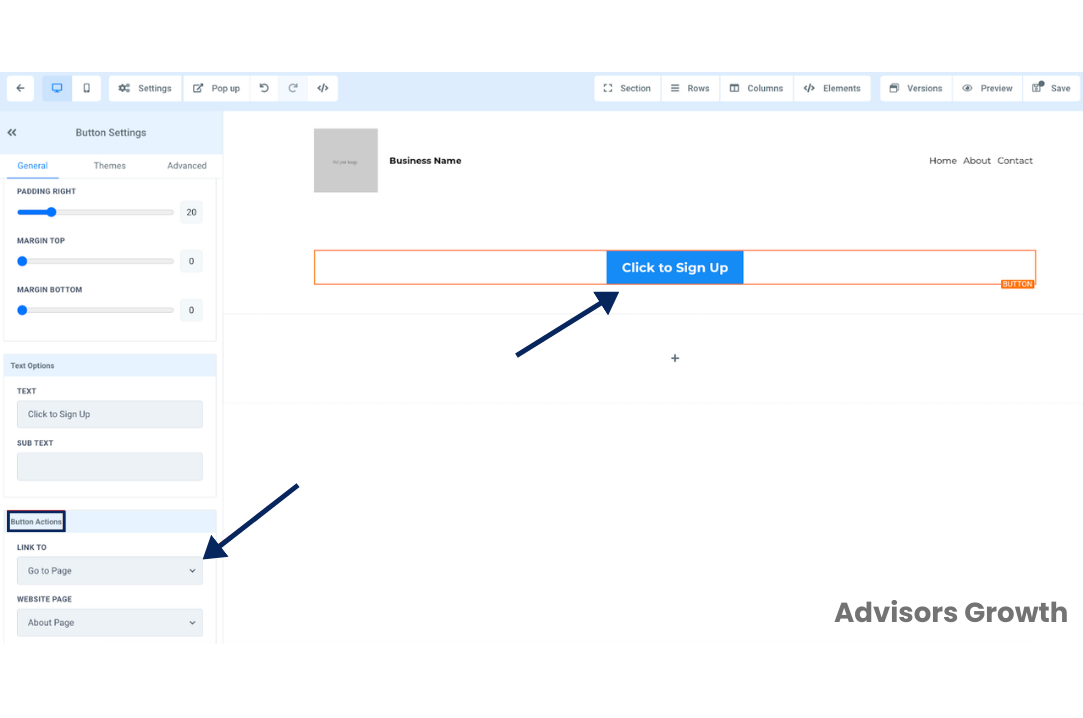
Select the Button:
Click on the button you wish to configure.
Access Button Menu:
On the left side of the screen, navigate to the "Button Menu".
Select Button Actions:
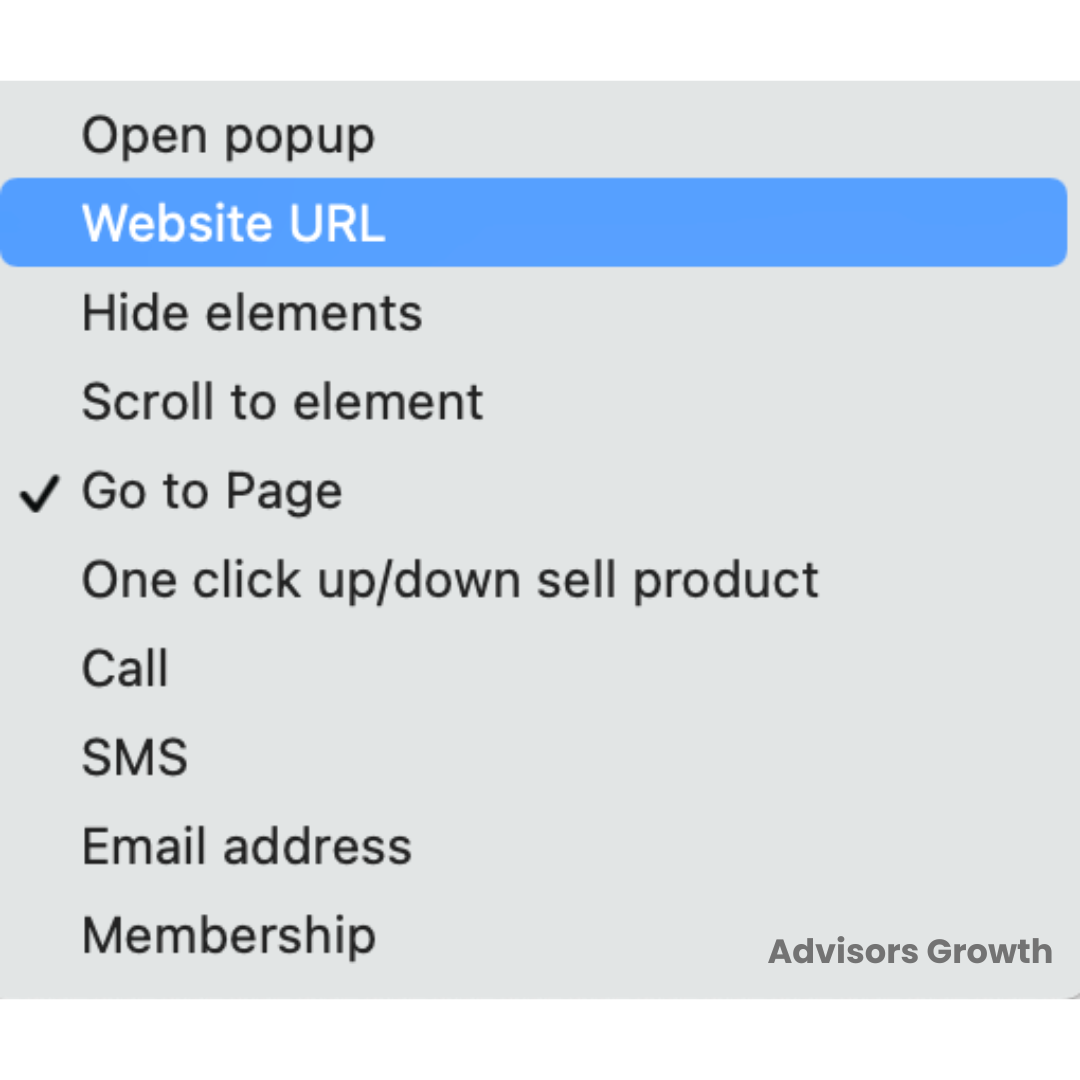
Scroll down to "Button Actions" and select the desired action from the list.
Step 2: Choose Your Button Actions
From the "Link To" dropdown menu, you can choose from various options. Depending on the action you select, additional information may be required. Here are some common options:
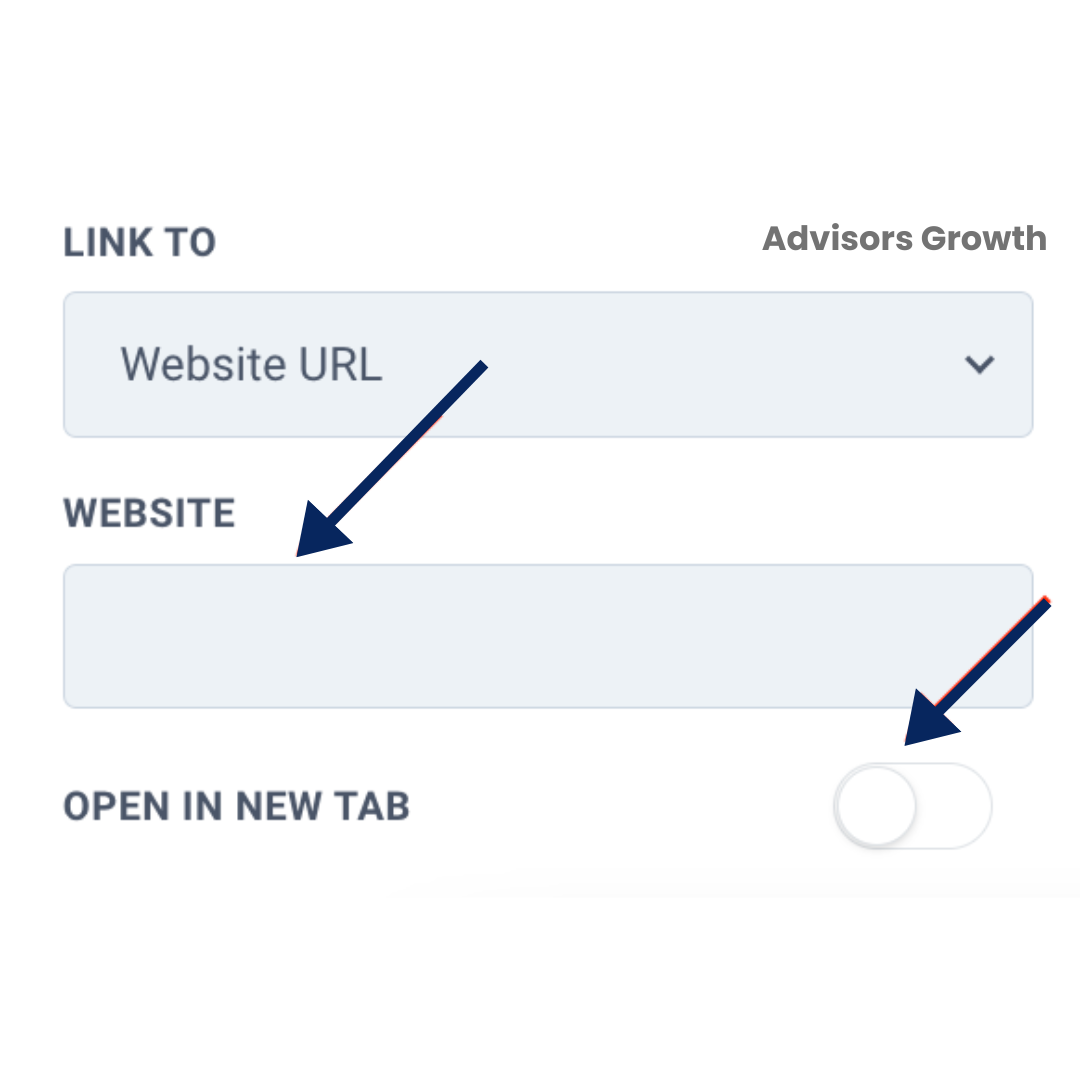
Website URL:
Enter the specific URL.
Toggle on or off the “Open in New Tab” feature.
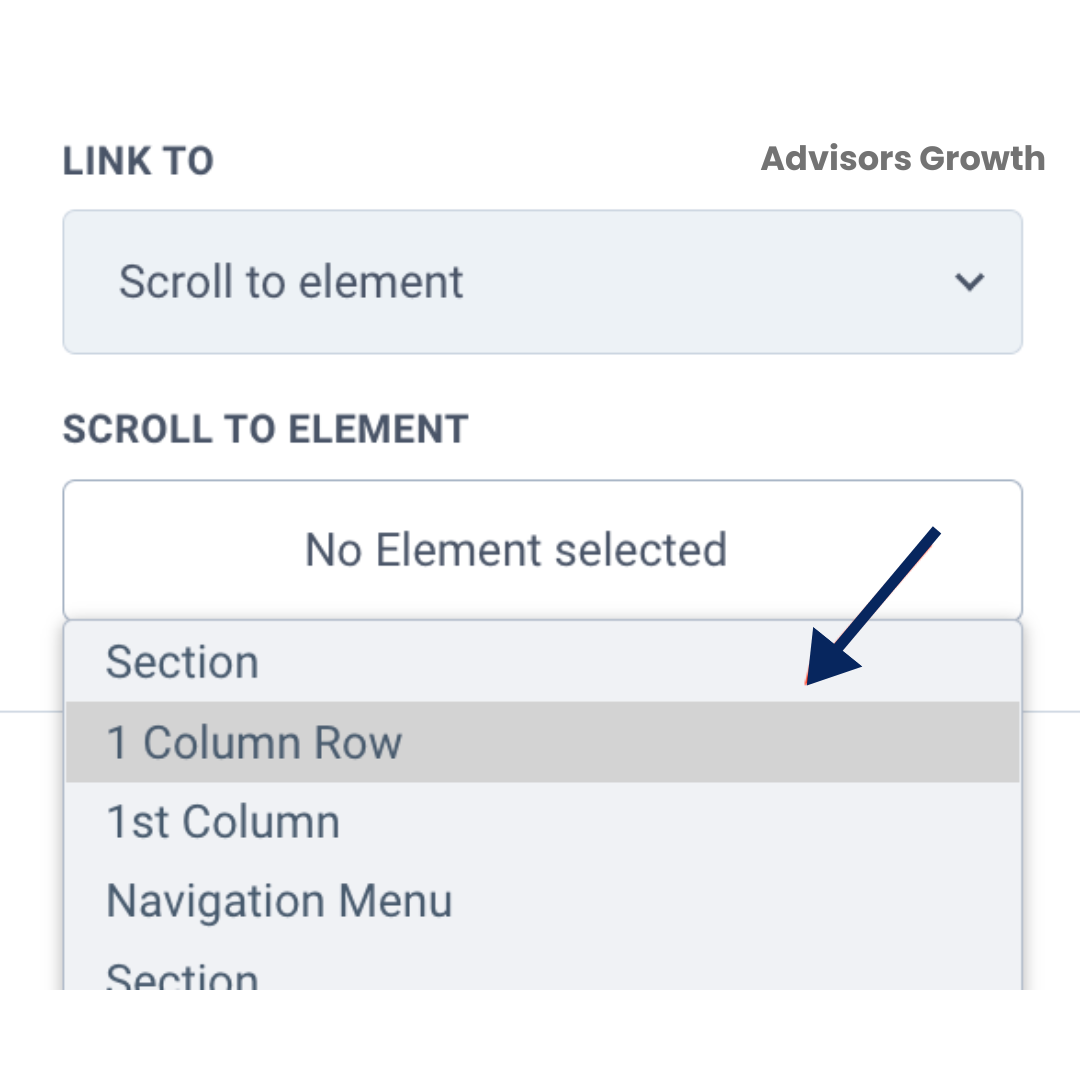
Scroll to Element:
Select the specific element you want the page to scroll to.
Link to a File:
Choose a link from a hosted file in your Media Library.
Step 3: (Optional) Navigation Menu Configuration
Navigate to the Page:
Open the website page you want to edit.
Note: When editing buttons in the navigation menu, each page needs to be configured individually.
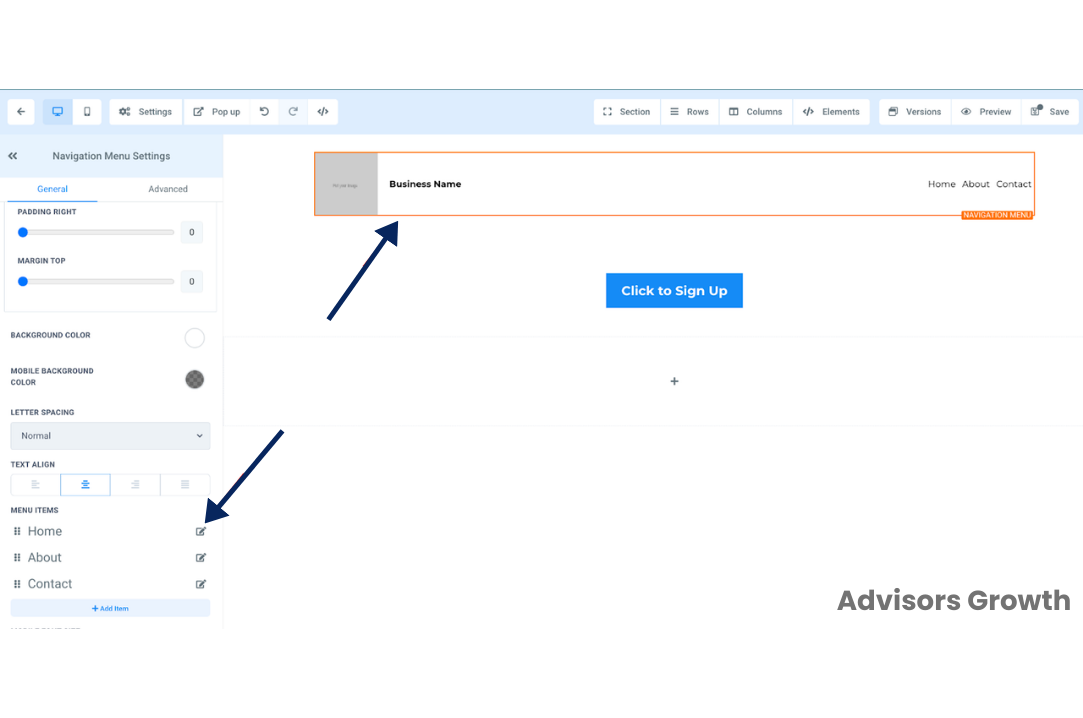
Select Navigation Menu:
Click on the Navigation Menu you wish to edit.
Access Navigation Menu Settings:
On the left-hand side, navigate to "Navigation Menu Settings".
Edit Menu Items:
Scroll down to "Menu Items".
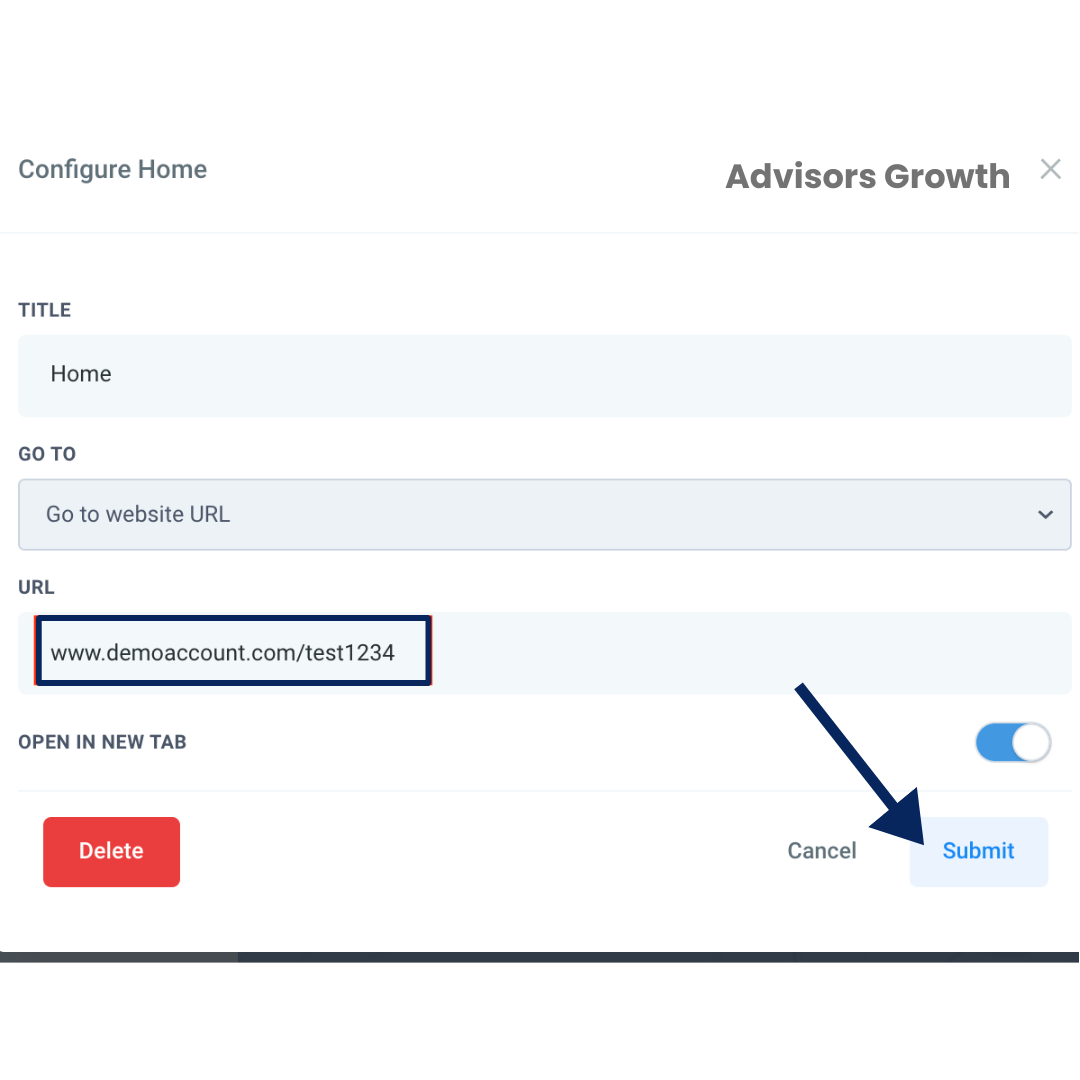
Select "Edit" on the button you want to configure.
In the popup, enter the website URL or select the page you want to link to.
Click "Submit" to save the configuration.
Save Changes:
Repeat the above steps for each button in the navigation menu.
Once all buttons have been configured, click "Save" to confirm your changes.
Repeat steps 1-3 for the remaining pages as needed.
By following these steps, you can effectively configure buttons on your website, enhancing user experience and navigation.