CRM Loading States: Troubleshooting Lags and Impact of Custom CSS and JS
Recent enhancements to our platform have improved the loading functionality, transitioning from the traditional 9-dot loader to a modern spinner. This new design includes diverse visual states, effectively indicating operations like app initialization, data fetching, and account detail retrieval.
CRM Loading States
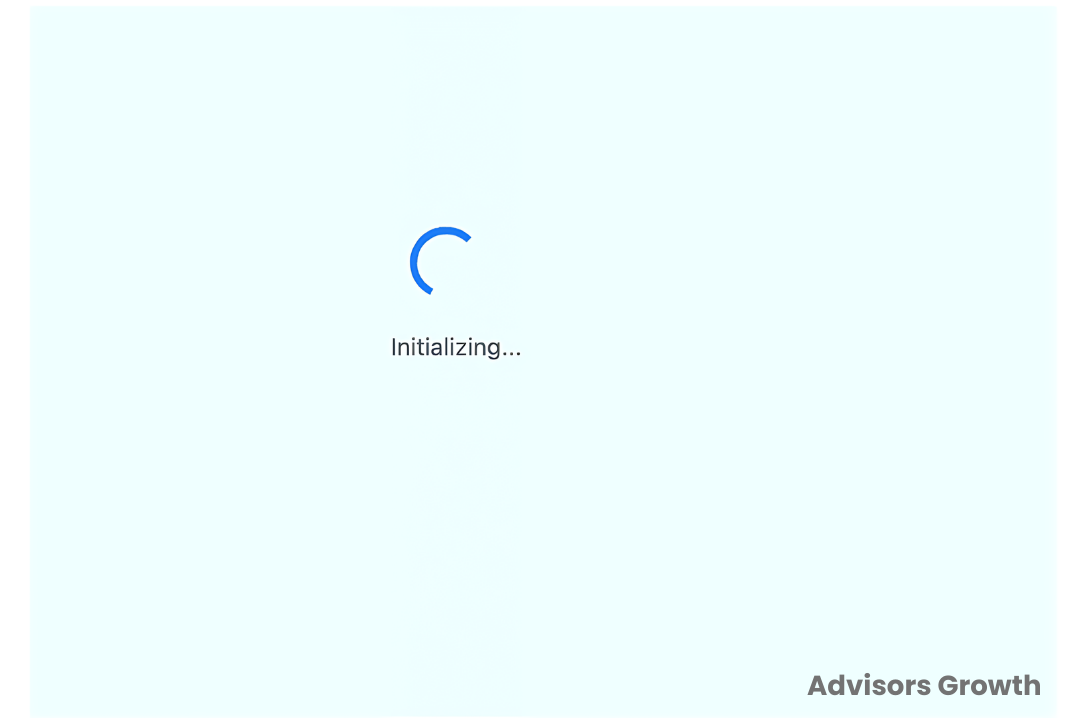
Initializing the App:
Description: This state is activated when the app is launched or a new page is loaded. The spinner starts to spin, indicating the start of the loading process and remains active until the necessary data for the app or page is fully fetched.
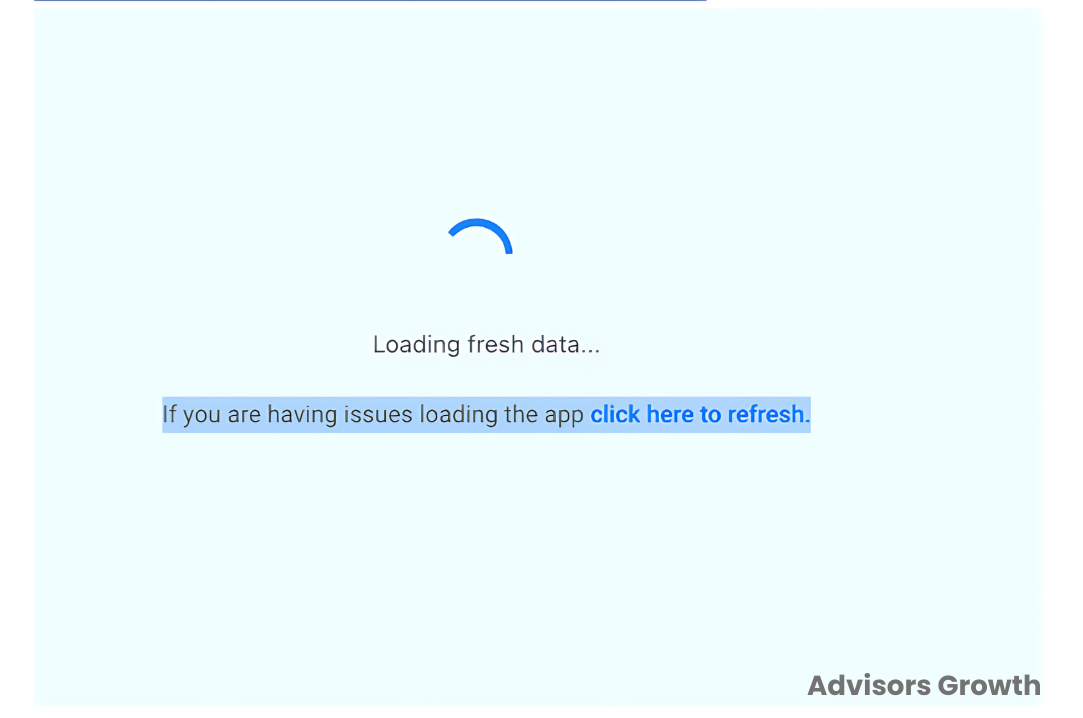
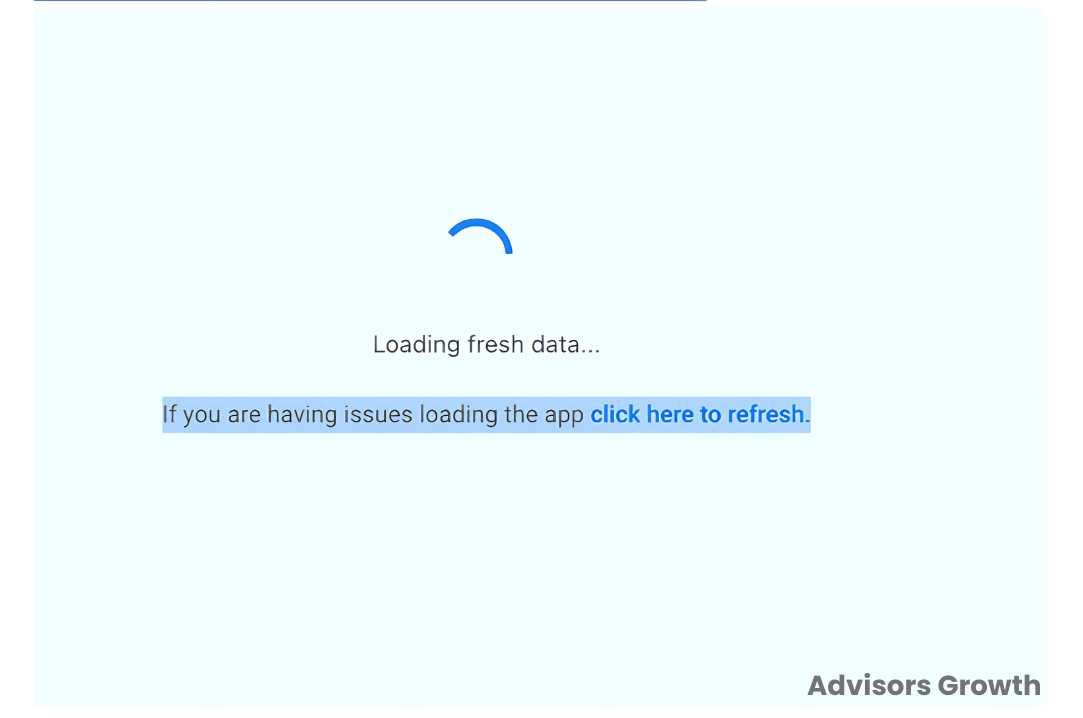
Loading Fresh Data:
Description: This state occurs after the initial app loading, when new data needs to be fetched based on user actions, real-time updates, or scheduled refreshes. The spinner indicates that fresh data is being retrieved from the server.
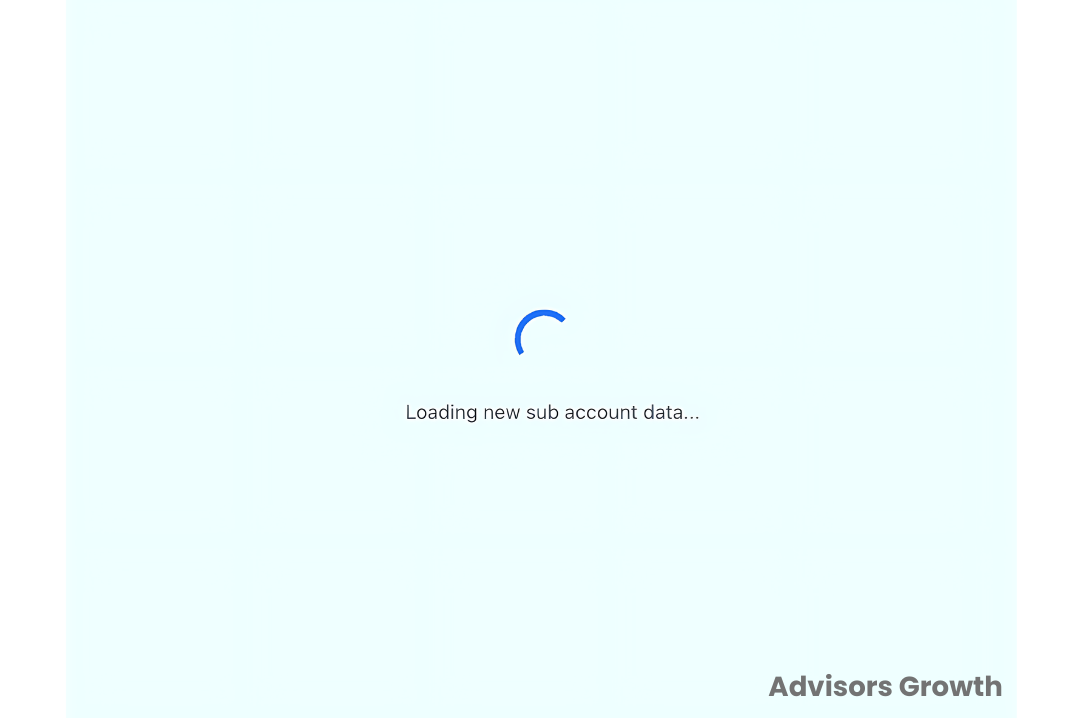
Retrieving Account Details:
Description: This state is activated when switching between accounts or loading specific information related to a particular sub-account, if your application supports multiple user accounts or sub-accounts.
Infinite Loading State:
Description: This undesirable state occurs when the app or a specific page doesn't load within a predefined time (like 30 seconds). The spinner keeps spinning without progress, indicating an issue preventing the page from loading correctly. A prompt saying "Click Here to refresh" will appear. Activating this button will refresh the page and automatically clear the browser cache, simplifying the troubleshooting process.
Note: When the refresh action is used during an infinite loading state, any errors on your end will be automatically captured and forwarded to our servers for in-depth analysis. This helps us refine the debugging process and continuously improve the platform experience.
Impact of Custom CSS or Custom JS
Custom CSS Interference:
Description: Custom CSS refers to modifications made to the styling and appearance of a webpage. If the custom CSS overrides or conflicts with the loader's styles or classes, it can disrupt the intended visual representation of the loader or cause inconsistencies.
Potential Issues: The loader may not display the expected visual states or animations, leading to confusion or a suboptimal user experience.
Solution: Review and adjust the custom CSS to ensure it aligns with any changes introduced in the loader, allowing for seamless integration of custom styling without interfering with the loader's intended behavior.
Custom JS Interference:
Description: Custom JavaScript code can impact the loader's functionality by altering its underlying logic or the events it listens to.
Potential Issues: If the custom JS modifies or overrides the loader's event handlers, it can disrupt its intended actions or prevent it from responding correctly to user interactions.
Solution: Review and adapt any custom JS code to work harmoniously with the loader's updated features and event system. This ensures the loader functions as intended and maintains its proper behavior during various loading states.
Manual Troubleshooting
If the new loader's refresh button doesn't work or your custom CSS/JS interferes with the loader's operations, manual troubleshooting might be required.
Clearing Site Data and Cookies:
Steps:
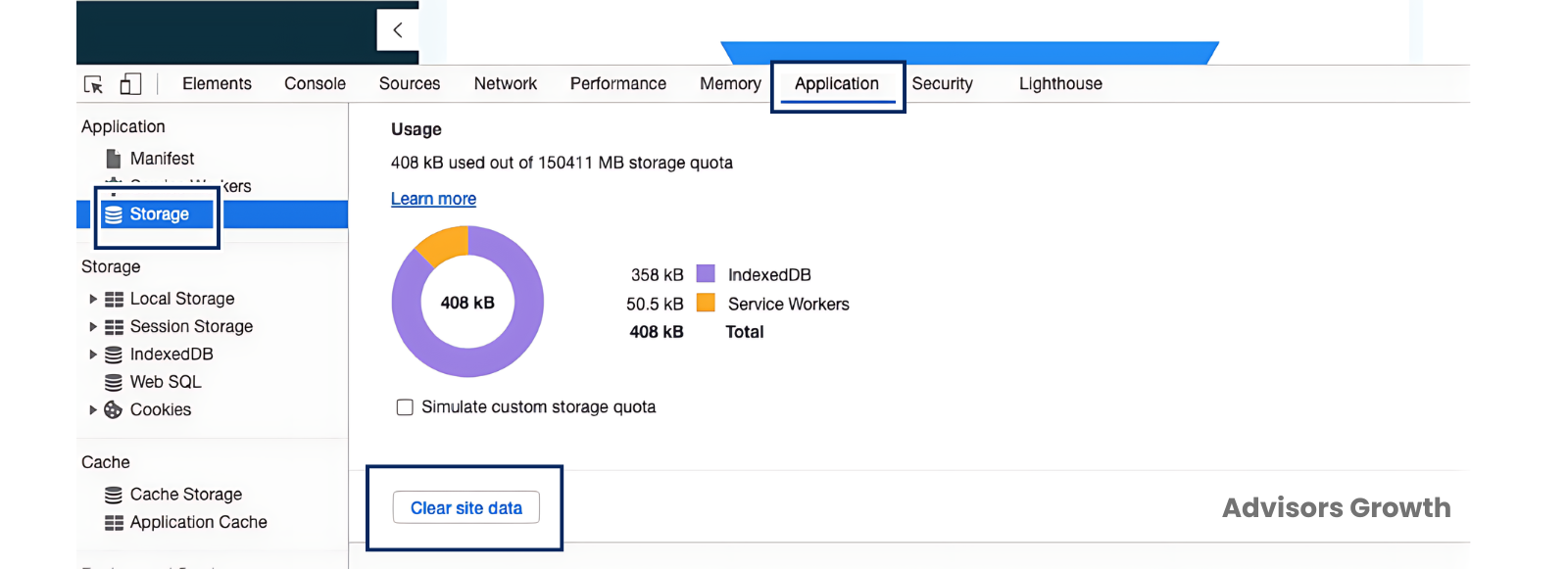
Open the inspection pane in your browser (right-click on the screen and select "Inspect").
Navigate to the "Application" tab and choose "Storage."
Click on "Clear Site Data."
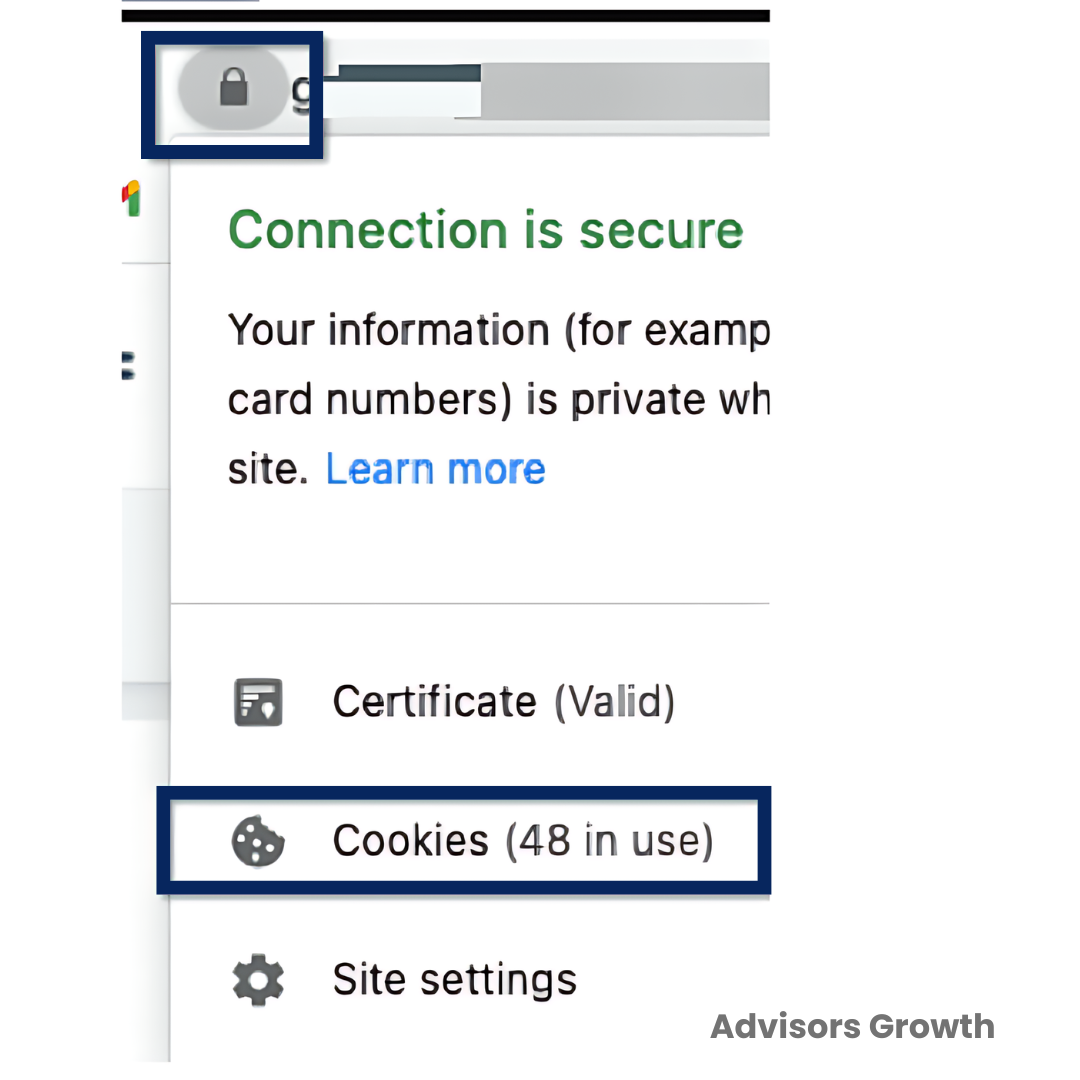
Navigate to the lock icon next to the URL at the top of the page, select "Cookies," and click "Remove."
Refresh your browser page (Command + R on Mac, Control + F5 on PC).
If the Page Gets Stuck:
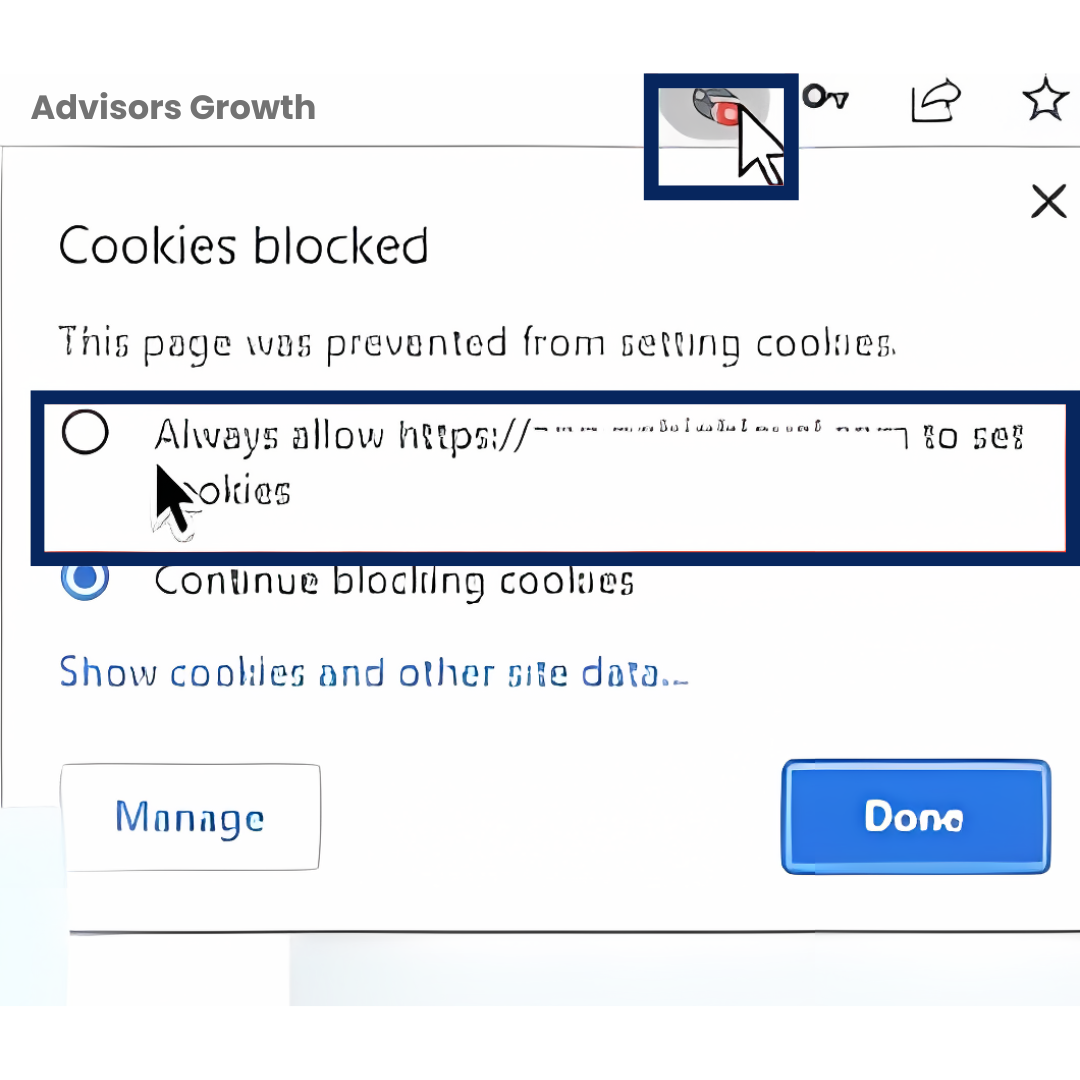
Solution: Click on the paint icon with a red cross next to the search bar, enable the ‘Allow Cookies for this site’ option, click 'Done', and then refresh the page.
Slow CRM Data Loading
If your dashboard is loading slowly or it takes a while for data to show up on a specific module, follow these troubleshooting steps:
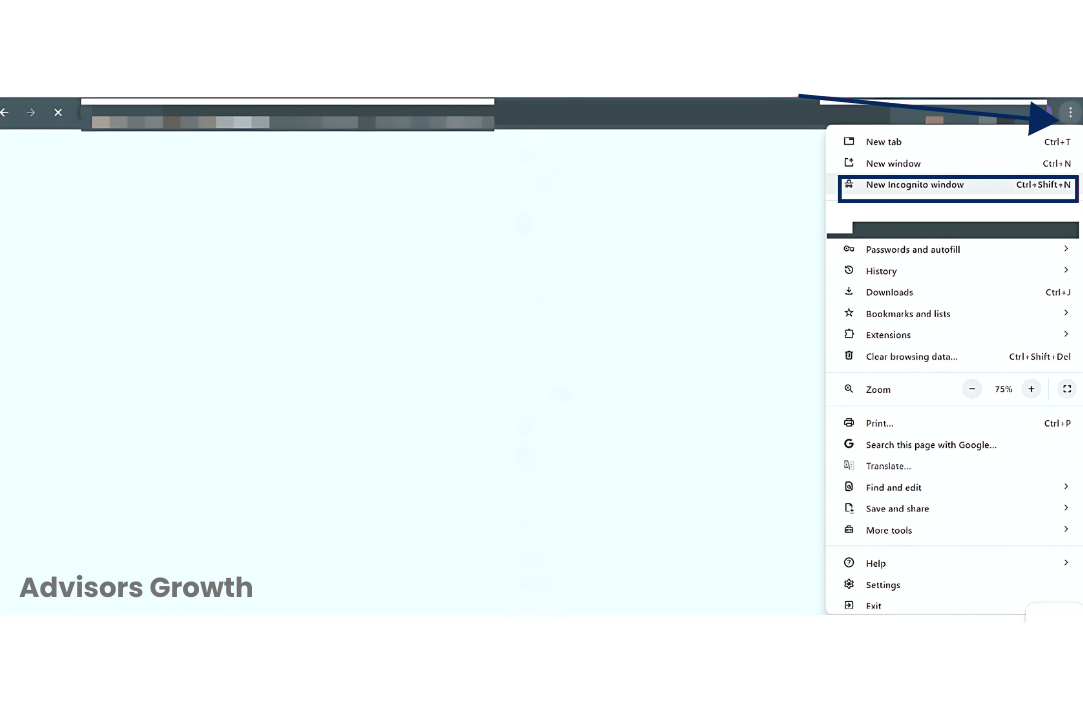
Use an Incognito Window:
Steps: Log in using an incognito window and check if the issue persists. If resolved, the issue might be related to the browser cache.
Clear Browser Cache:
Steps:
For Chrome: chrome://settings/siteData
For Edge: edge://settings/clearBrowserData?search=cache
If using another browser, search for instructions on how to clear cookies/cache.
Disable Browser Extensions:
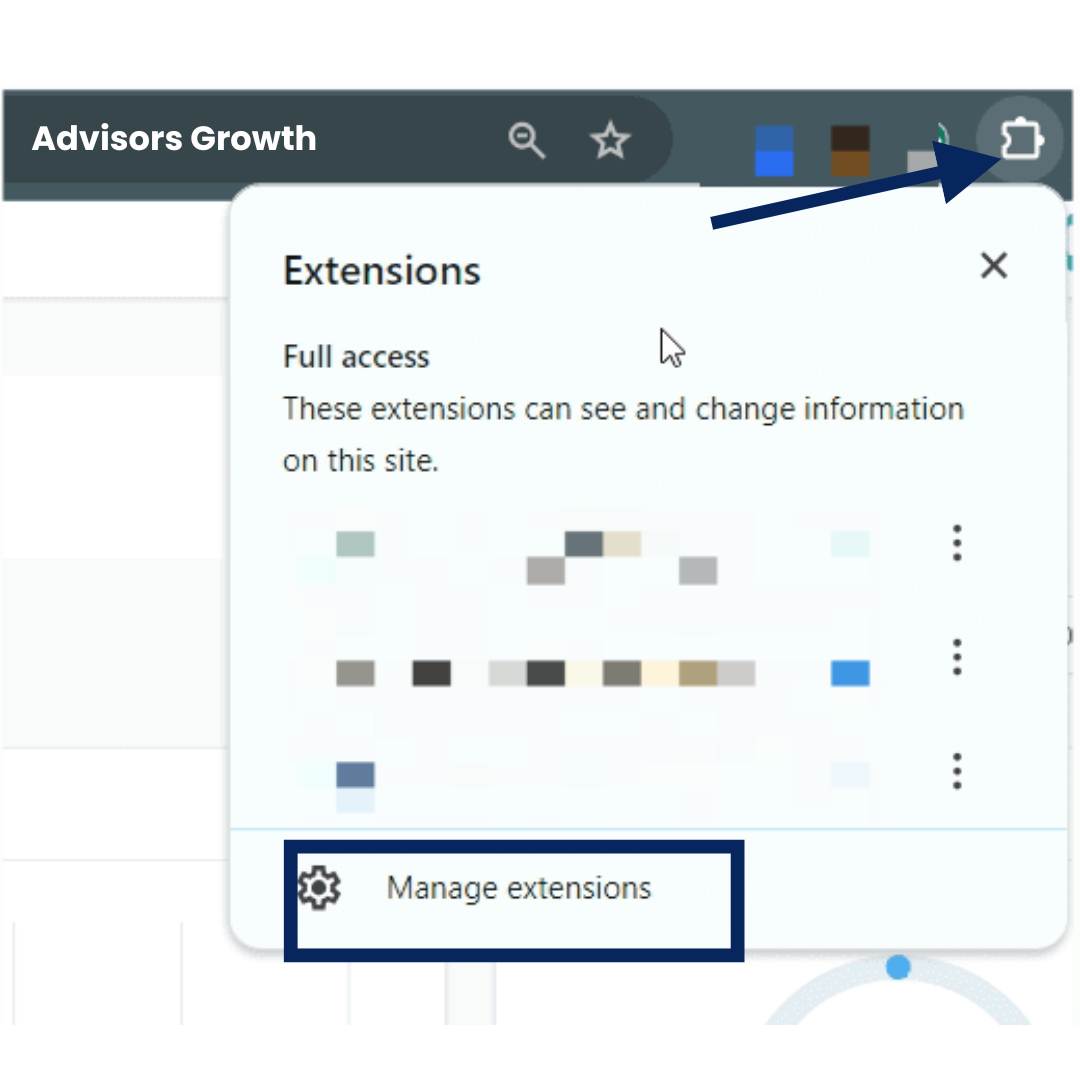
Steps: Disable all browser extensions and check if the issue is resolved.
Try Different Browsers:
Steps: Use different browsers like Firefox, Safari, or Chrome and check if the issue persists.
By following these steps, you can effectively troubleshoot and resolve issues related to CRM loading states and the impact of custom CSS and JS on the loader's functionality.