
How To Upload Images and Use the Media Library
Your Media Library allows you to store image files for use across Advisor's Growth. You can upload images from your own devices, add images from Pixabay and Unsplash (free image providers), and organize them into folders. By saving images in your Media Library, you can regularly access and utilize the same images or logos without having to re-upload them.
Step 1: Accessing the Media Library
Navigate to Settings > Media: This is where you can access your Media Library.
Access from Builders: You can also access your media library from the funnel builder, website builder, social planner, or email builder.

Step 2: Navigating the Media Library
Sort Through Files and Folders: Use the Media Library interface to sort and manage your files.
Upload Media and Create Folders: Use the buttons in the top right corner to upload media and create folders.
Search and Add Images: Use the search function to find media you've uploaded, and add images from Unsplash or Pixabay.
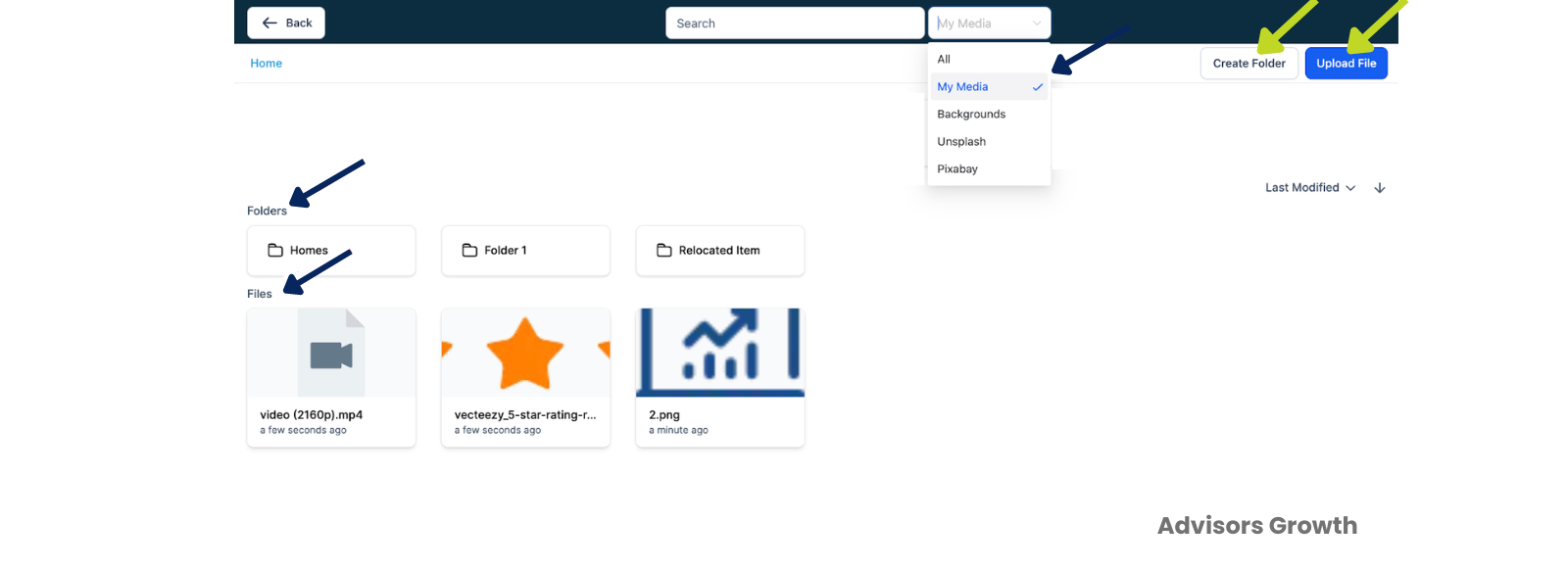
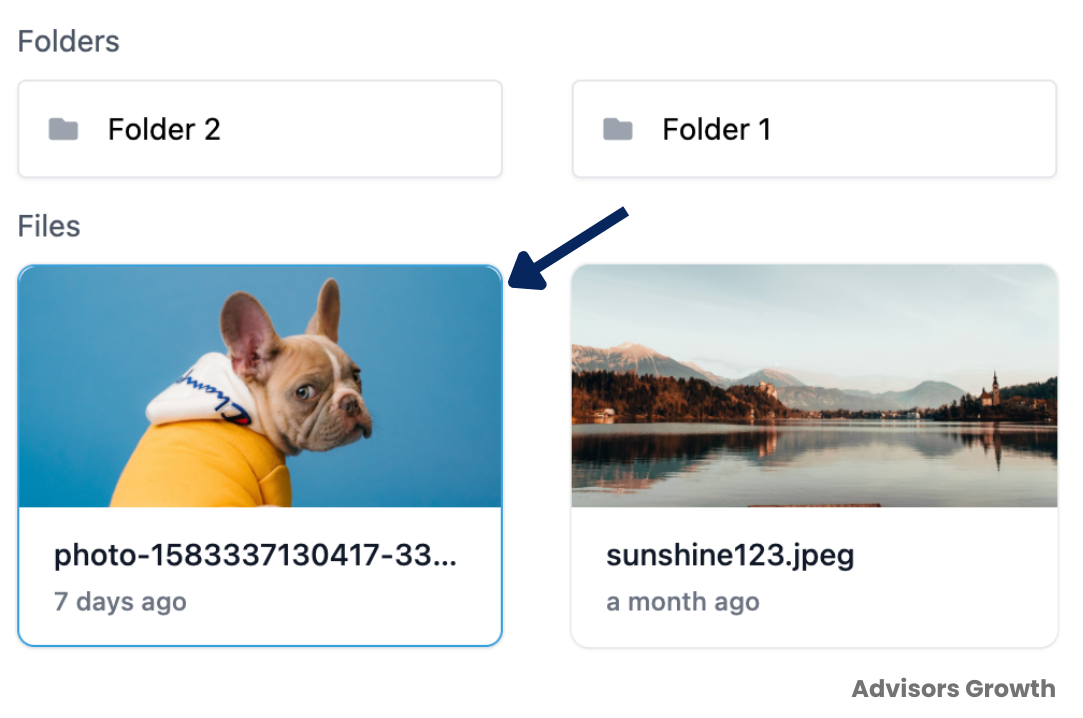
Selecting an Image:
Click on an image to select it (a blue box will appear around the selected image).
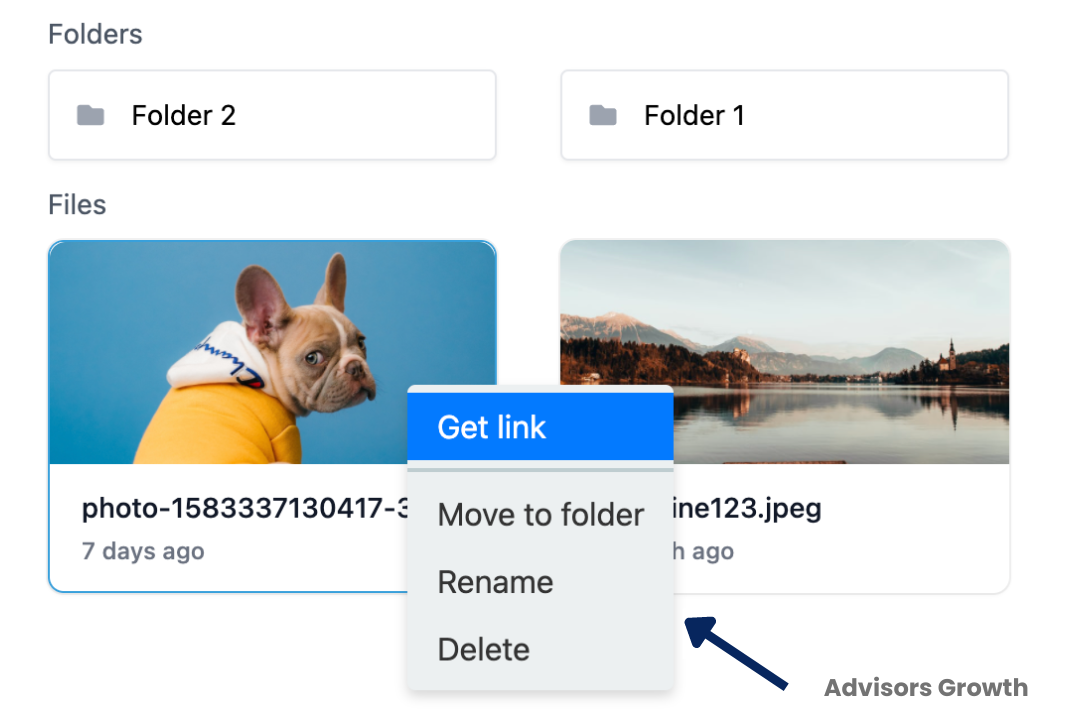
Right-click on an image for a dropdown menu with options like get link, move to folder, rename, or delete.
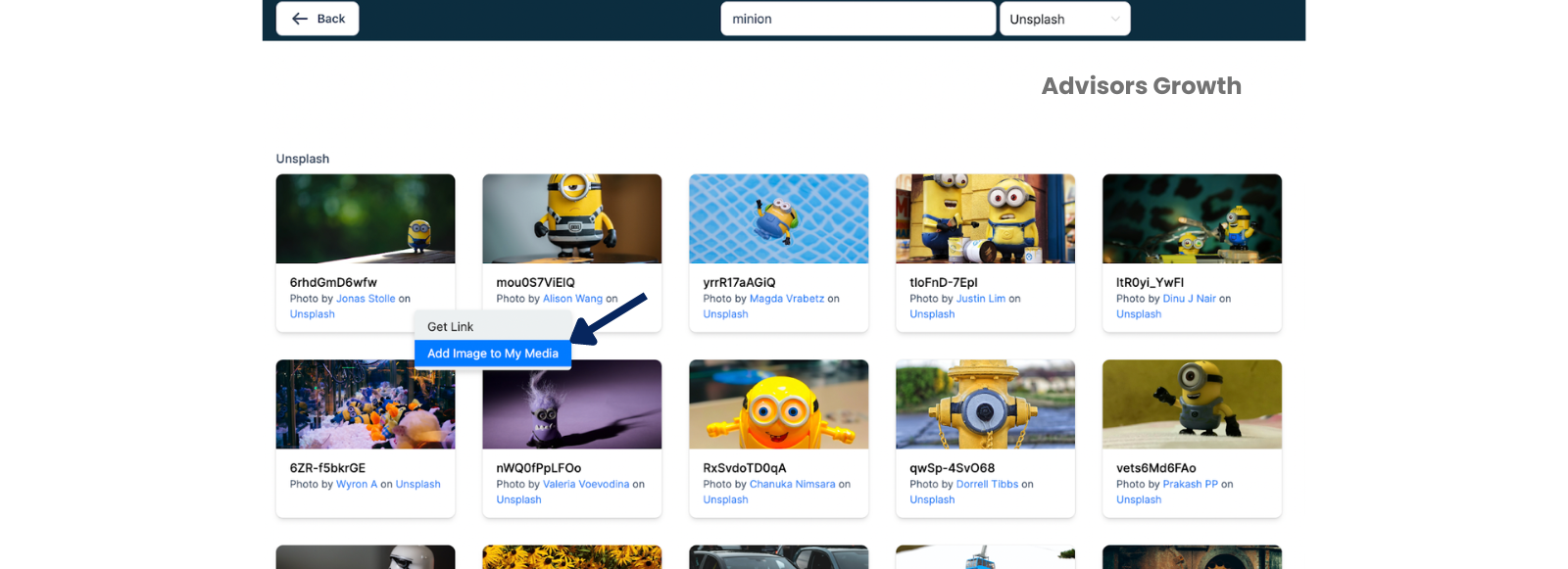
Adding Images Using Unsplash/Pixabay:
Always add images to your media before using them. If you use images without adding them to your library first, the link will expire in about a day, causing the image to not be displayed. Always add images from your My Media / Backgrounds folder.
Step 3: Using Images in the Funnel or Website Builder
Navigate to Funnels or Websites: Choose a funnel or website you want to edit.
Edit a Funnel Step or Page: Select the step or page to edit.
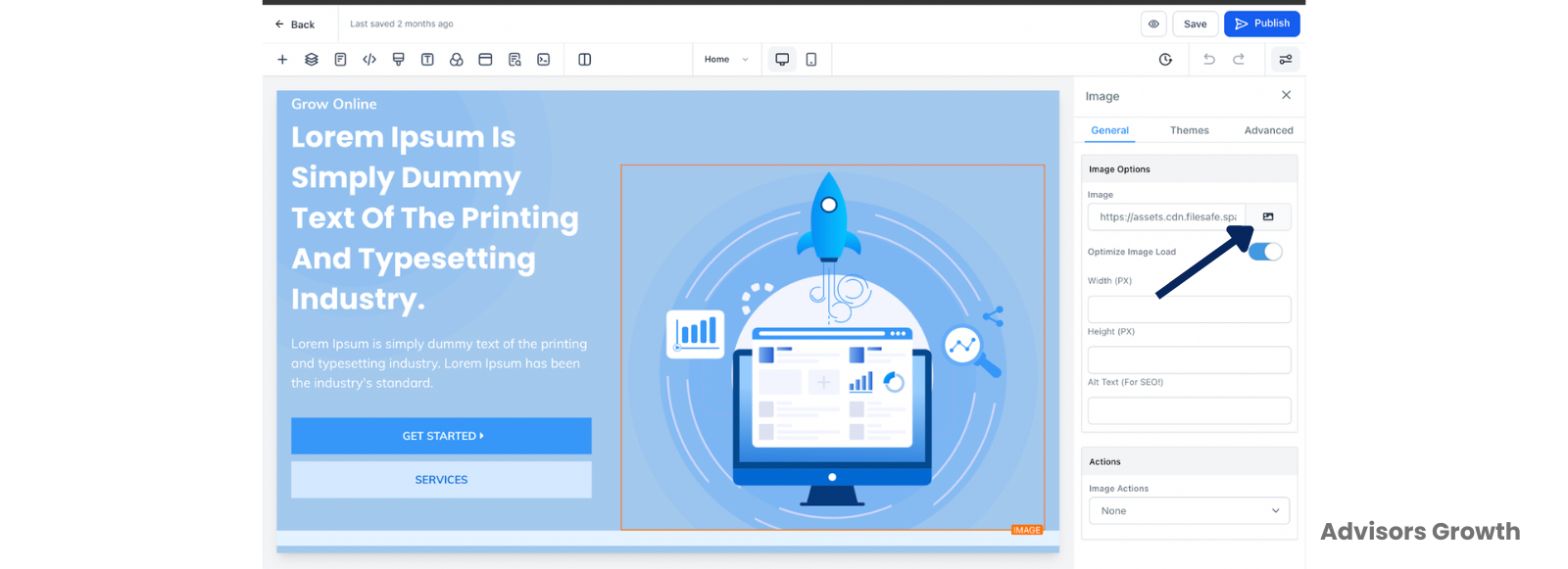
Add an Image Element: Use the drag-and-drop feature to add an Image element to the funnel page.
Select Image from Library: Click on the “Image Library” icon, choose or upload an image from your Media Library.
Save Changes: Save your changes to the Funnel/Website page.
Getting the Image URL:
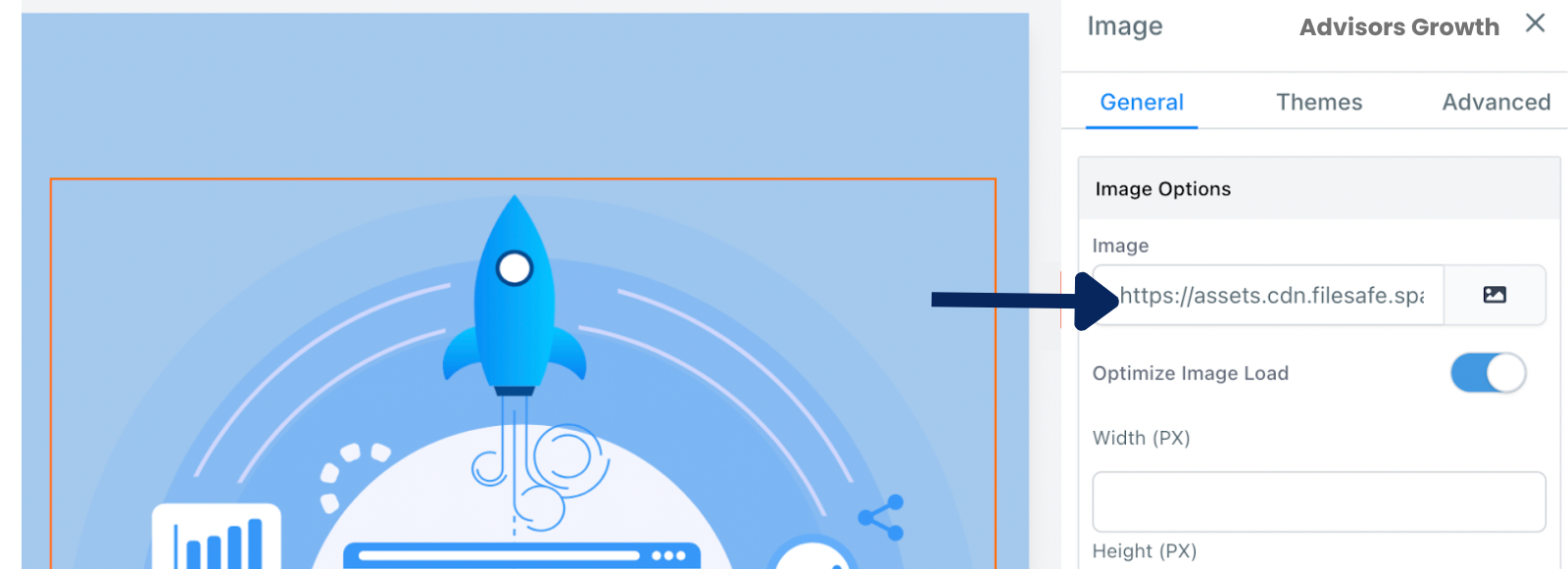
Use the Get Link button in the image options in the media library, or add the image to your funnel, select the image, and copy the URL under Image in the Element Settings.
Step 4: Using Images in the Email Builder
Navigate to the Email Builder: Choose the email template you wish to edit.
Add an Image Element: Use the drag-and-drop feature to add an image element.
Add or Replace Image: Using the menu on the left-hand side, access the Media Library and choose your image.
Save Changes: Save your changes to the email template.
Pro Tip: Name your images and use folders to stay organized. This makes searching for images easier. Descriptive names like “Puppies,” “Coffee Mug,” or “Sunset” are better than “img123.jpg.” Using folders, such as “Logos” or “Nature scenes,” can also help manage images without renaming them individually.
Step 5: Using Images in the Social Planner
Navigate to the Social Planner: Create or edit a post.
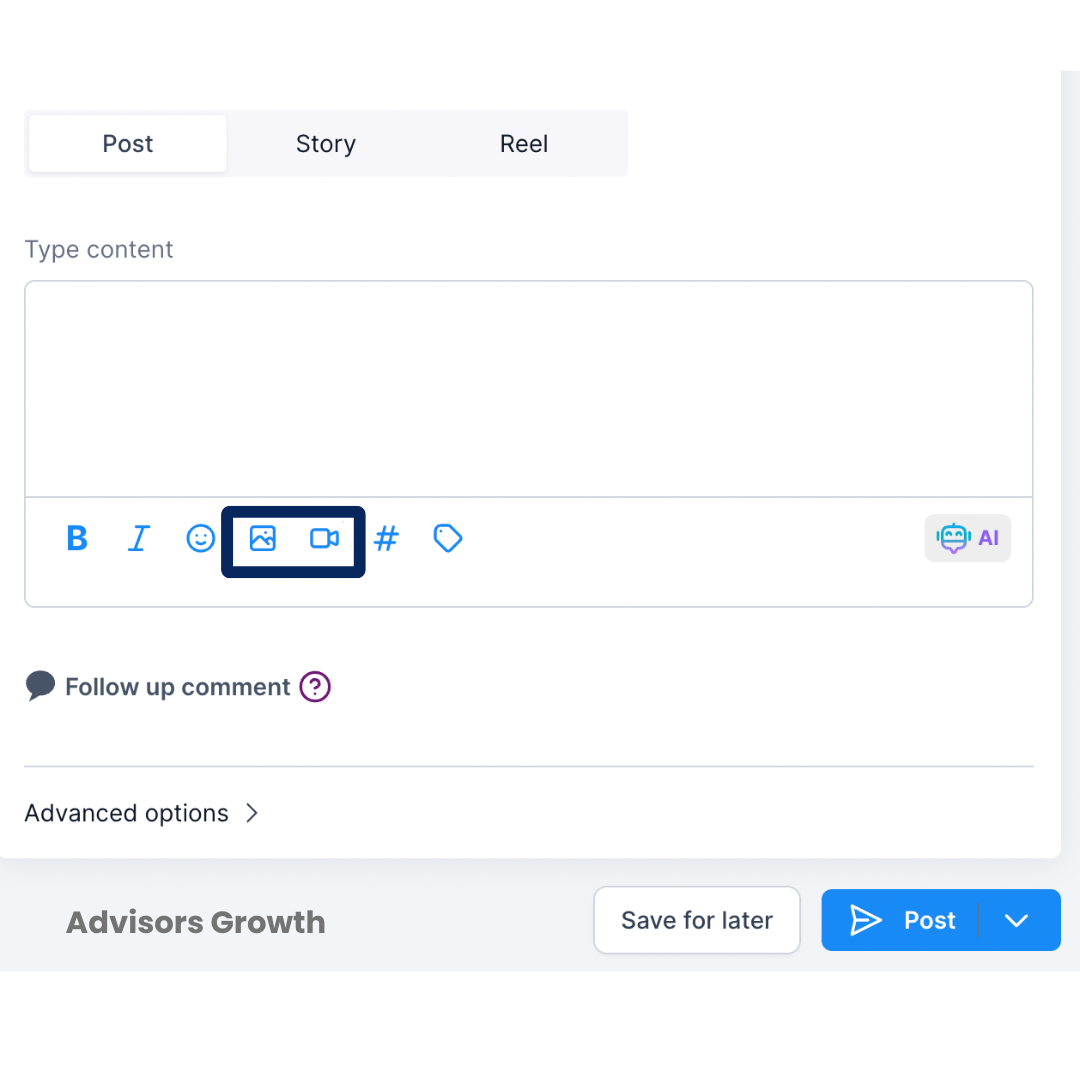
Add an Image or Video: Use the image/video icon to add media.
Choose Your Image: Select the image from your Media Library.
Media Library Specs & Formats
Allowed File Types:
Image: PNG, JPEG (.jpg, .jpeg, .jfif, .pjpeg, .pjp), TIFF/X-TIFF (.tif, .tiff), WEBP, SVG, ICON (.ico, .cur), GIF.
Documents: PDF (.pdf), Word Doc (.doc, .docx), Excel (.xls, .xlsx, .xlsm), PowerPoint (.ppt, .pptx, .pptm), Text (.rtf, .txt).
Video: AVI (.avi), QuickTime (.qt, .qtc, .mov, .moov), MP4 (.mp4), MPEG (.mpg), Ogg (.ogv), Windows Media Video (.wmv, .asf), WebM (.webm).
Audio: AIFF (.aif, .aiff, .aifc), MIDI (.midi, .mid), WAV (.wav), Ogg (.oga), WebM Audio (.weba).
Maximum File Size:
Videos: 4GB
Documents: 100MB
Audio: 100MB
Images: 100MB
Additional Specs for Funnels and Social Planner:
Funnels: Same as above, with a maximum file size of 4GB for videos and 100MB for documents, audio, and images.
Social Planner: Images (PNG, JPEG, GIF) with a maximum file size of 10MB, and videos (AVI, QuickTime, MP4, Ogg, Windows Media Video, WebM) with a maximum file size of 1GB.
Other File Upload Options:
Membership Course Videos: 4GB
Membership Course Files: 50MB
File Upload Custom Field: 50MB