
How to Change a Logo in the Funnel or Website Builder
Adding or updating a logo on your page is quick and easy, helping to maintain your business's branding consistency. You can change the logo in two types of elements: the navigation menu element and the image element. Follow these steps to update your logo:
Changing the Logo in the Navigation Menu Element
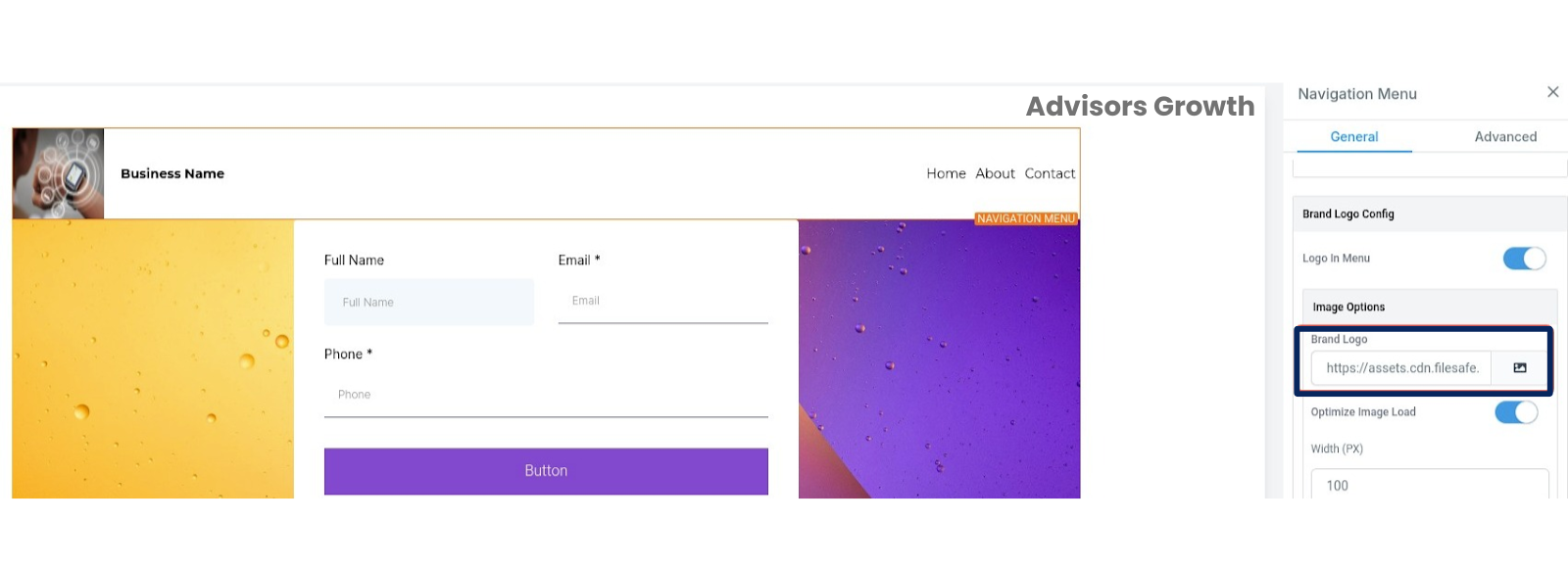
Select the Navigation Menu Element:
Click on the navigation menu element where your logo is currently placed.
Update the Logo:
Scroll down to the Brand Logo section in the settings.
Select the logo from the media library or upload a new one if you don’t have it in the library.
Choose the new logo image.
Save and Publish:
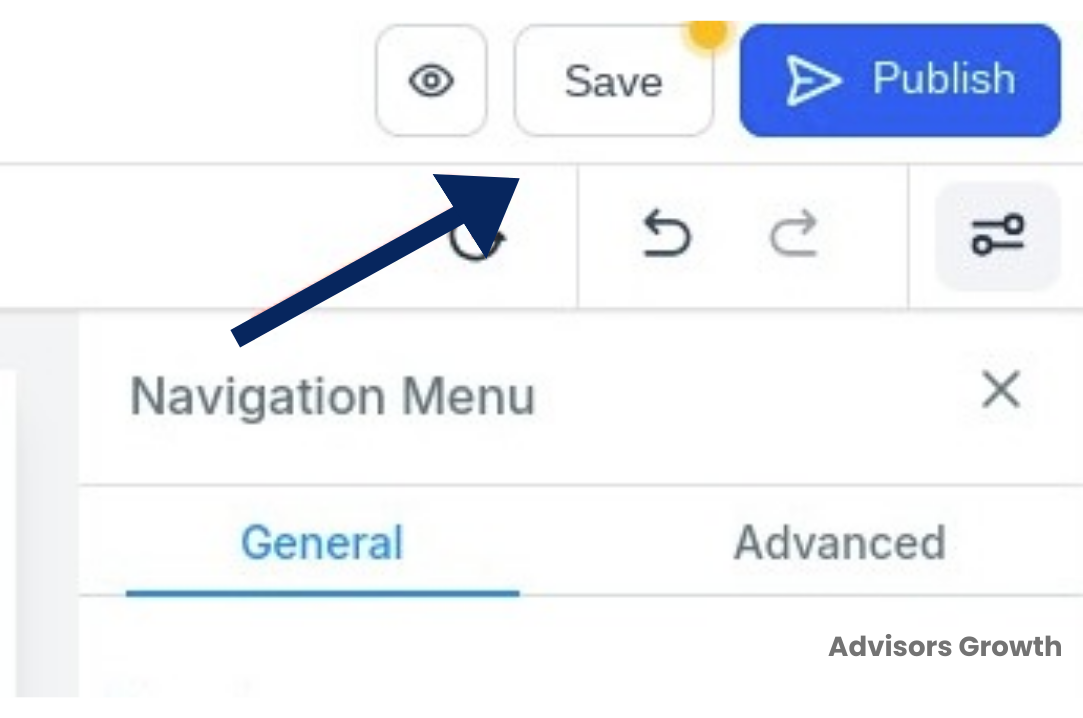
Save your changes.
Publish the updates to see your new logo live on your site.
Changing the Logo in an Image Element
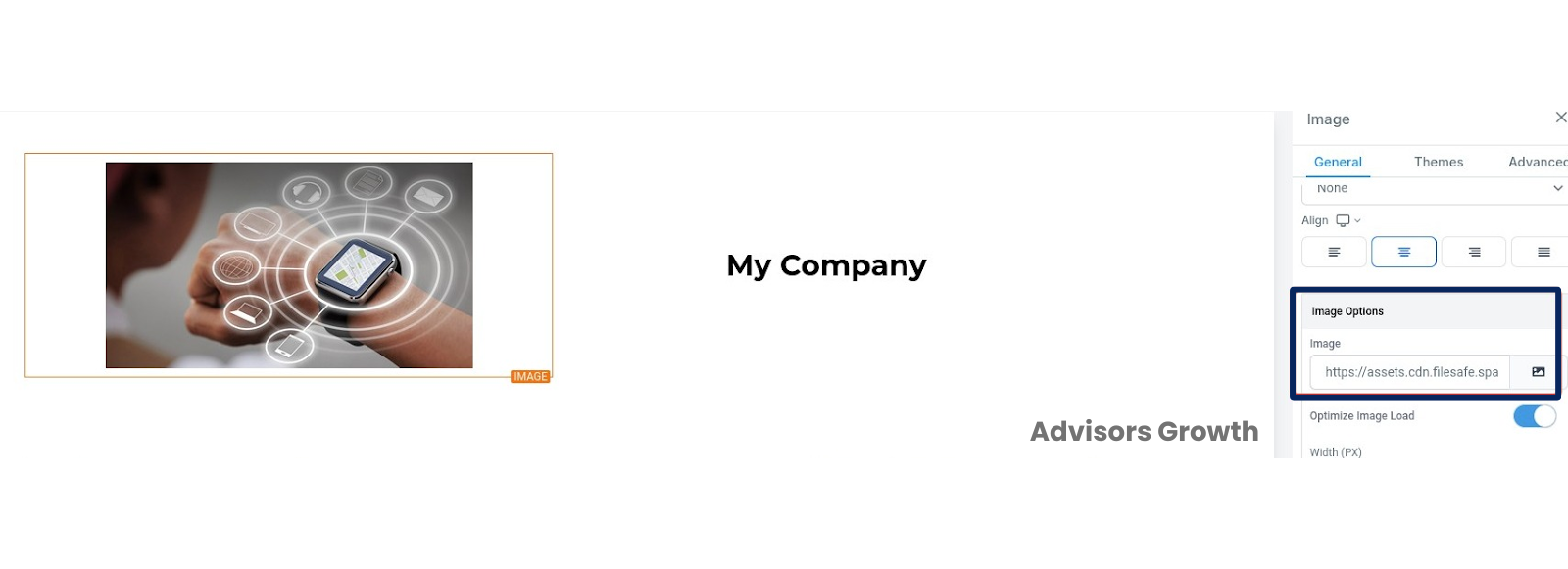
Select the Image Element:
Click on the image element where your logo is placed.
Update the Logo:
On the right side menu, under Image Options, select your new logo image from the media library.
Upload a new image if necessary.
Save and Publish:
Save your changes.
Publish the updates to see your new logo live on your site.
 By following these steps, you can easily update your logo in both the navigation menu and image elements within the funnel or website builder, ensuring your site reflects your brand accurately.