How To Add Hyperlinks to Websites and Funnels
Hyperlinks are essential for connecting different pages within your website or funnel. Here's a step-by-step guide on how to add hyperlinks using the Advisor's Growth platform.
Step 1: Navigate to Your Site or Funnel
Go to Sites and select either a Funnel or a Website.
Step 2: Edit the Desired Page
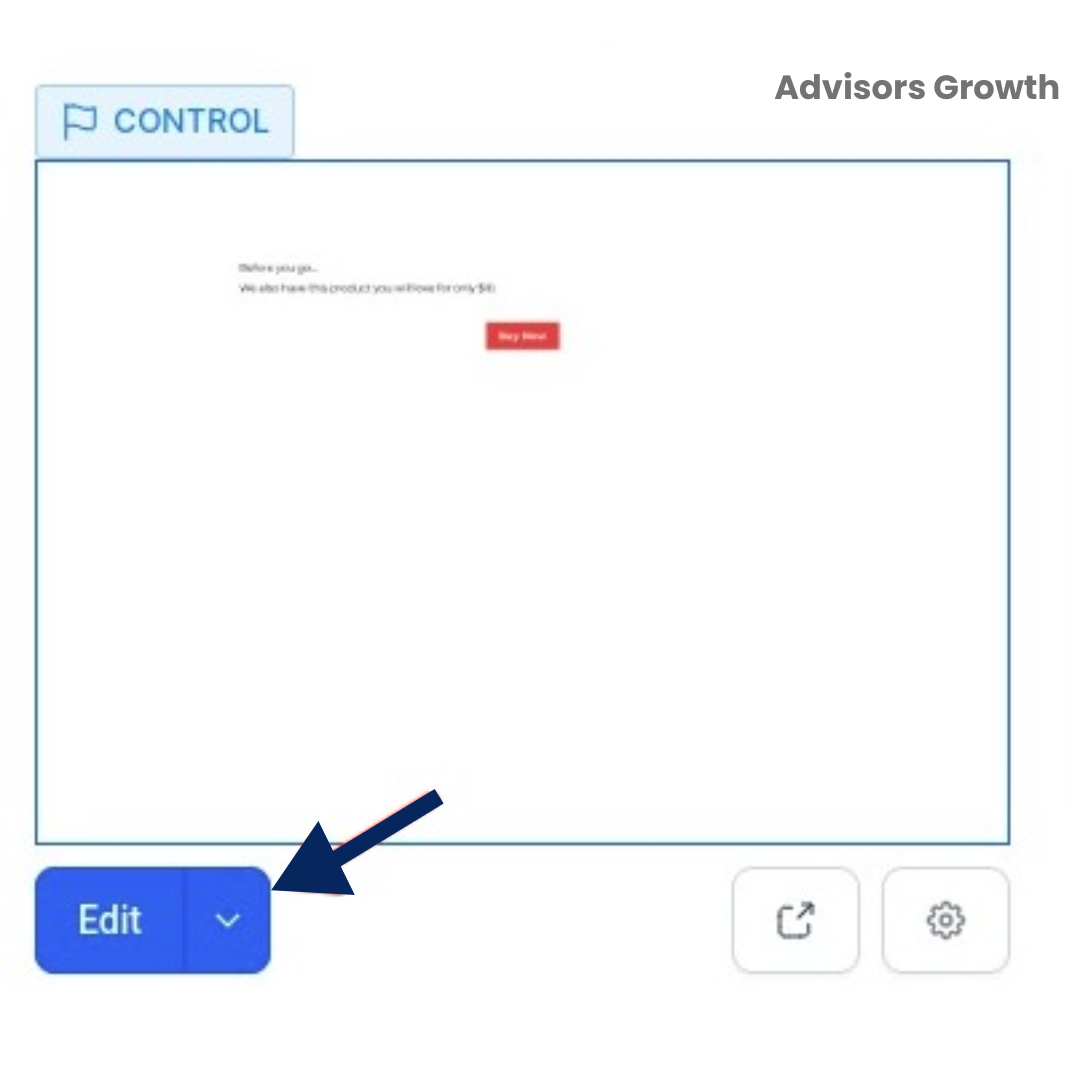
Click the edit icon for the page you wish to modify.
Step 3: Highlight Text for Hyperlink
In the builder, highlight the text you want to turn into a hyperlink.
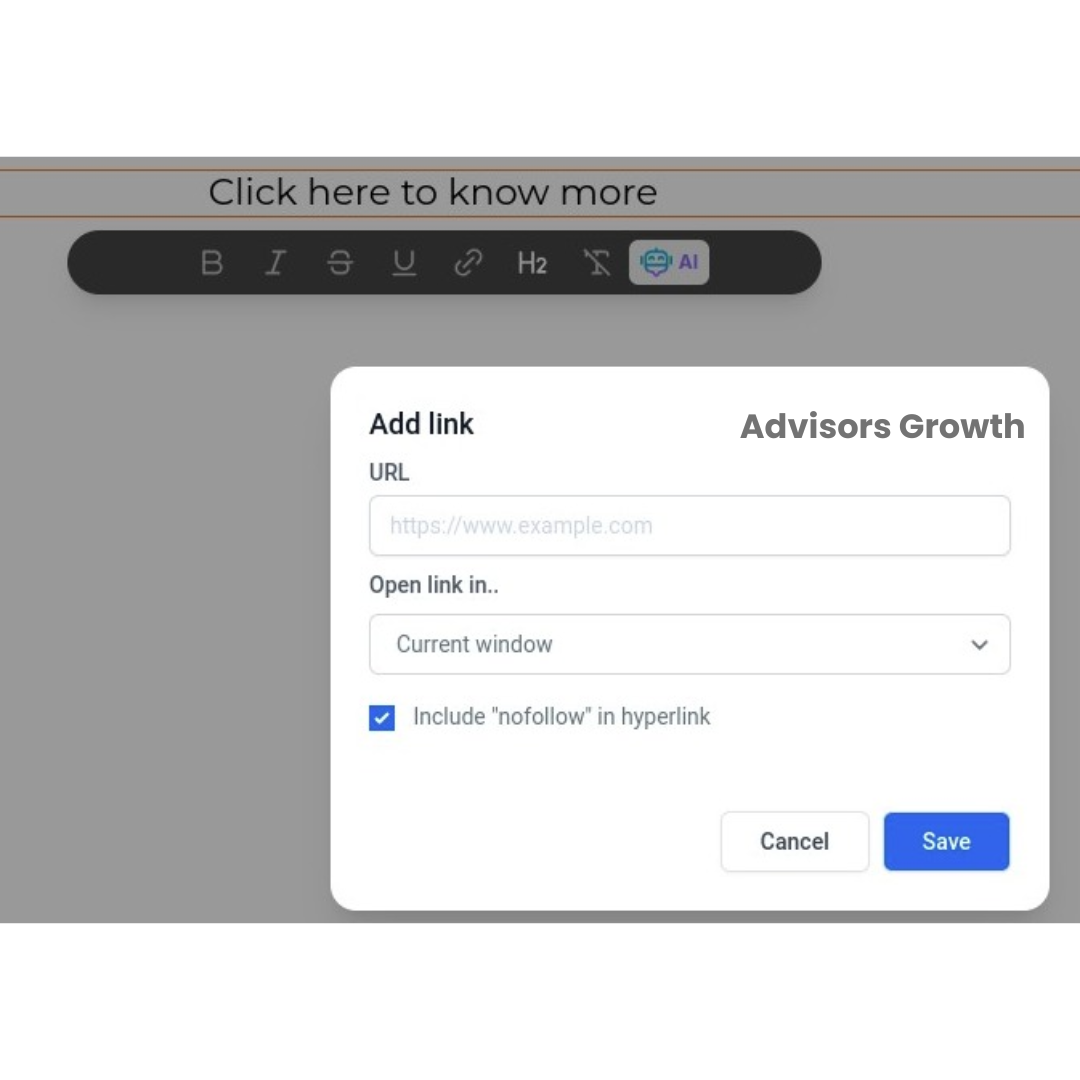
A small menu will appear at the top of the screen. Click the hyperlink icon, and a popup window will appear.

Step 4: Enter URL Details
In the popup, enter the URL you want the hyperlink to point to.
Choose whether the link should open in the current window or a new window.
Optionally, check the ‘Include nofollow in hyperlink’ option to add the “nofollow” attribute for SEO purposes.
Step 5: Save Changes
Click Save in the popup to confirm the hyperlink.
Step 6: Save the Page
Click Save in the top right corner of the builder to save the hyperlink along with any other changes you’ve made.
Step 7: Verify the Hyperlink
Hover over the hyperlink to view the URL that visitors will be redirected to.
By following these steps, you can effectively add hyperlinks to your website or funnel, enhancing navigation and user experience on the Advisor's Growth platform.