How to Add Canonical Links to Your Funnel or Website
Canonical links are vital for SEO as they help manage duplicate content by directing search engines to the primary version of a webpage. Here’s a step-by-step guide on how to add canonical links to your funnel or website.
What is a Canonical Link?
A canonical link tells search engines which URL is the preferred version of a page when similar or duplicate content exists across multiple URLs. This helps prevent duplicate content issues and ensures that search engines index and rank the primary version of the page.
Example: If you have:
You should choose one URL (preferably the cleaner one) as the canonical URL. This indicates to search engines which version of the page should be indexed.
Adding the Canonical Link to the SEO Meta Data
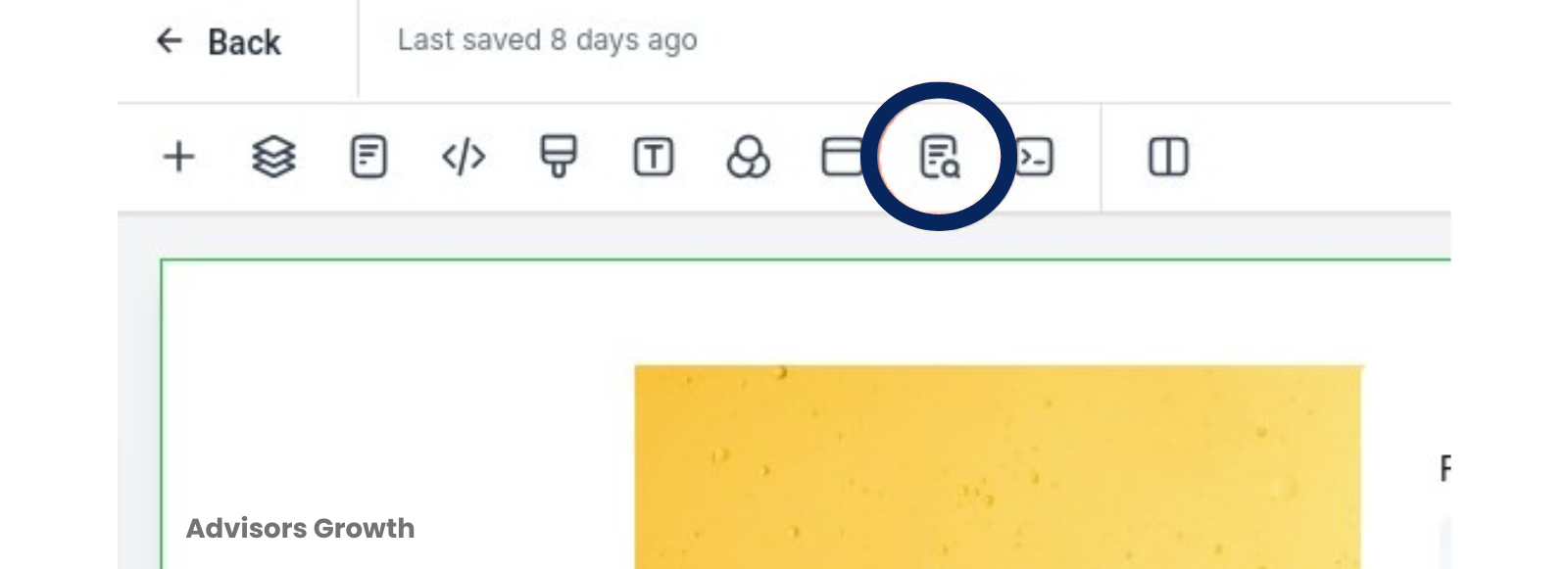
Navigate to SEO Meta Data:
Open the page editor or builder for your funnel or website.
Locate and click the “SEO Meta Data” tab in the top navigation menu.
Add Canonical Link:
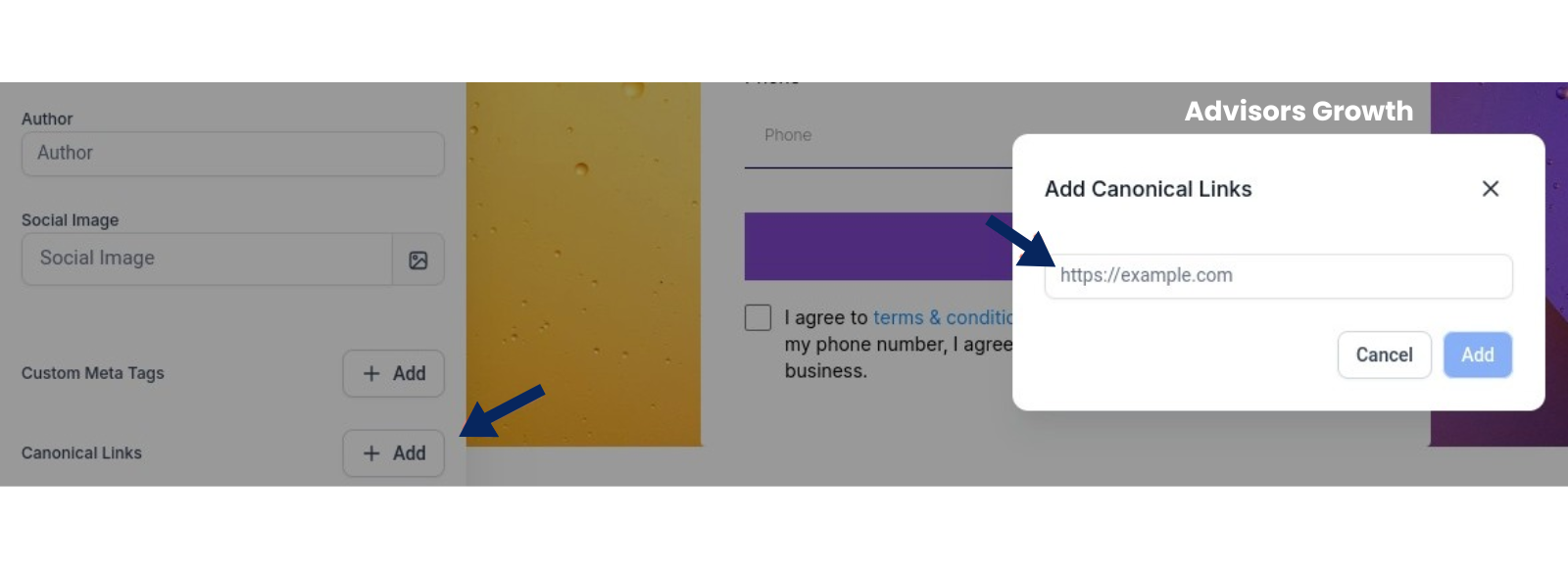
In the SEO Meta Data section, scroll to find the "Canonical Links" option.
Click the “+Add” button.
Enter the URL of the primary page you want search engines to index as the canonical version.
Save Your Settings:
Click “Save” to store the canonical link settings in the SEO Meta Data section.
Ensure you also save changes on your funnel or website page to apply the canonical link.
Verifying the Canonical Link is Working
Preview the Page:
After saving, preview the page to ensure that the canonical link is correctly set.
Check the Source Code:
Right-click on the page background and select “View Source Code” from the context menu.
In the HTML source code, search for the canonical link element. It should appear as follows:
html
Copy code
<link rel="canonical" href="http://example.com/page" />
Verify that the href attribute points to the correct canonical URL you specified.
By following these steps, you ensure that your canonical links are properly set up, helping to improve your SEO by managing duplicate content effectively.