How To Activate The One-Click Purchase In Your Funnel Step
One-Time Offers (OTOs) or Upsell Offers are a powerful way to increase revenue by offering customers additional products or services after they have made a purchase. This guide explains how to add an upsell in your funnel using the one-click purchase feature.
Step 1: Creating the Upsell Funnel Step
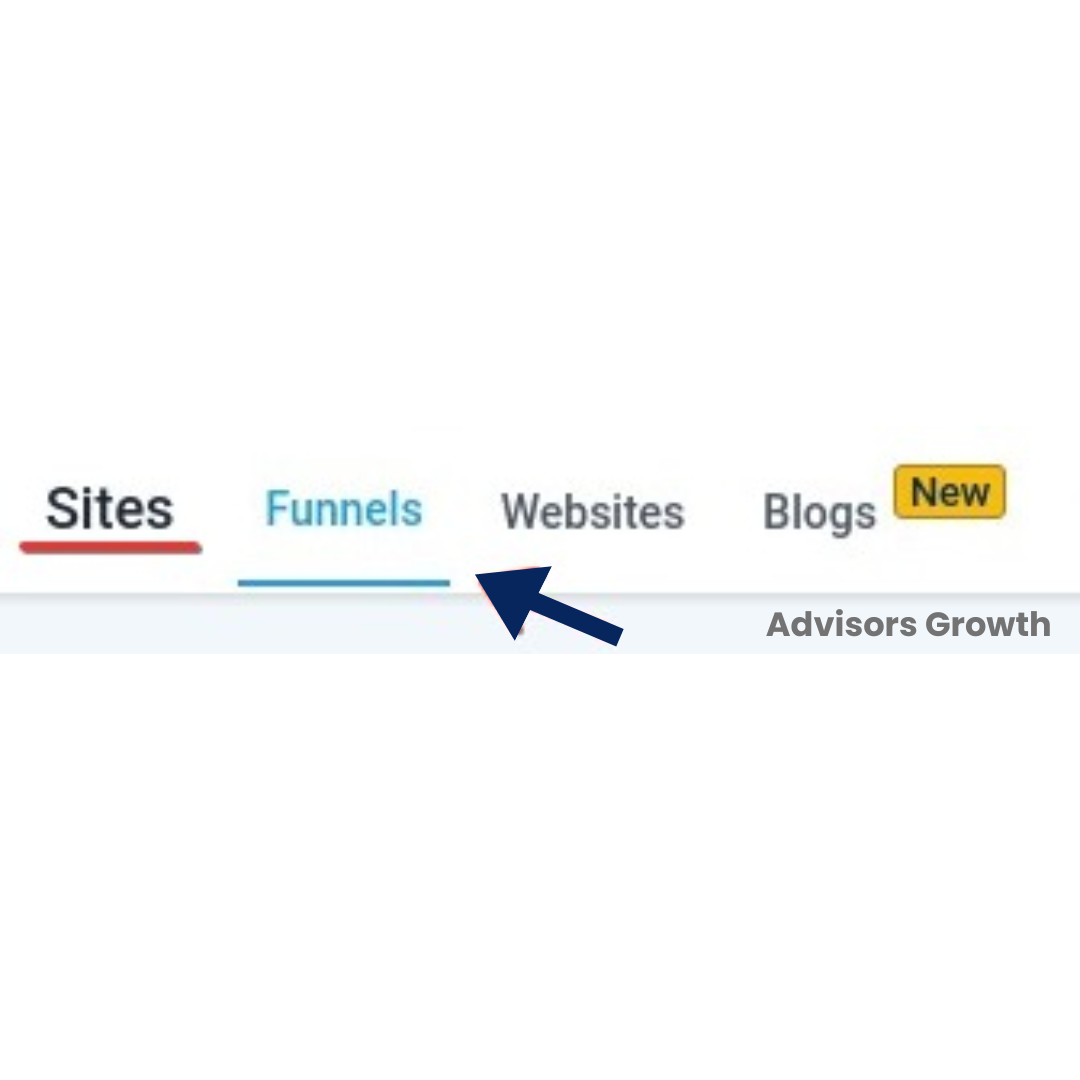
Navigate to Sites - Funnels
Go to the Funnels section in your dashboard.
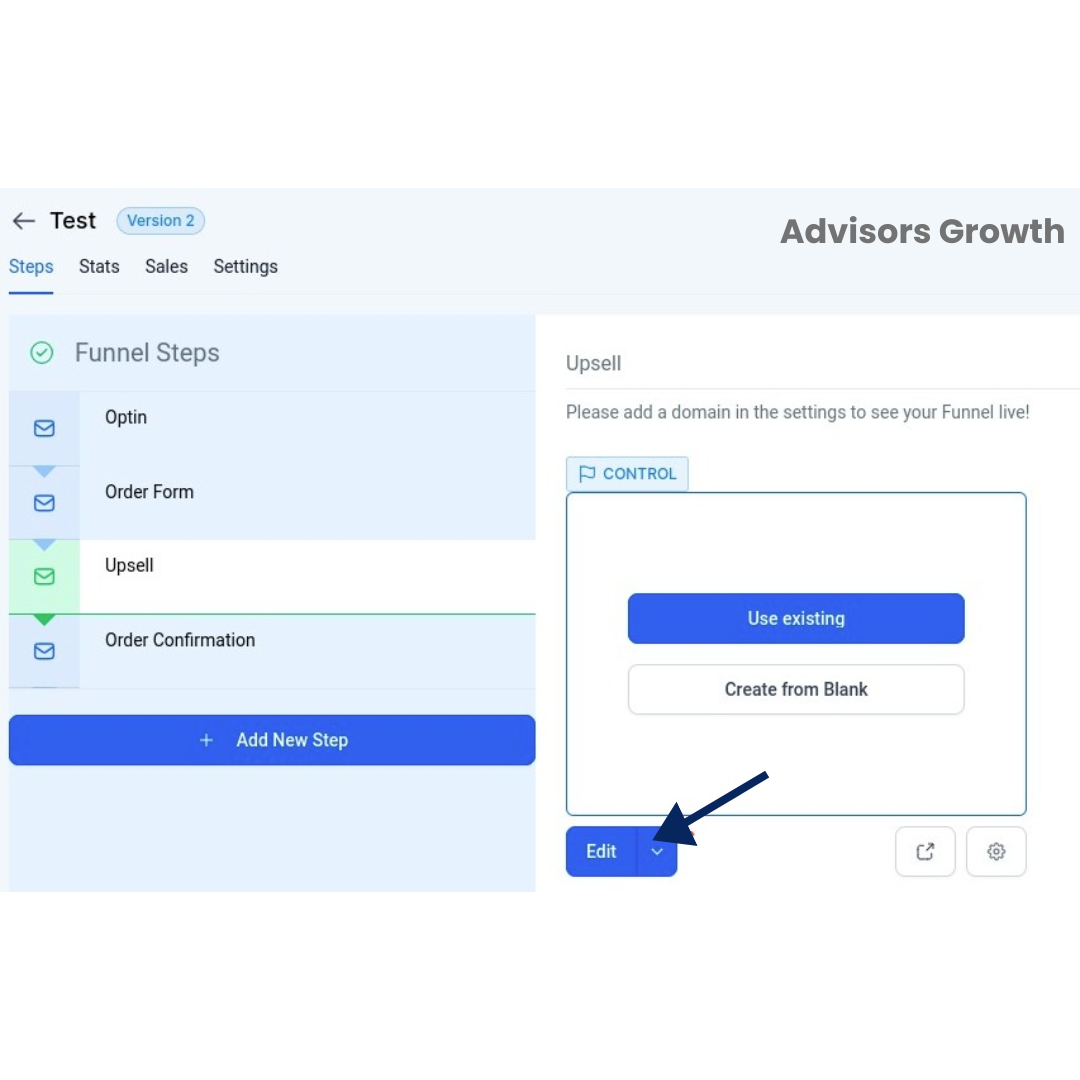
Select the Funnel you wish to update
Choose or create the step where you want the upsell to be. Note: It must be after the Order Form funnel step.
Edit Page to access the page editor
Click Edit Page.
Customize your page as needed, explaining your product or service.
Add a button to make the call to action.
Set Up the One-Click Upsell
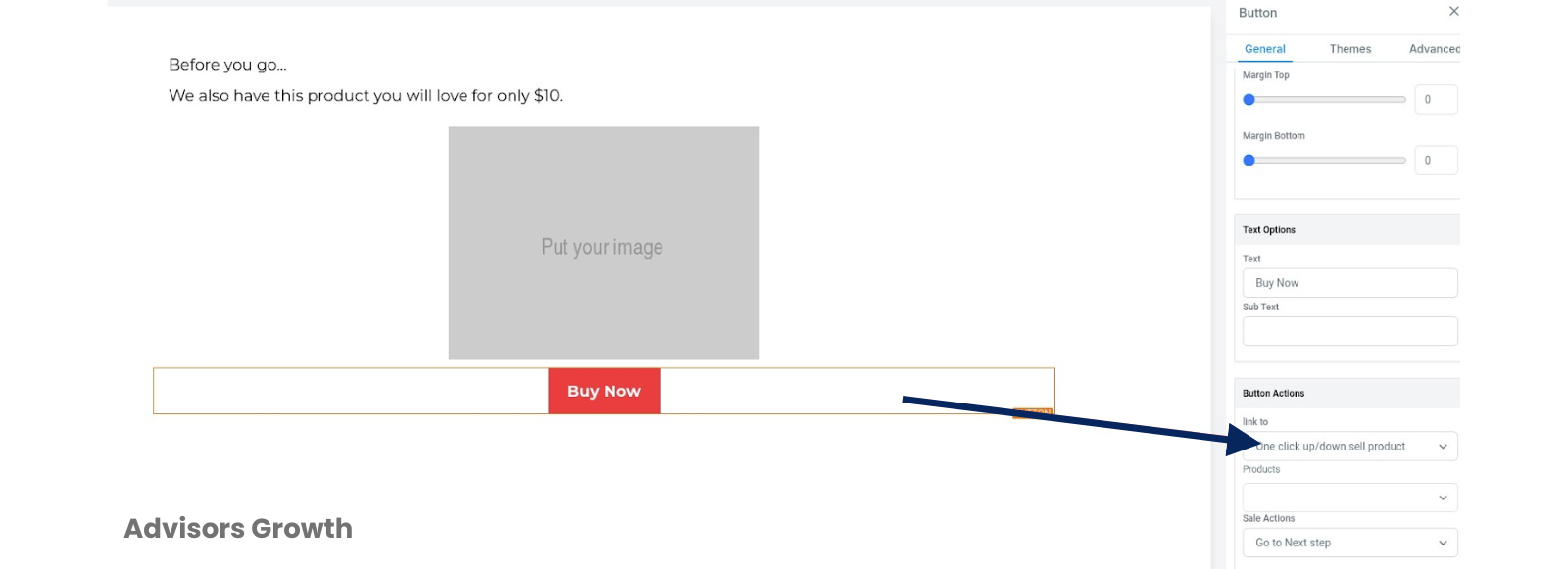
Click on the button to open the right-side menu.
Under the redirect options, select One Click Up/Down Sell Product.
Step 2: Connecting With Your Product
Select the Product
Below the upsell redirect option, you will see a field to select the product.
Choose your product from the dropdown list.
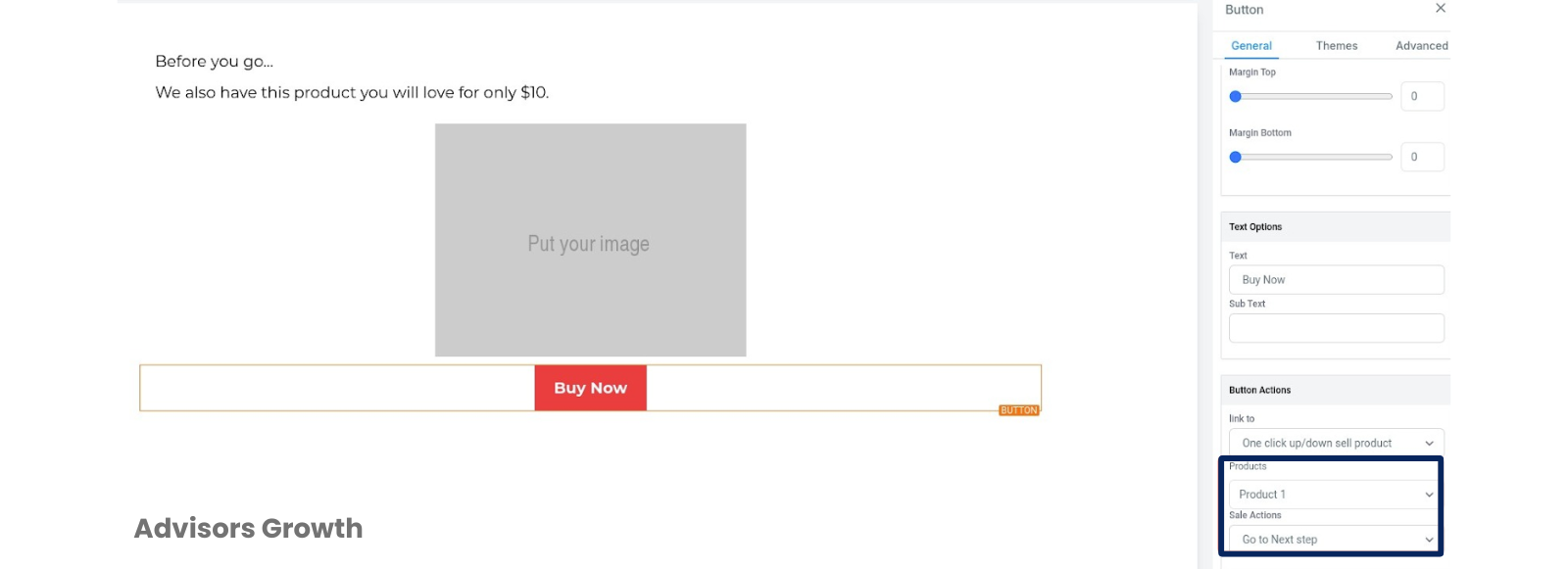
Set the Sale Action
Select the action that will occur once the sale is made (e.g., redirect to another page, show a thank you message, etc.).
Save Changes
Ensure you have added the product to the funnel step first to be able to select it from the options.
Save to confirm your changes.
Step 3: Test your Funnel
Enable Test Mode
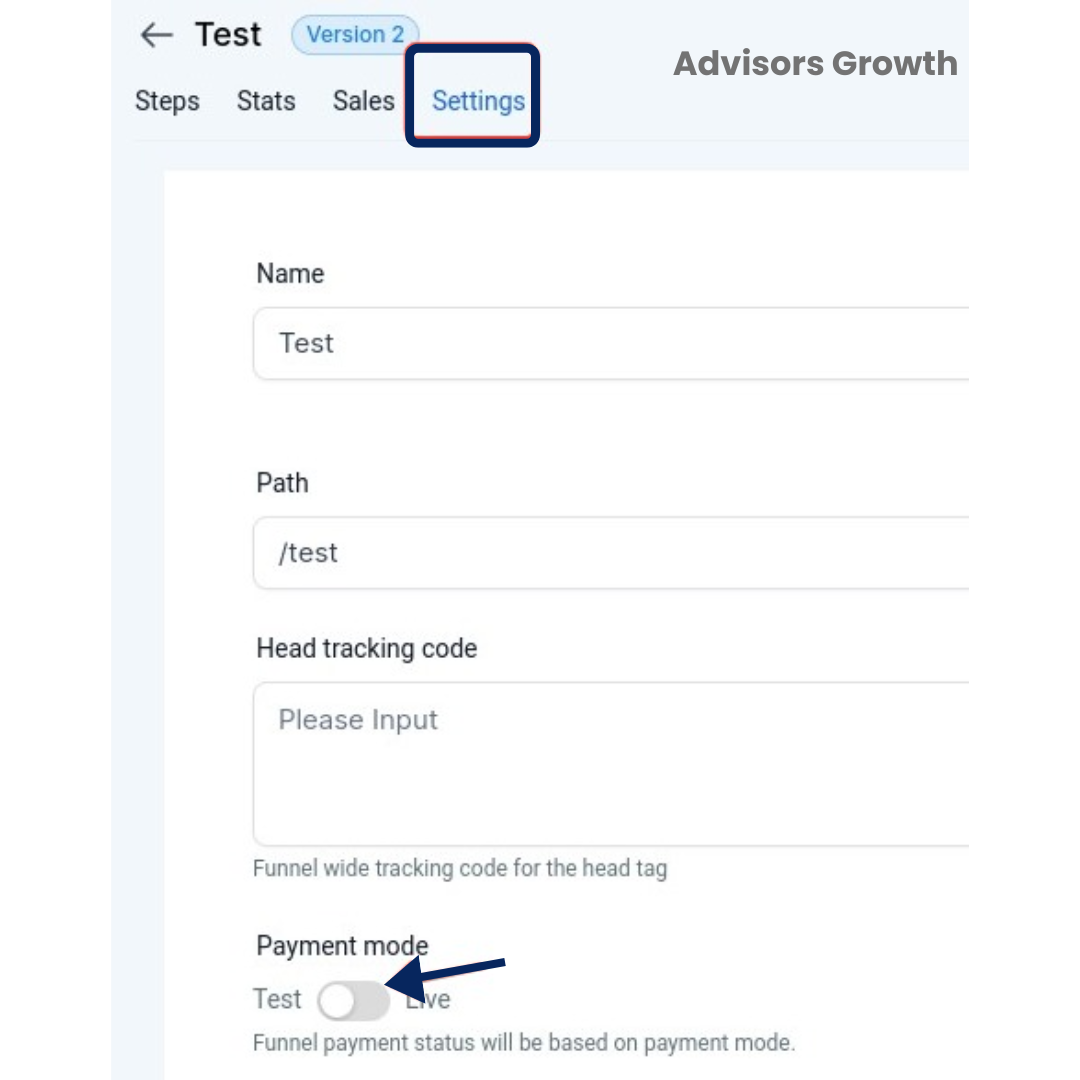
Go back to the settings of the funnel.
Toggle to use test mode and save.
Test the Funnel
Follow the article, “How to Test Payments in a Funnel or Website,” for detailed testing instructions.
Switch to Live Mode
Once you are done testing, turn live mode on and save.
It’s recommended to test in live mode with a real credit card for a true customer experience. Note: Payment authorization might occur, especially for subscription services.
Additional Note: Order Confirmation Step
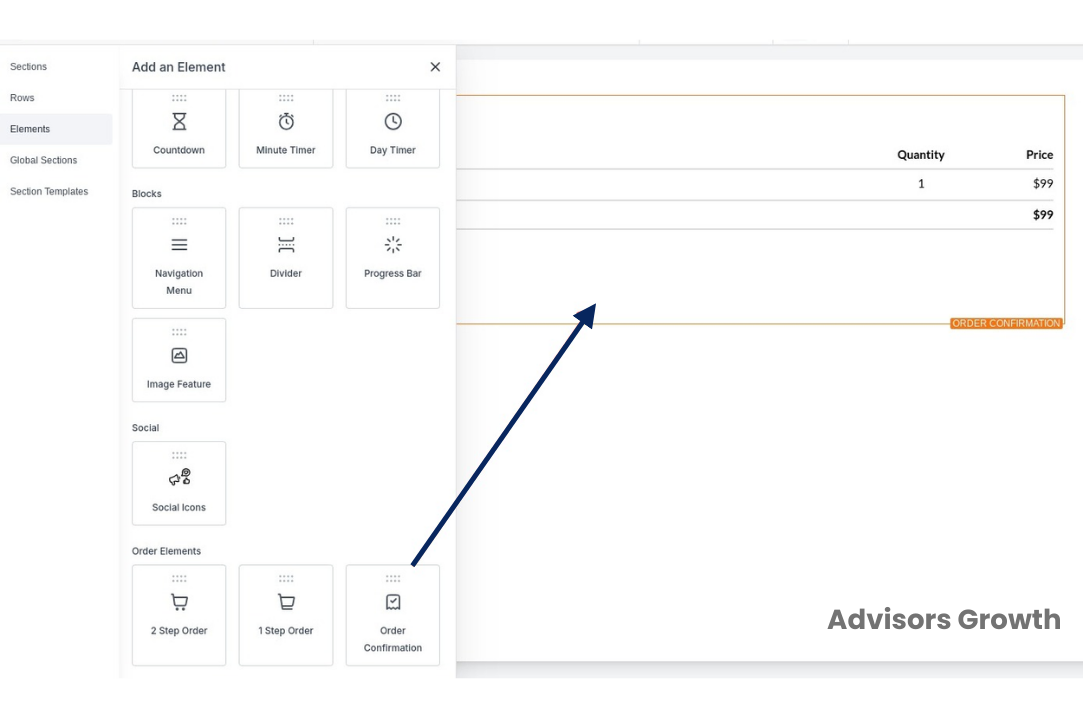
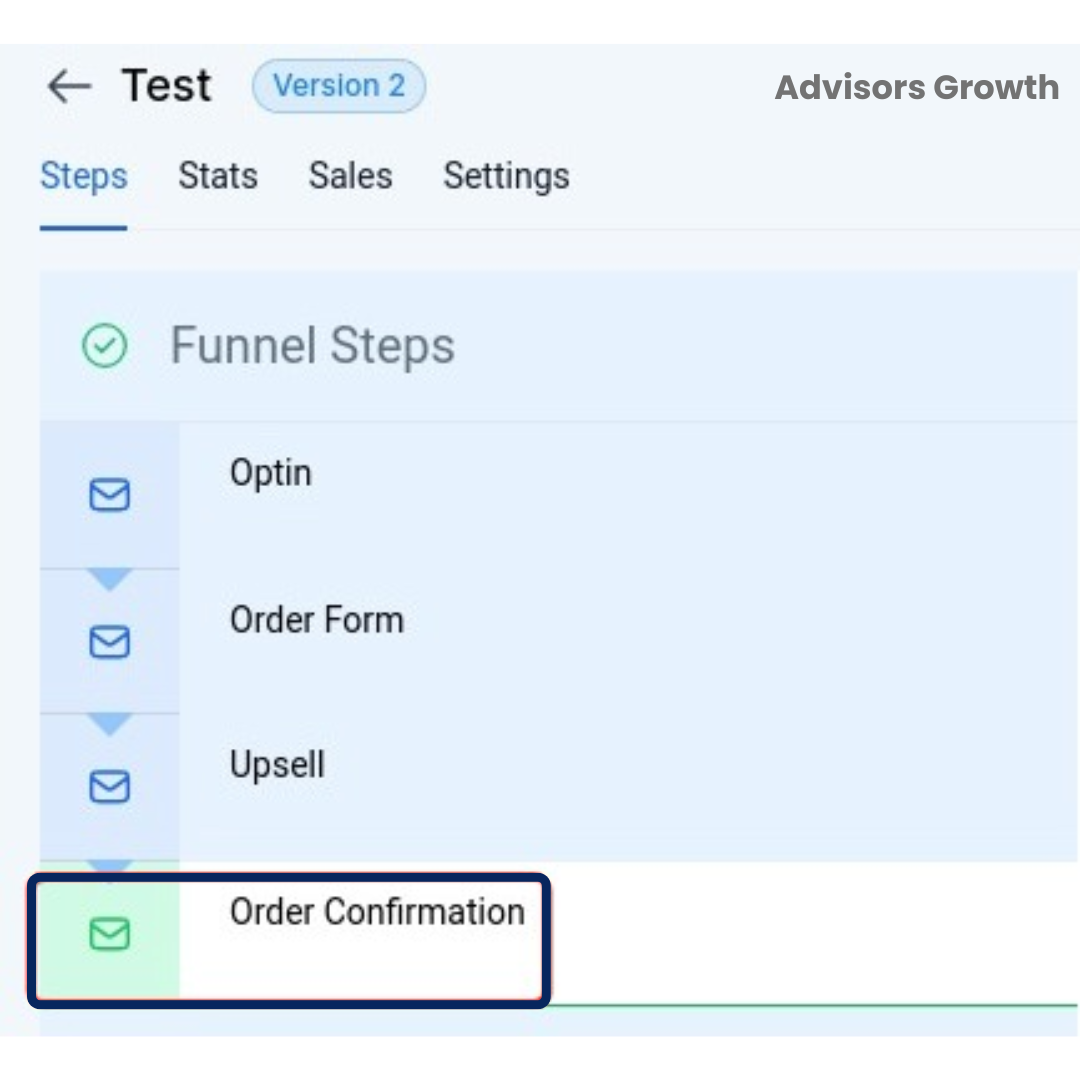
Add an Order Confirmation Funnel Step
After the upsell funnel step, add an Order Confirmation funnel step.
Include the Order Confirmation Element
Inside the confirmation step, add the Order Confirmation element.
This ensures your customers will see the confirmation of their payment and a summary of what they have paid for.
By following these steps, you can effectively activate the one-click purchase feature in your funnel, providing a seamless upsell experience for your customers.