Hosted Video Element
Adding videos to your page enhances the visual appeal and provides valuable information about your business. Whether it's how-to videos or customer testimonials, here's a guide on using the Hosted Video Element in Funnels.
Adding the Video Element
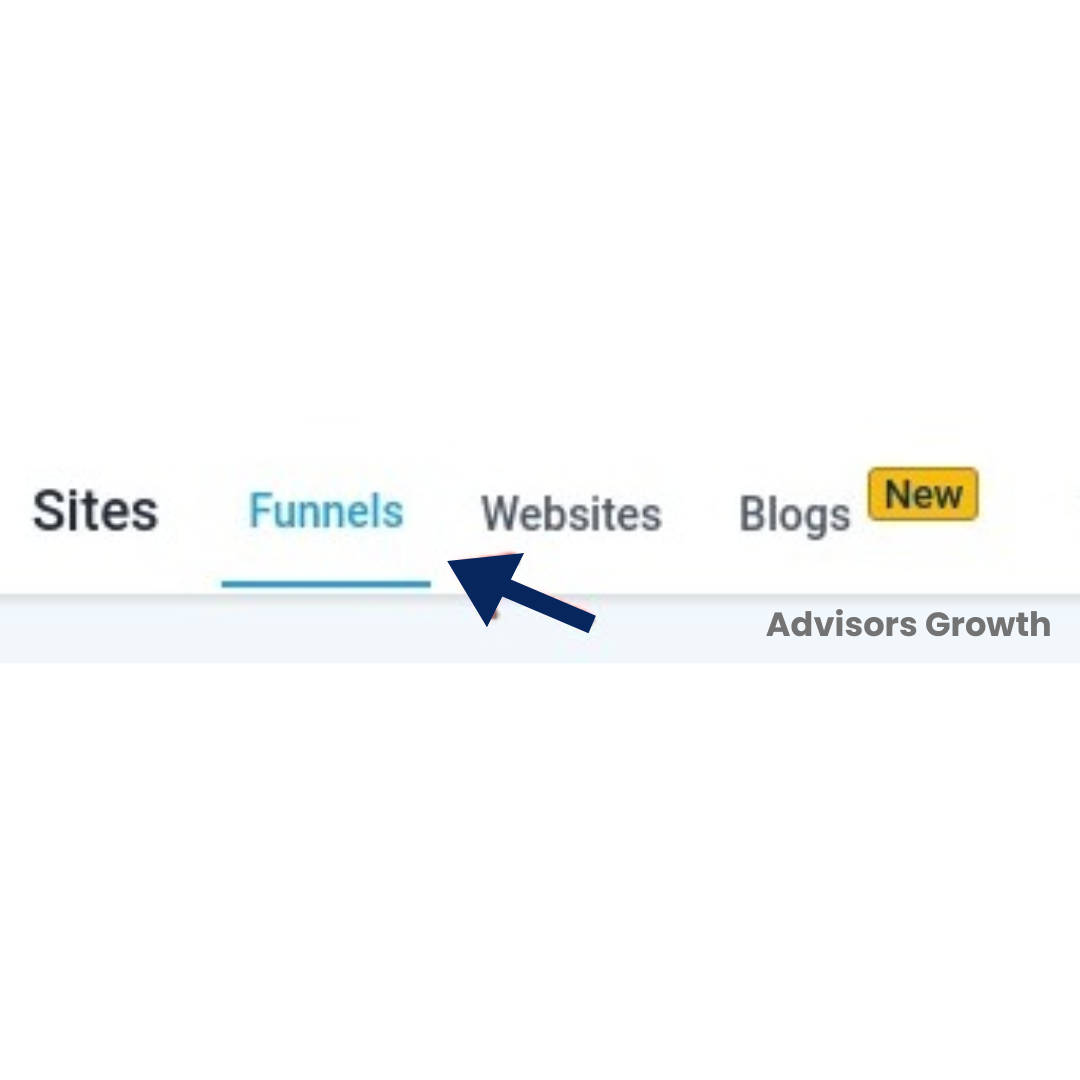
Navigate to Sites > Funnels
Select the Desired Funnel
Click into the funnel where you want to add a video.
Add Elements
Click on the plus sign icon in the top left corner to add elements.
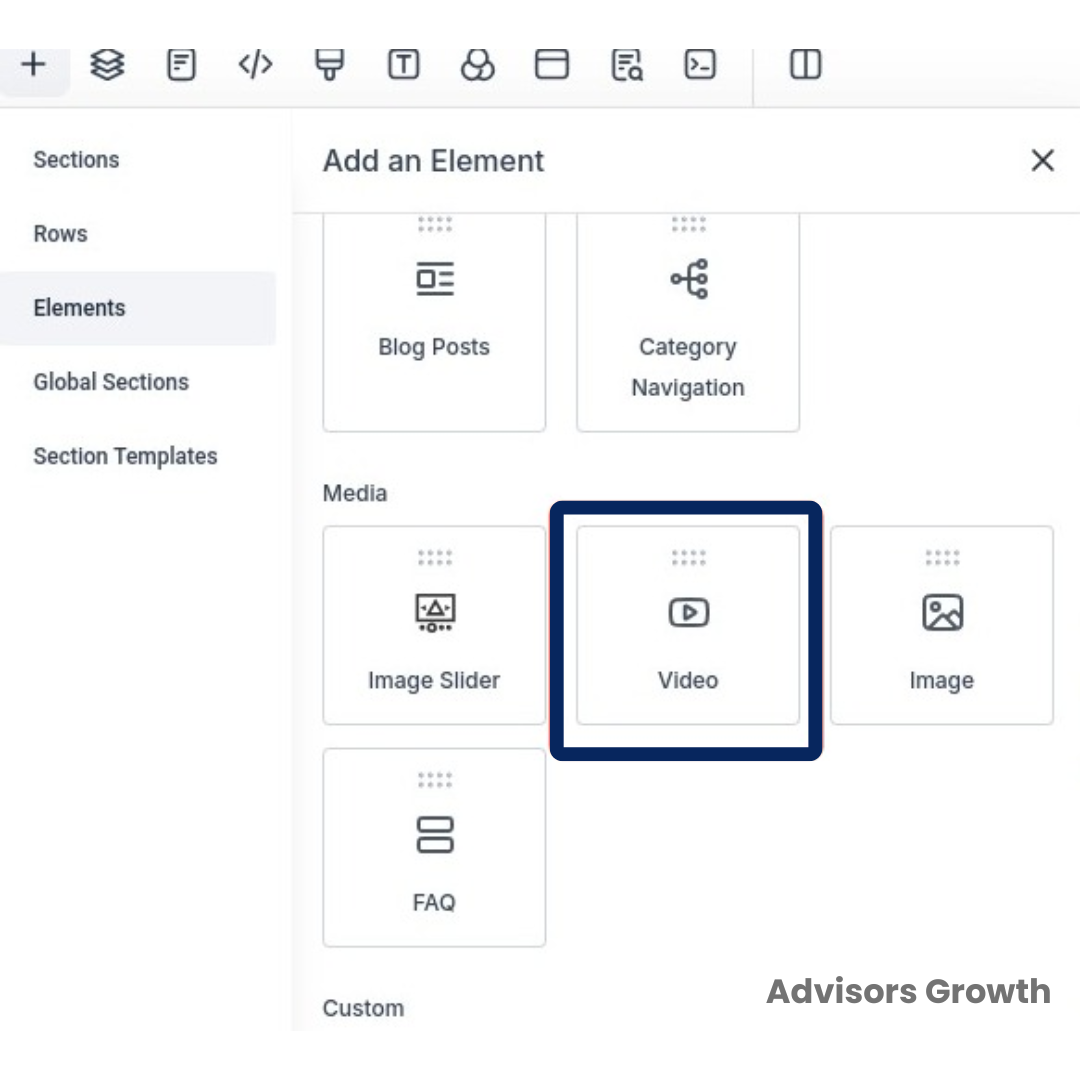
Select the Video Element
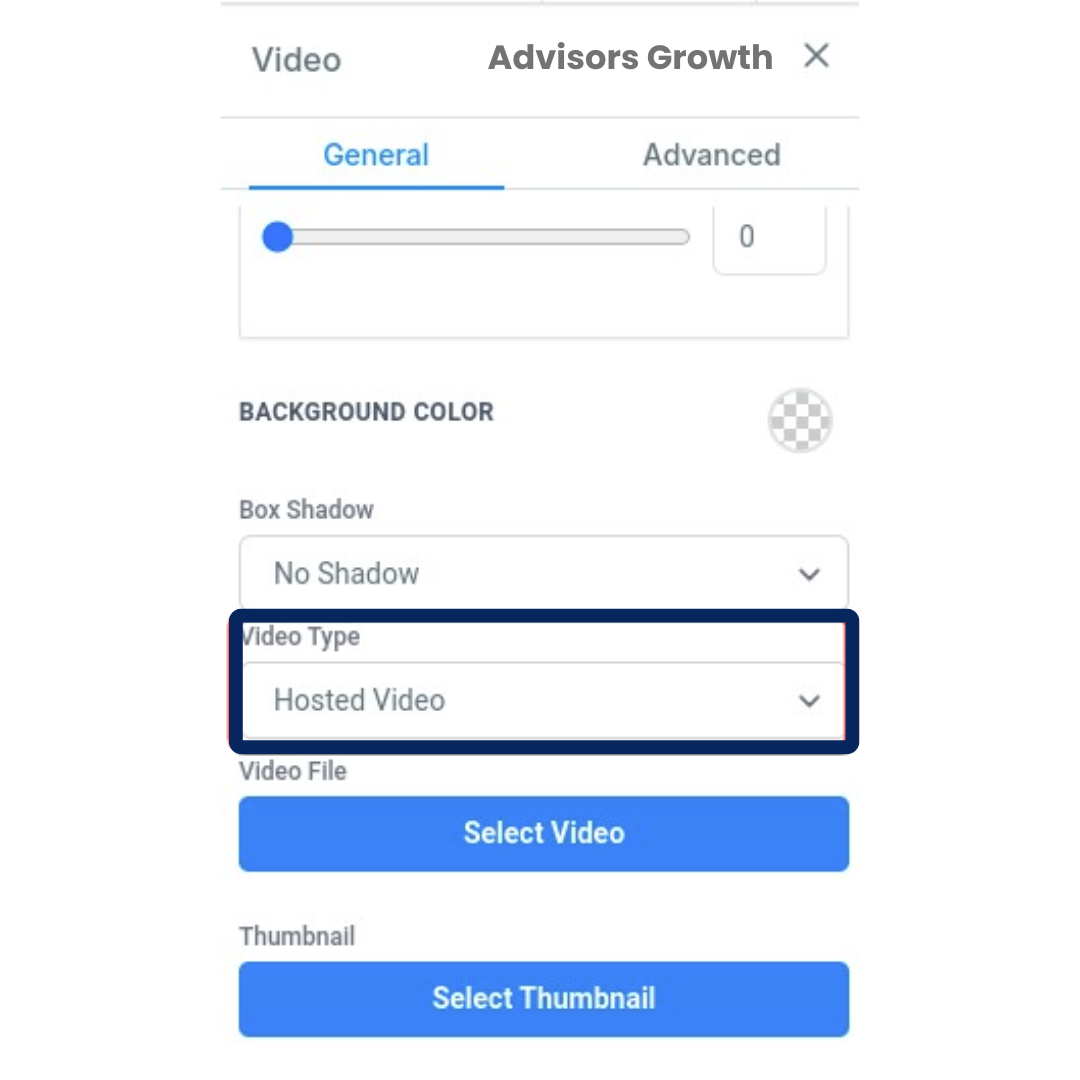
On the right-hand sidebar, go to Video Type and choose Hosted Video.
 Adding the Video to the Element
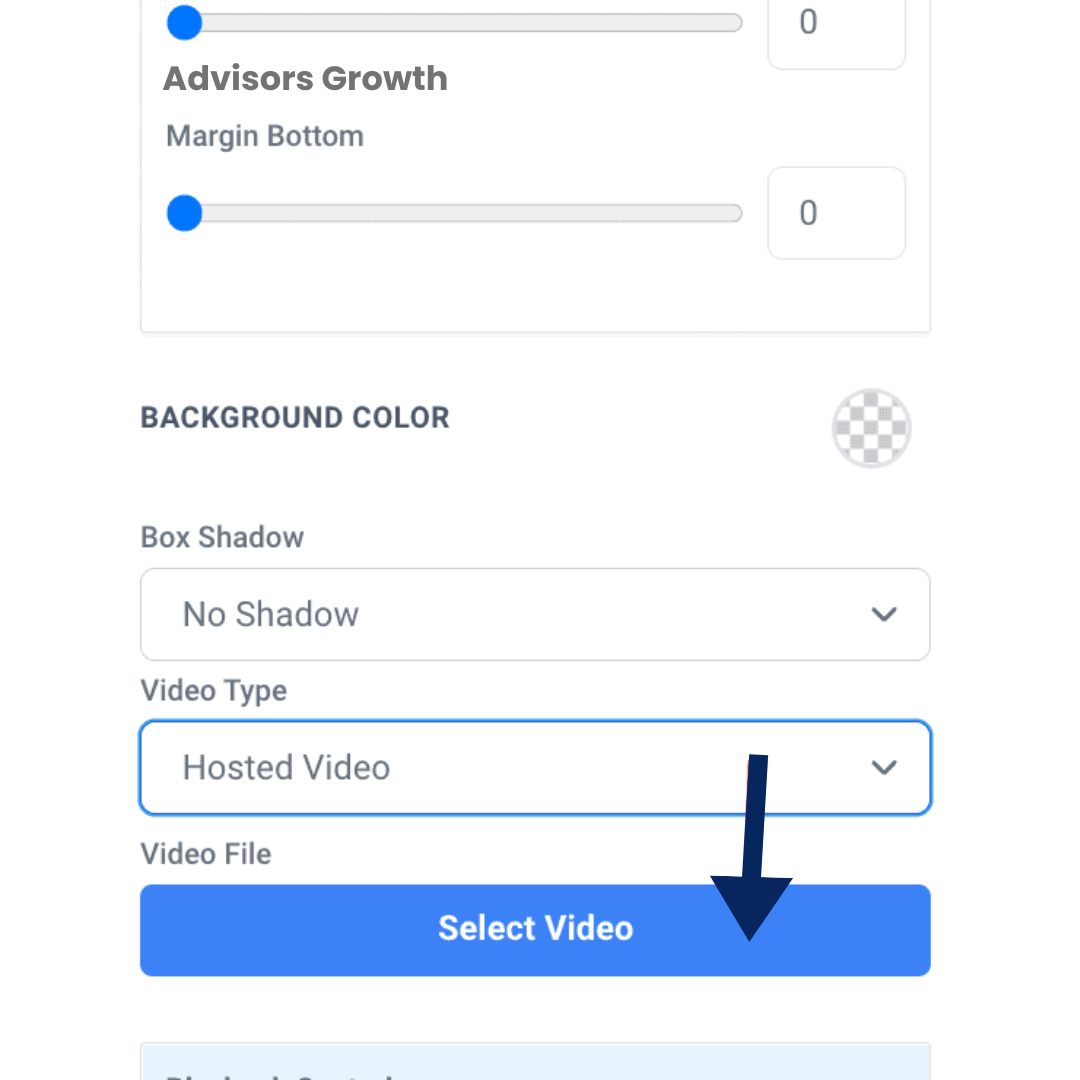
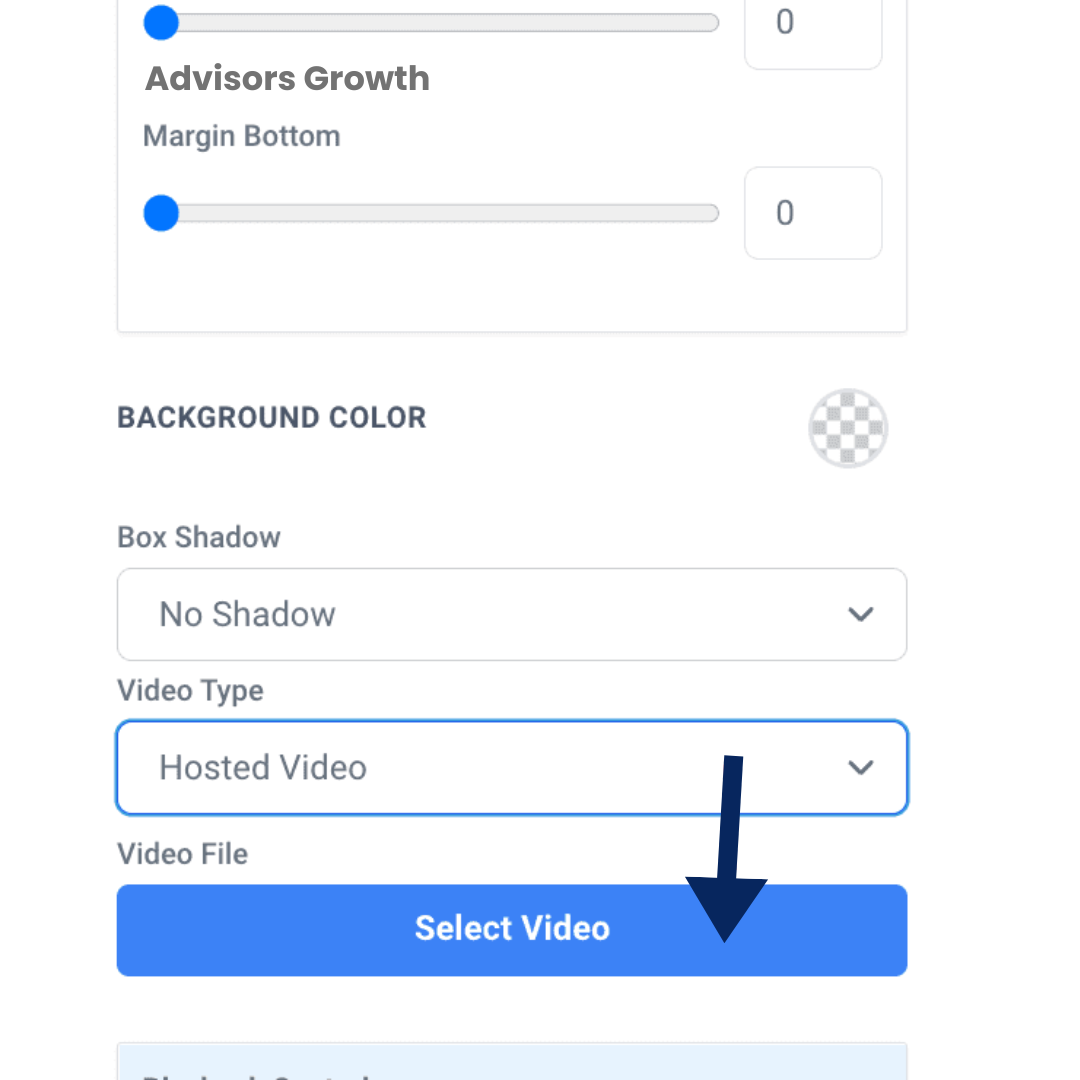
Select Video
Click on Select Video to be taken to your Media Library. (If the required video is not in the Media Library, upload it first).
Encode the Video
Once the video loads, double-click on it to start encoding.
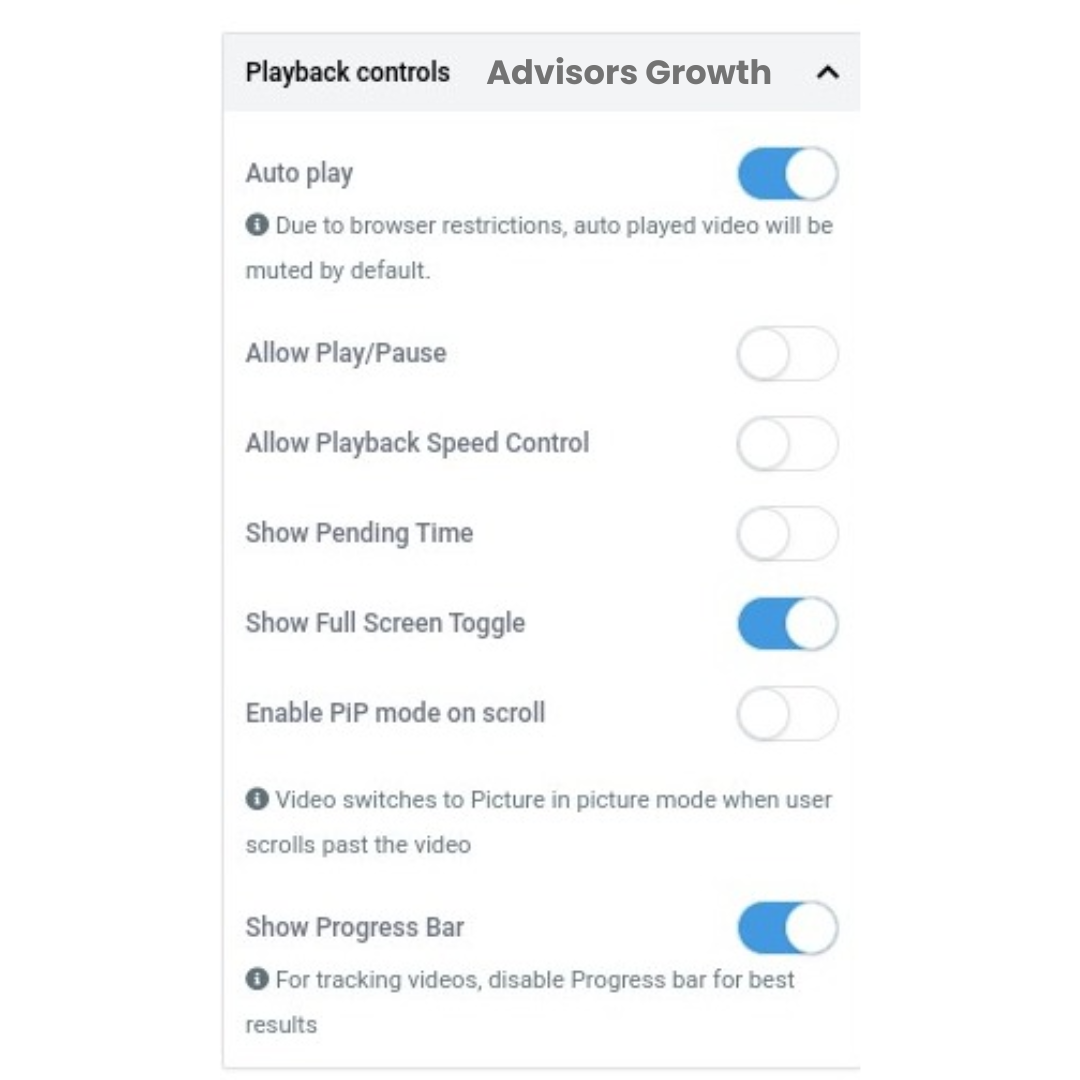
Edit Playback Controls
Adjust the playback controls as needed.
Note: The video can be in any mainstream format as long as it is under 4GB.
Additional Features
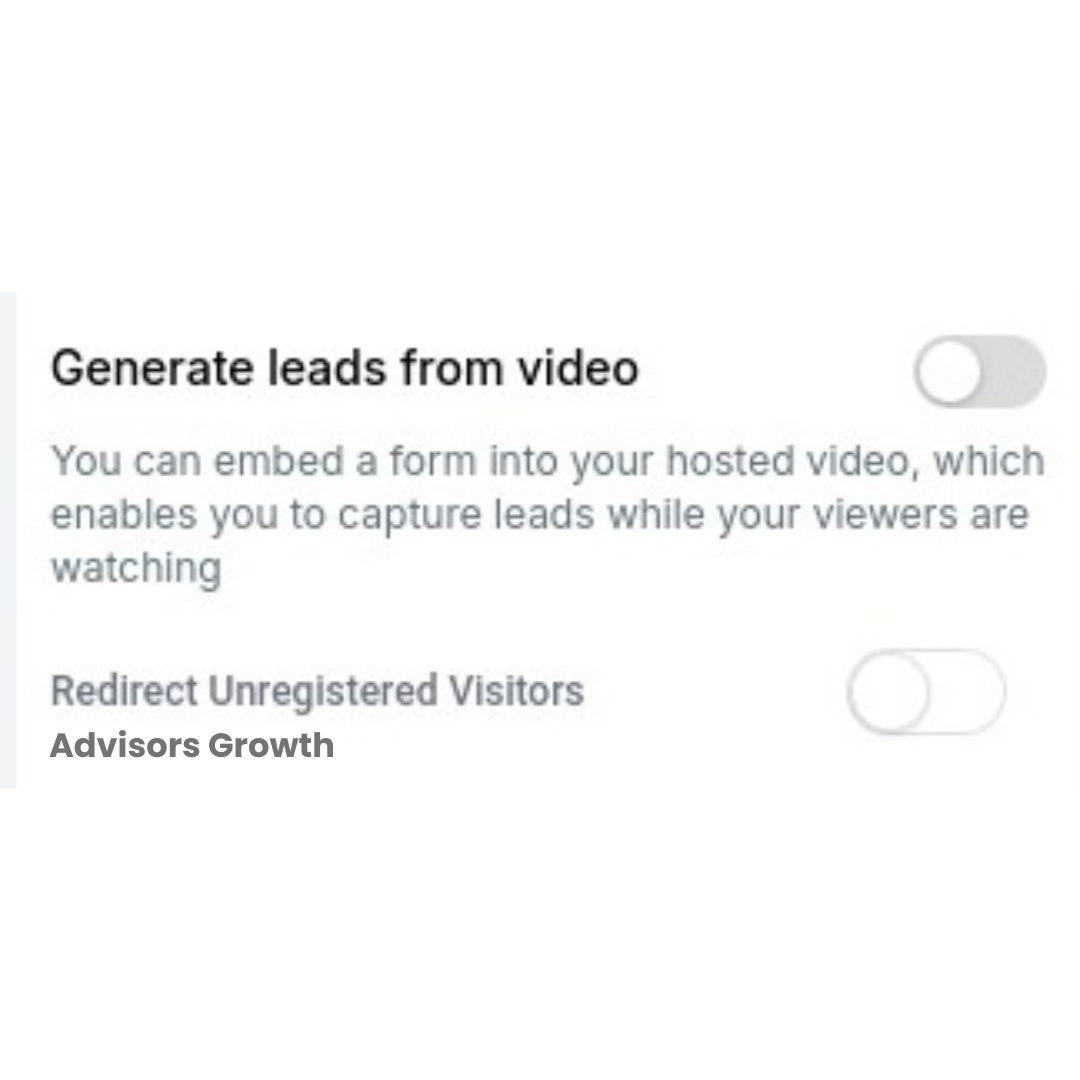
Generate Leads from the Video
Enable this feature and select the time when you want the form to appear, and choose the form to display.
Redirect Unregistered Visitors
Use this option if needed.
Why Do Videos Start on Mute?
Videos start on mute due to autoplay policies enforced by browsers (IOS, Safari, Chrome, Android, Firefox, and Edge). This policy ensures videos do not play sound automatically to prevent intrusive experiences for users.
Browser Policies Links:
Chrome's Media Engagement Index: Chrome calculates a media engagement score based on how often media is played on a site. When the score is high enough, media playback is allowed to autoplay with sound on the desktop.
Key Advancements in Video Integration
Enhanced Video Player Features:
Autoplay Regulations and Policy Insights:
Detailed information on autoplay regulations for various browsers ensures compliance and optimized video playback.
In-Depth Video Encoding Explanation:
Understanding video encoding is crucial for video tracking and offering multiple video qualities, ensuring videos are optimized for different viewing conditions.
User Interface (UI) and Navigation Enhancements:
Improved UI and navigation focus on user-centric design, making video content management more efficient and enhancing the overall user experience on digital platforms.