
Customizing Funnel and Website Colors
You can fully customize your funnel or website's appearance, including colors and fonts, using the builder. Follow these steps to tailor your funnel or website to your brand's look and feel using various methods.
Part 1: Updating Overall Font Colors Using Typography Settings
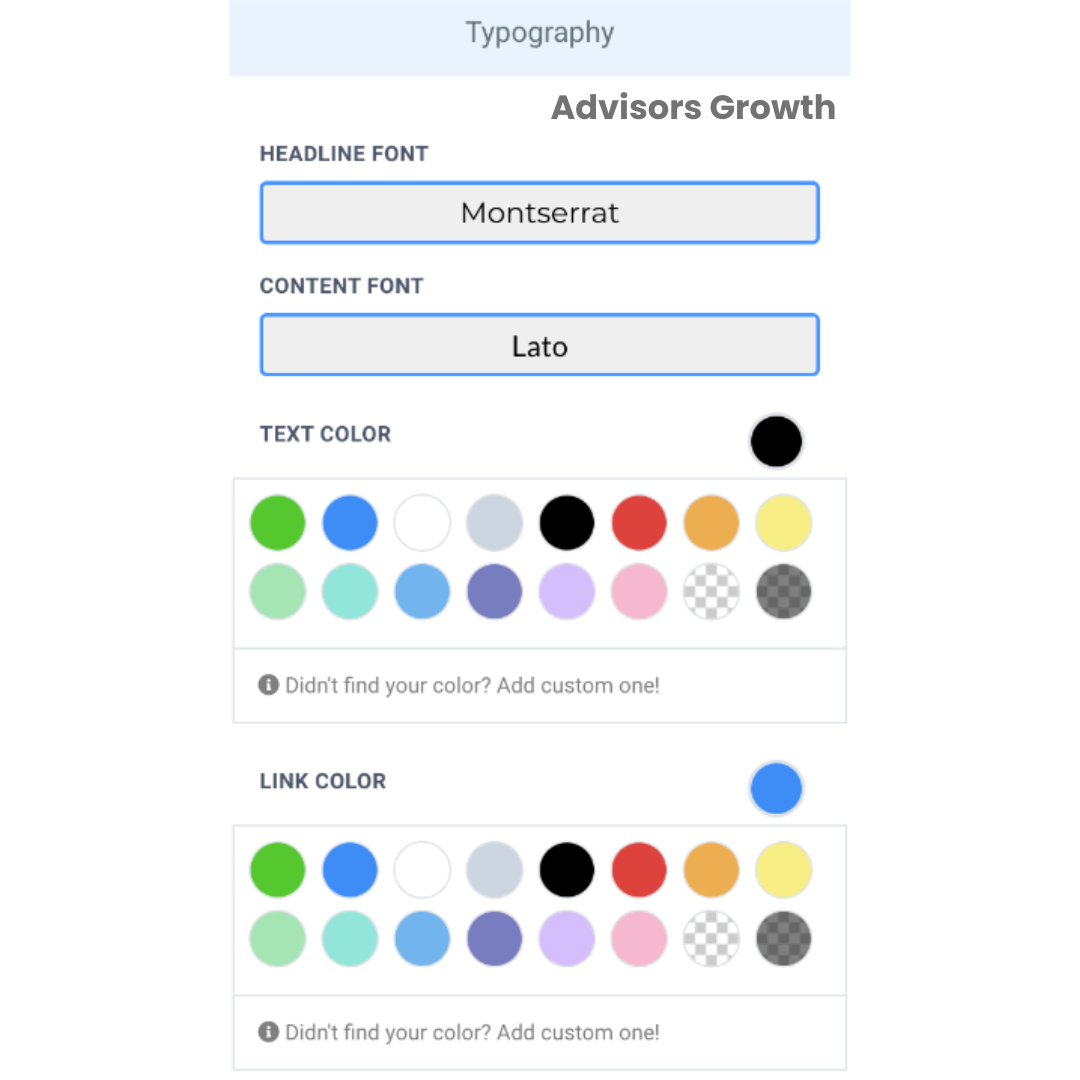
To maintain consistency across your funnel or website pages, use the Typography tab to set global font styles and colors.
Access Typography Settings:
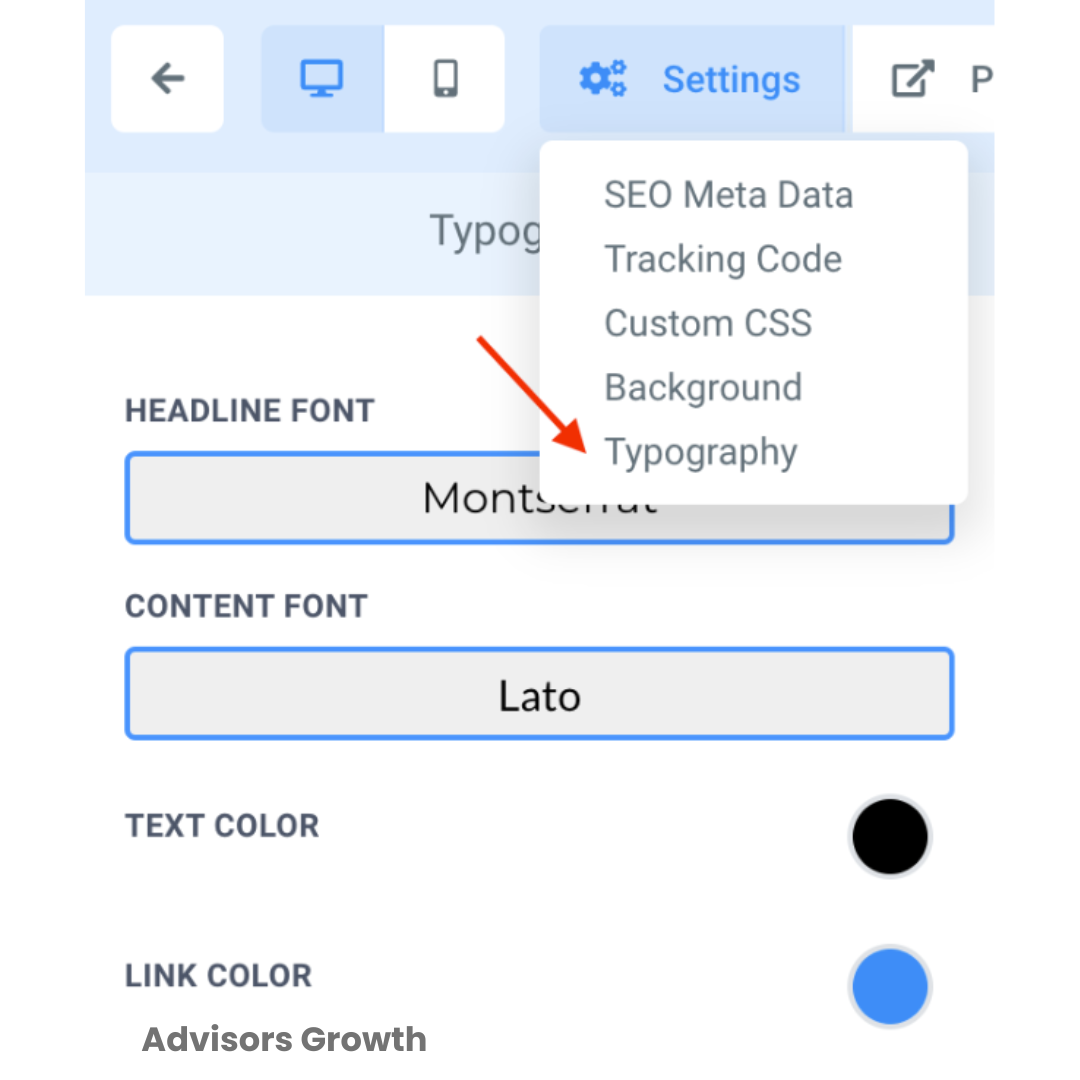
Navigate to the Settings button at the top of the builder.
Click on Typography.
Set Font Colors:
Choose the default Headline and Content fonts.
Select specific colors for text, links, and other elements.
Part 2: Making Individual Page Edits
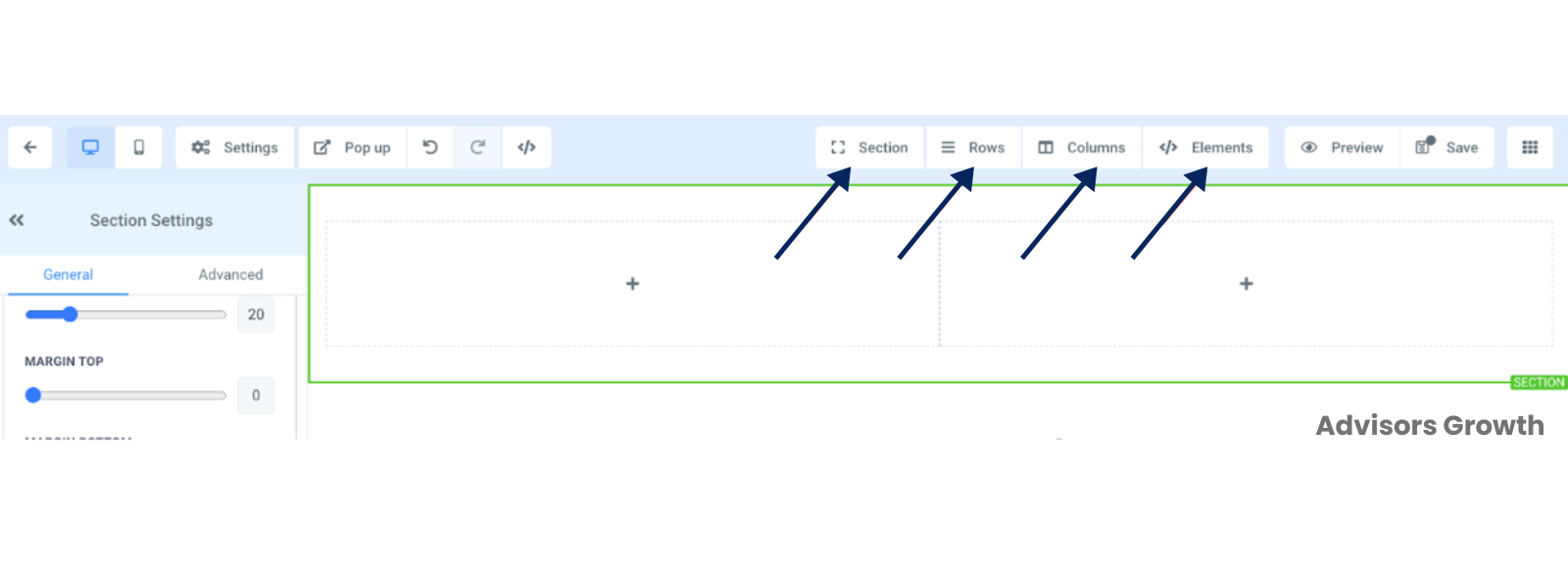
Each page in your funnel or website consists of Sections, Rows, Columns, and Elements, added in that order. Customize each component using the builder's drag-and-drop interface.
Add and Customize Components:
Use the drag-and-drop builder to add Sections, Rows, Columns, and Elements.
Access the edit menu on the left side for customization options.
Examples of Customizable Elements:
Buttons: Customize background and text colors.
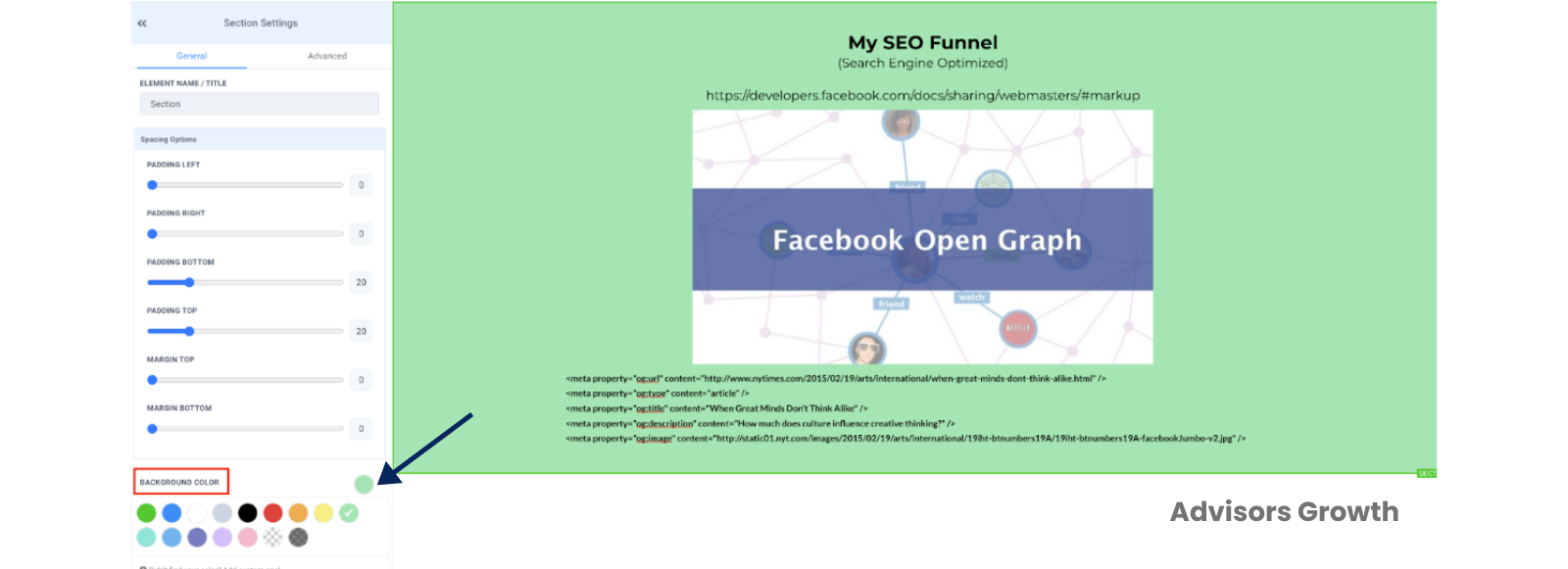
Sections: Change the background color.
Text Elements: Set colors for headlines and other text.
Part 3: Custom Colors
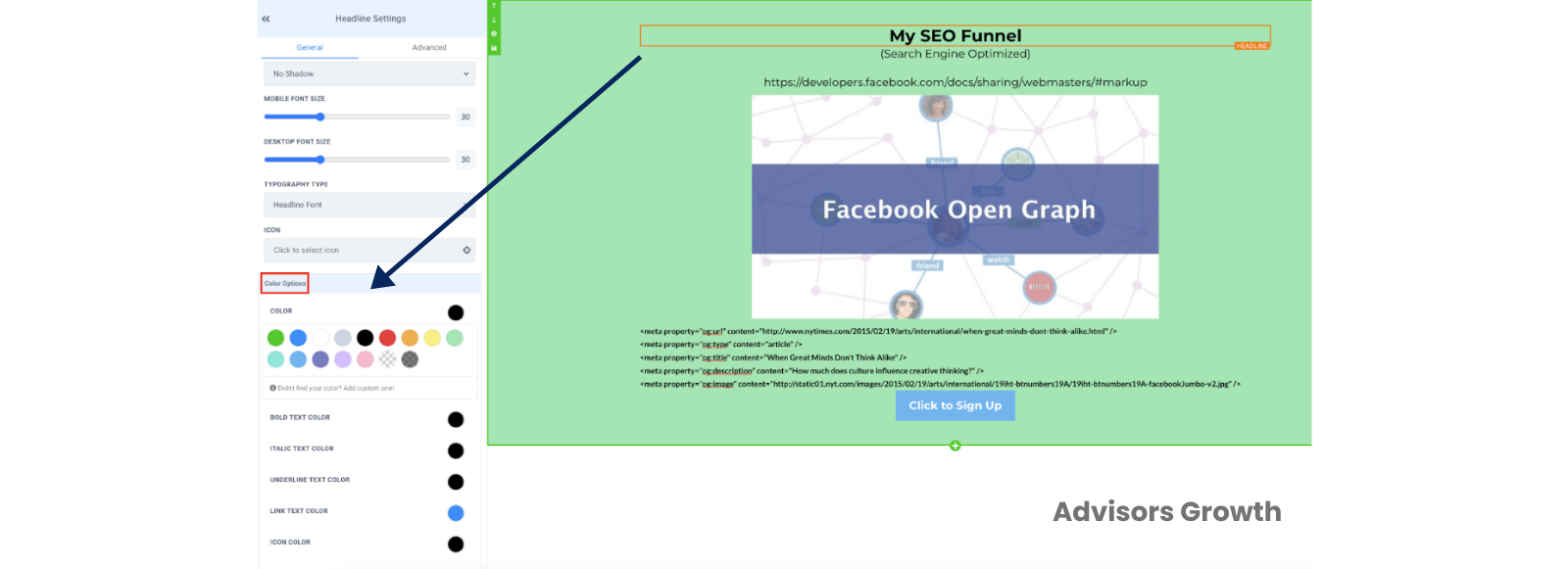
Implement custom colors directly in the Site Builder by setting up Custom Values with Hex codes to create a reusable color template.
Add Custom Colors:
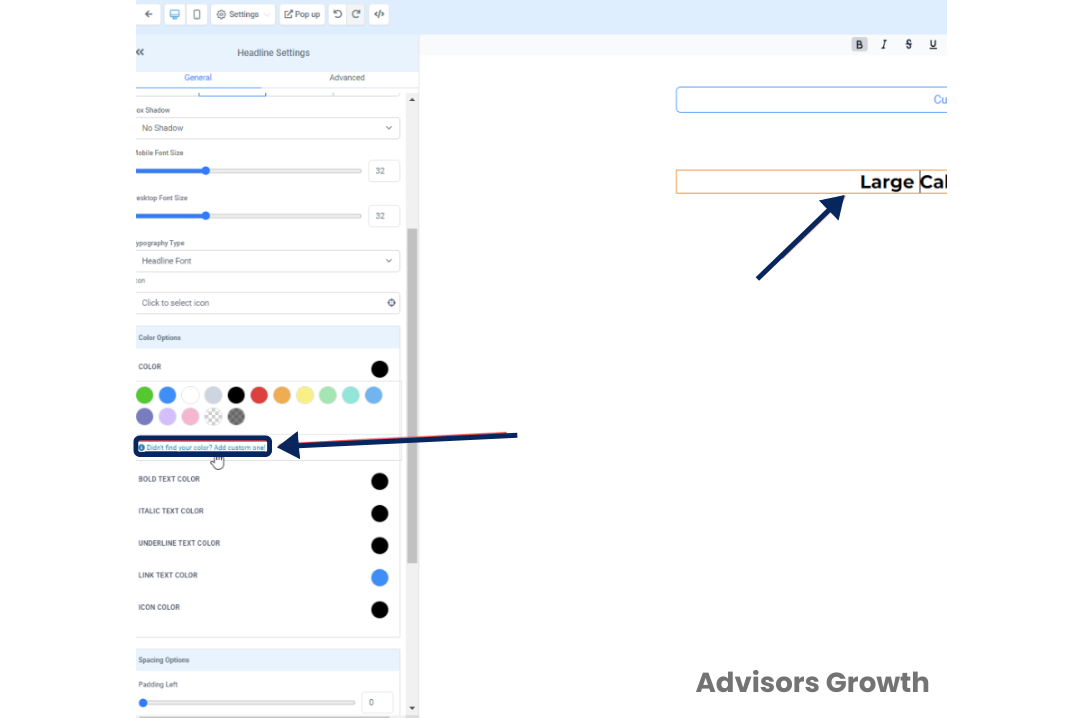
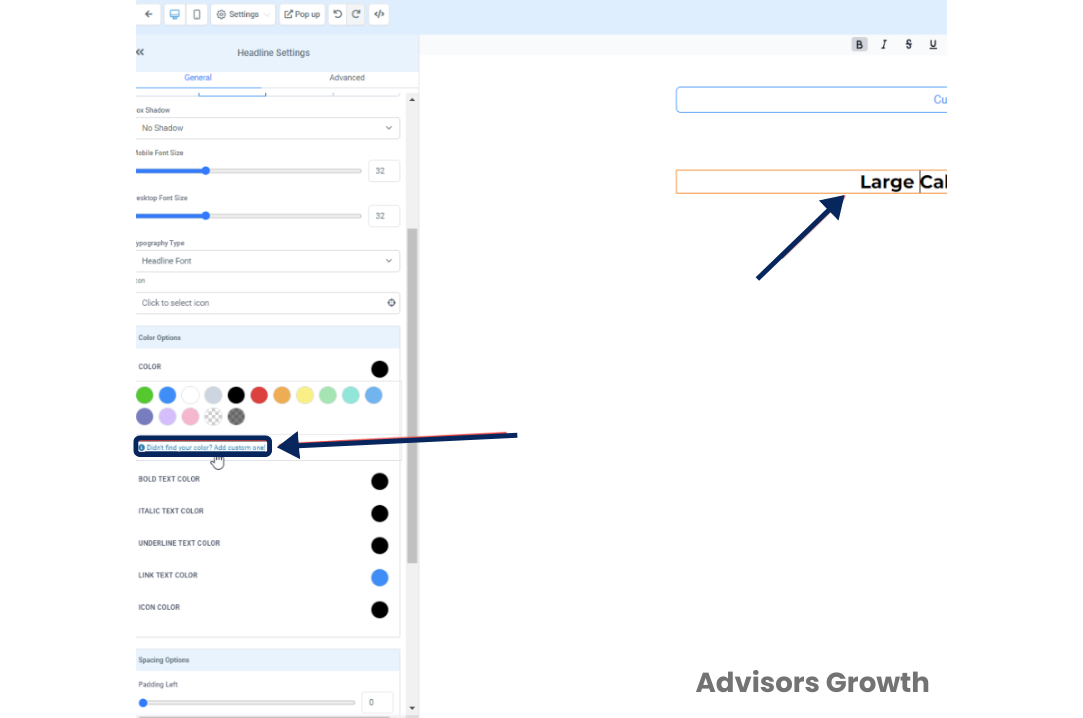
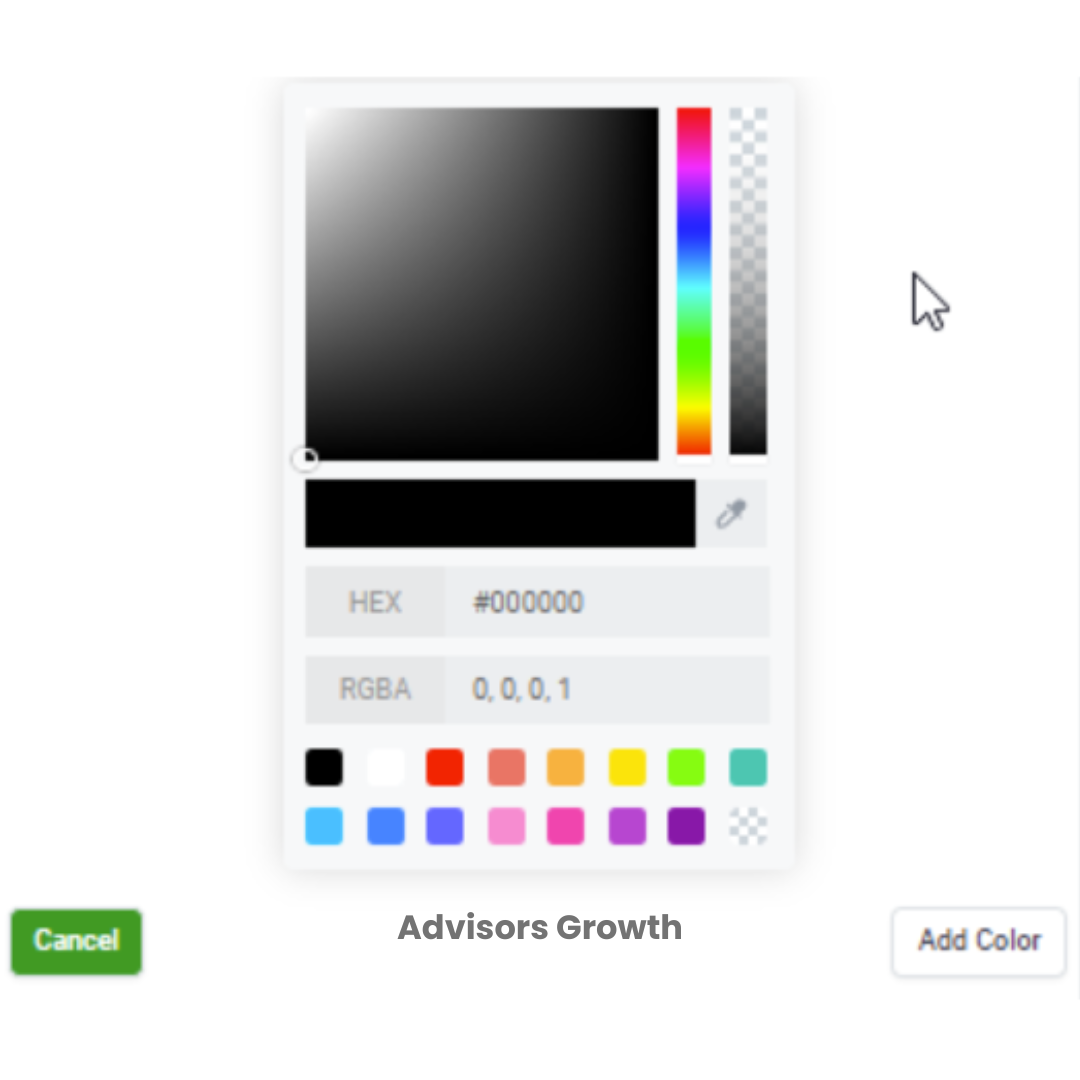
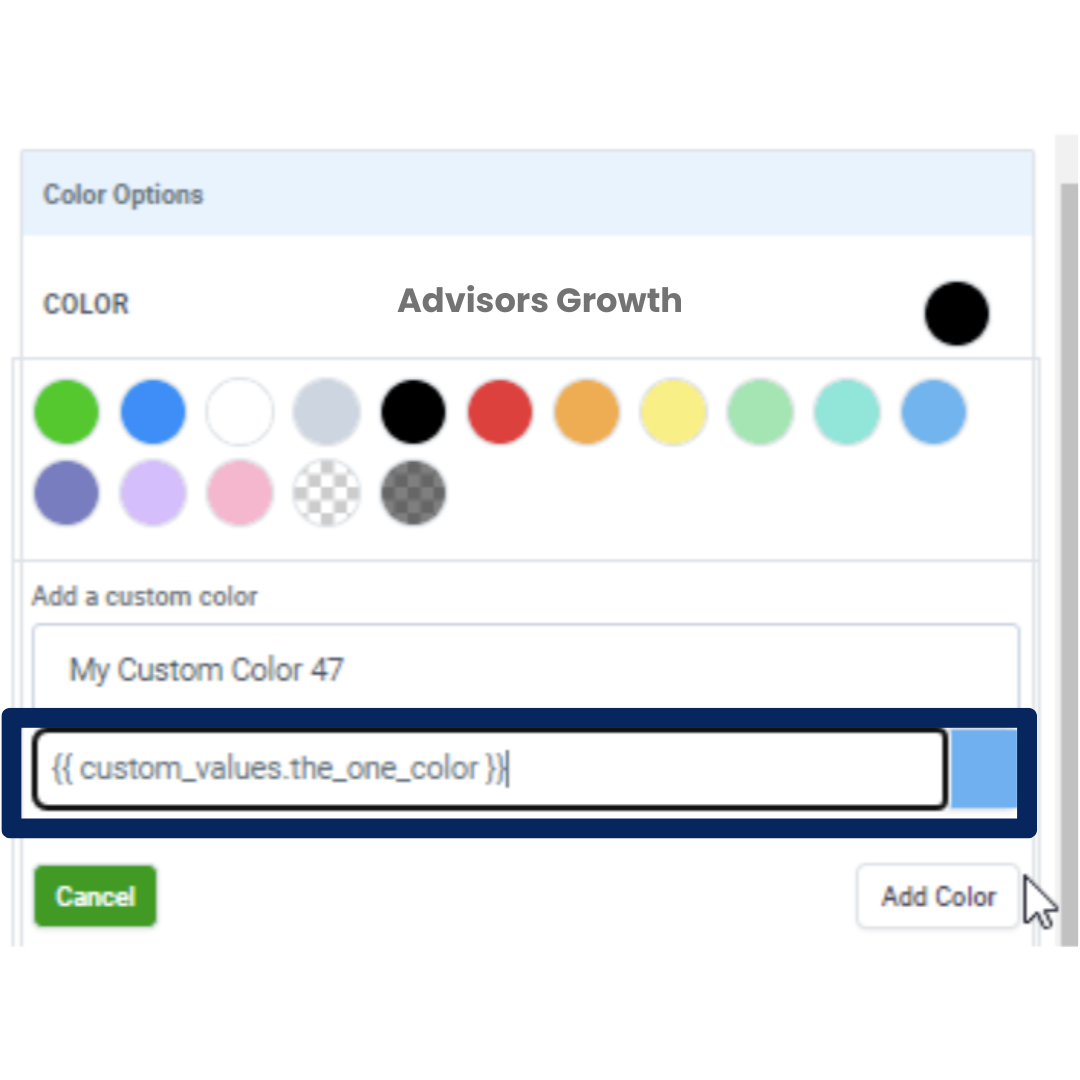
Click on a text element and select “Didn’t find your color? Add custom one!” in the settings.
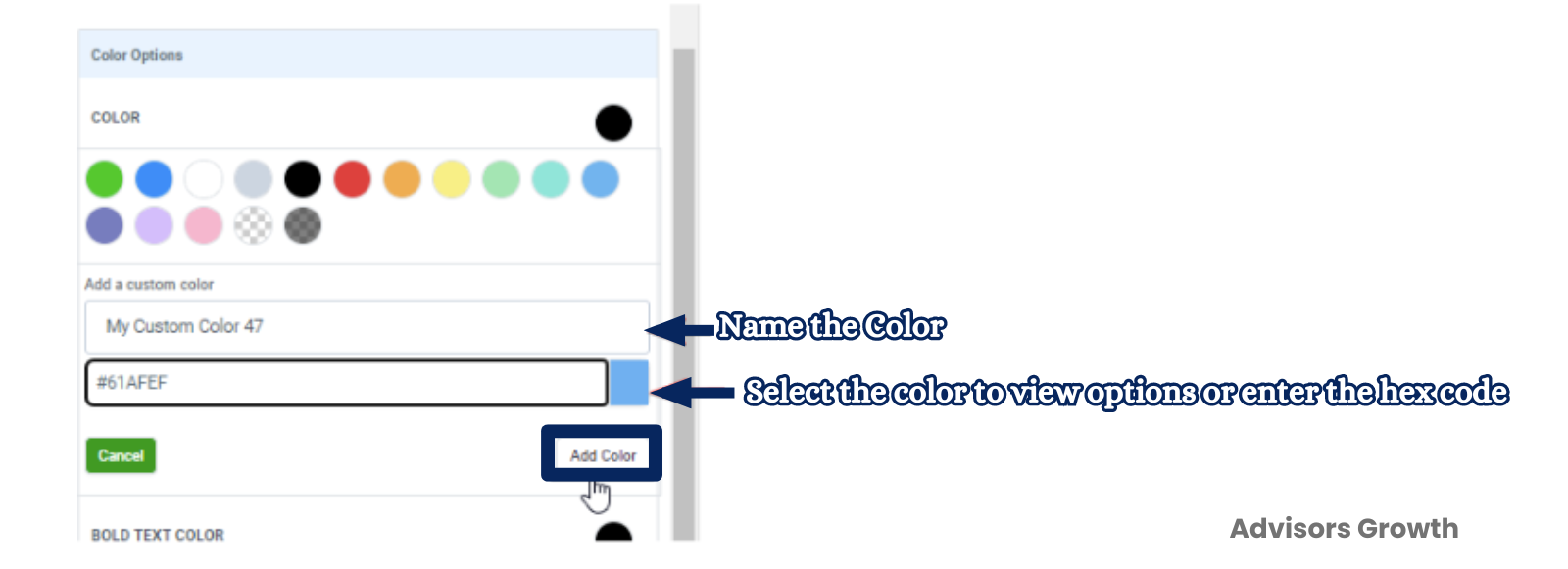
Enter the name and Hex code of the custom color, or use the visual color editor.
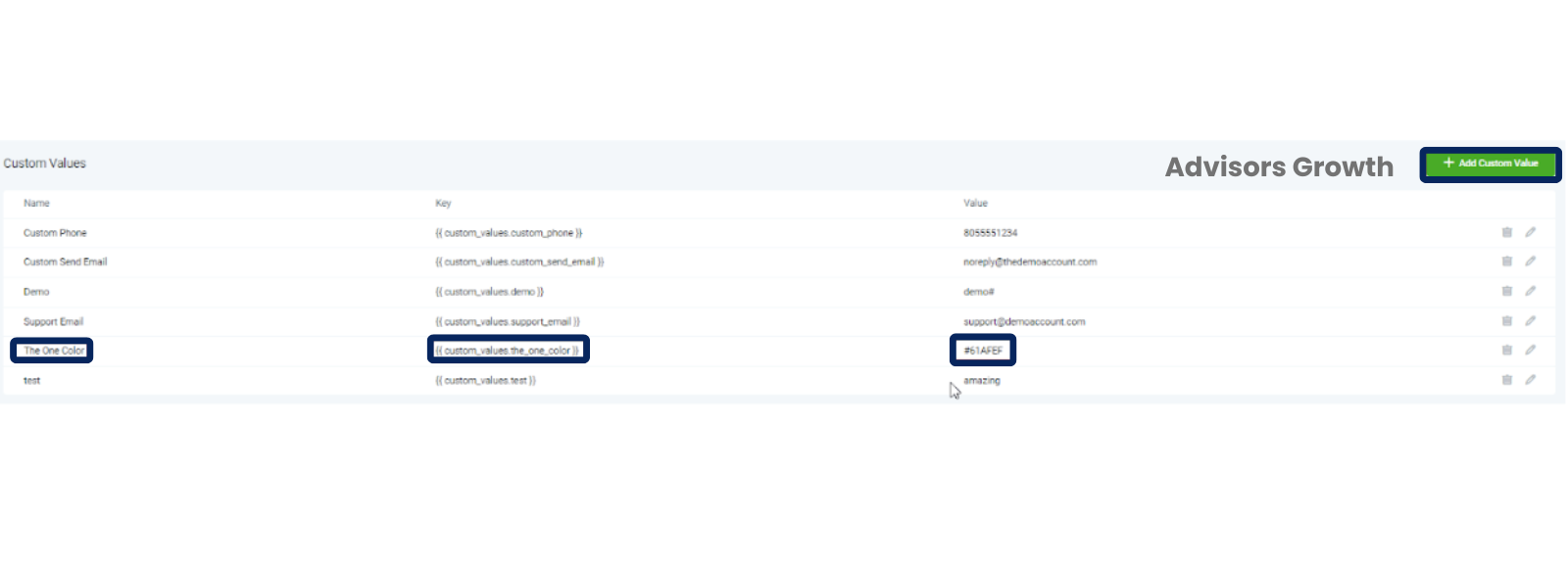
Set Custom Values:
Add a custom value with the Hex code in the custom values area.
Use this custom value to apply the color across your pages.
Note: Custom colors are saved only within the specific funnel page they were added to, requiring setup for each page individually.
Part 4: Using Custom CSS
For advanced customization, use custom CSS to style your funnel or website beyond the standard options.
Access Custom CSS:
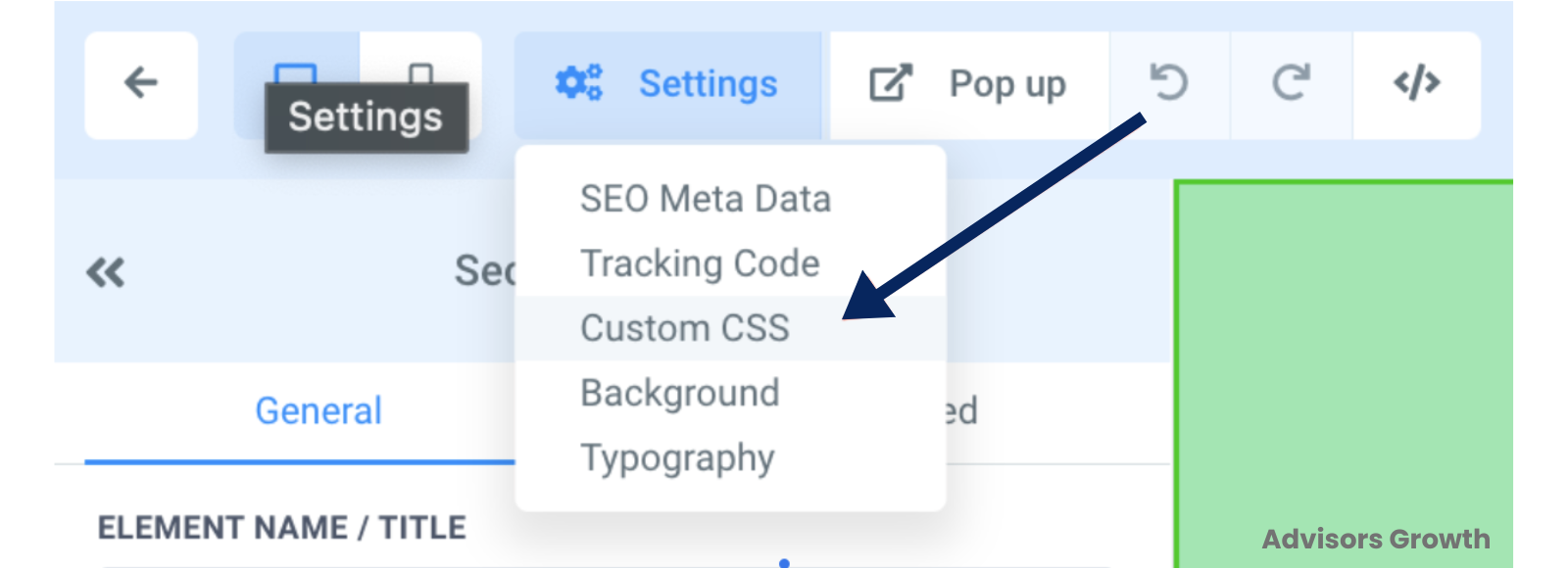
Navigate to the Settings button at the top of the builder.
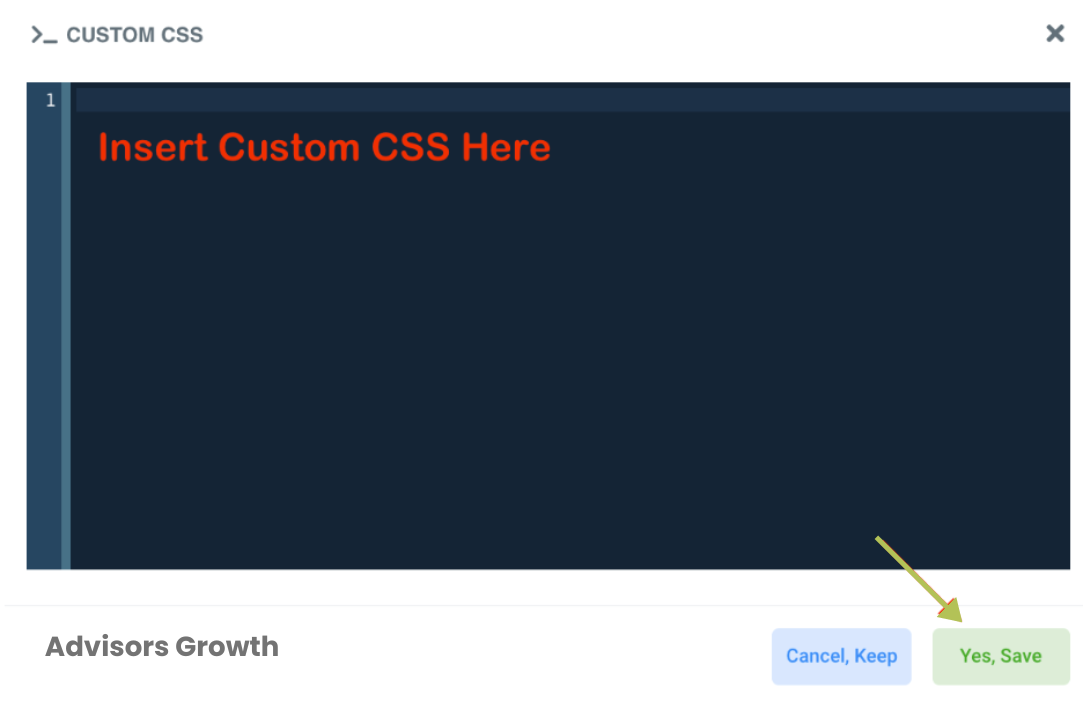
Click on Custom CSS.
Insert and Save CSS:
Add your custom CSS code.
Save your changes to apply them.
Note: If you lack CSS expertise, consider seeking assistance from a developer.
 Final Steps
Preview Changes: Always preview your page to ensure the changes look as expected before saving and exiting the builder.
Save Changes: Confirm and save all updates before leaving the builder to ensure your customizations are retained.
By following these steps, you can effectively customize the colors and overall design of your funnel or website to align with your brand using Advisor's Growth.