Custom Elements in the Site Builder
Custom elements in the Site Builder allow you to enhance and personalize your site with unique features. Here's an overview of the available custom elements and how to use them:
Custom JS/HTML
Adding a Custom JavaScript/HTML element is useful for embedding scheduling software and other tools directly on your page.
How to use:
Click and drag the Custom JS/HTML element to the desired column.
Click on the element to open the settings menu on the right.
Click on "Open Code Editor" and add your custom code.
Note: Due to the varied nature of coding, custom code troubleshooting or editing support is not provided.
Survey
This element allows you to display a survey on your page.
How to use:
Click, drag, and drop the Survey element into the desired column.
Select the survey you want to display from the drop-down menu.
Save your changes.
Note: Ensure you have created the survey beforehand.
Calendar
You can display a calendar on your page with this element.
How to use:
Click, drag, and drop the Calendar element into the desired column.
Click on the element and select the desired calendar from the drop-down menu.
Save your changes.
Note: Ensure you have created the calendar beforehand.
Map
This element adds a map with a pin indicating your address.
How to use:
Click, drag, and drop the Map element into the desired column.
Click on the element to open the settings menu on the right.
Click on "Open Search Box," search for your address, adjust the pin if needed, and save.
SVG
SVG (Scalable Vector Graphics) is a web-friendly vector file format that allows you to store images via mathematical formulas based on points and lines.
How to use:
Click, drag, and drop the SVG element into the desired column.
Click on the element to open the menu on the right.
Edit the colors in your SVG file by adding your own.
Note: Your file must be in SVG format.
|
|
|
|
|
|---|---|---|---|---|
|






Reviews
This element displays the reviews your leads have given you.
How to use:
Click, drag, and drop the Reviews element into the desired column.
All the reviews will appear here once you preview or view your page in live mode.
Block Editor
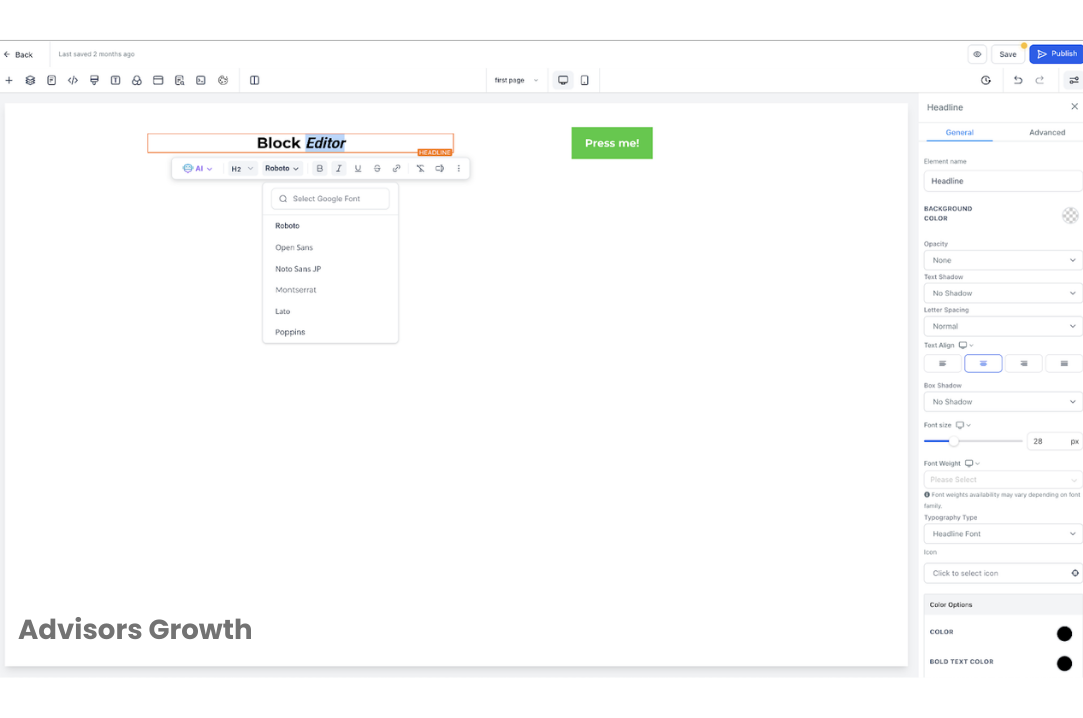
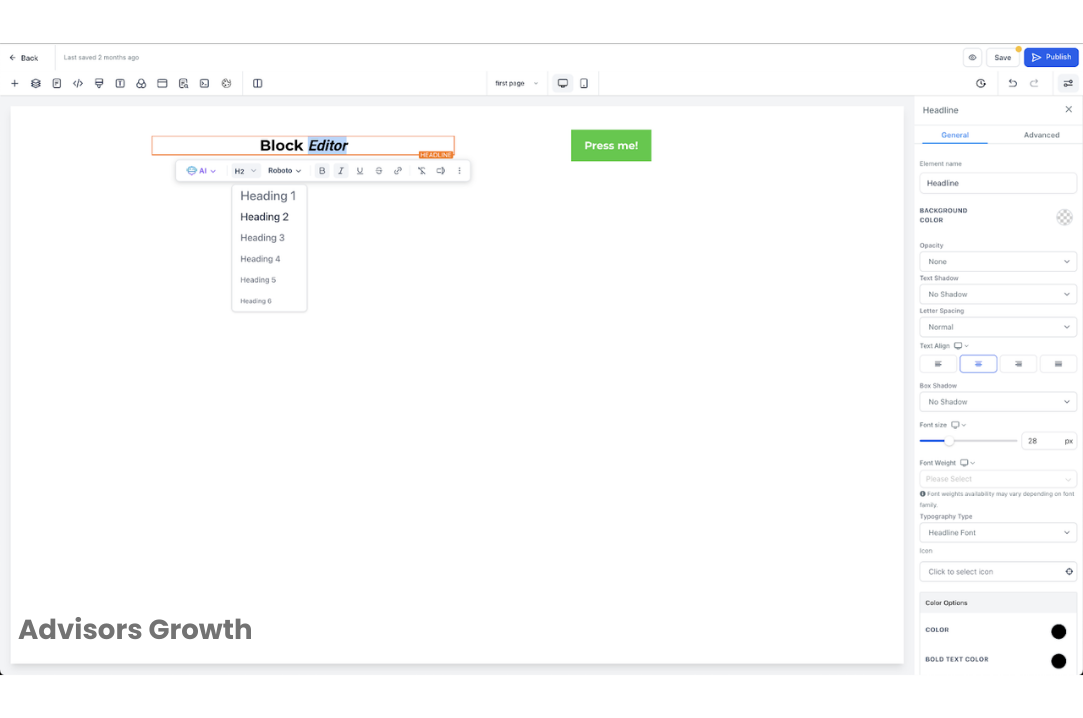
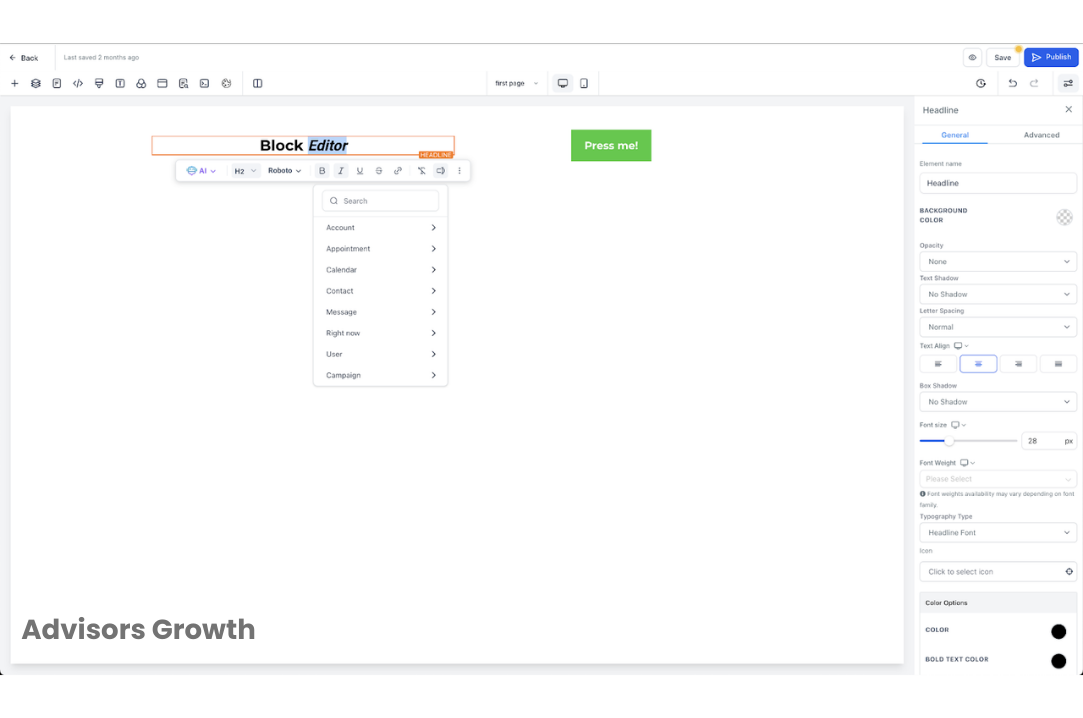
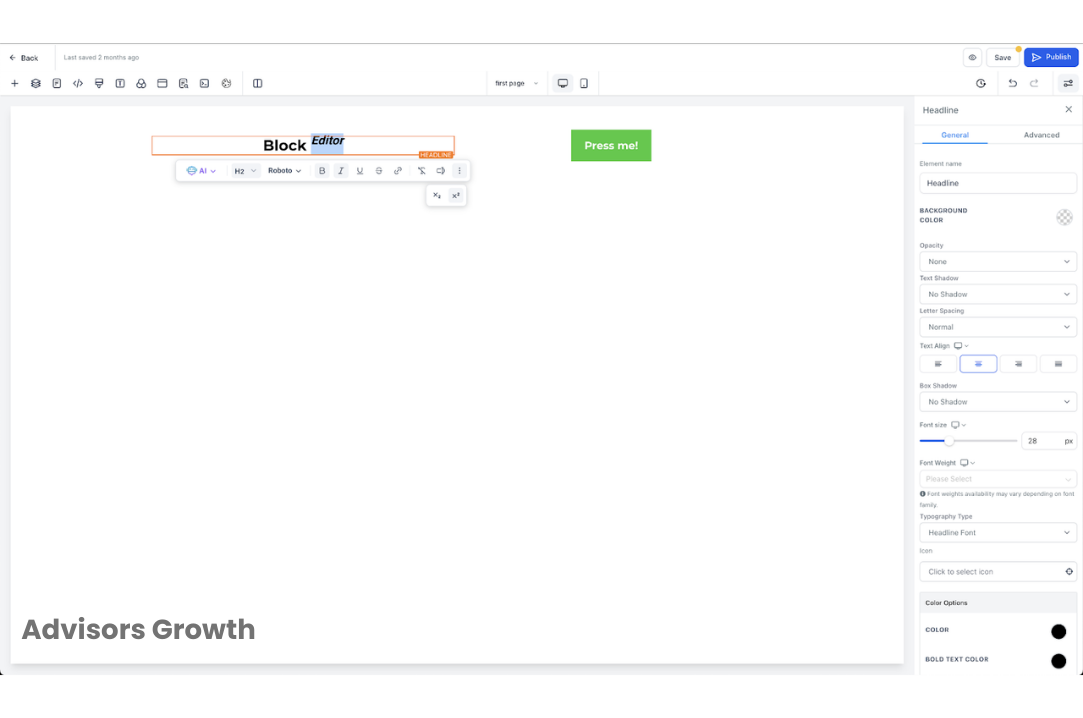
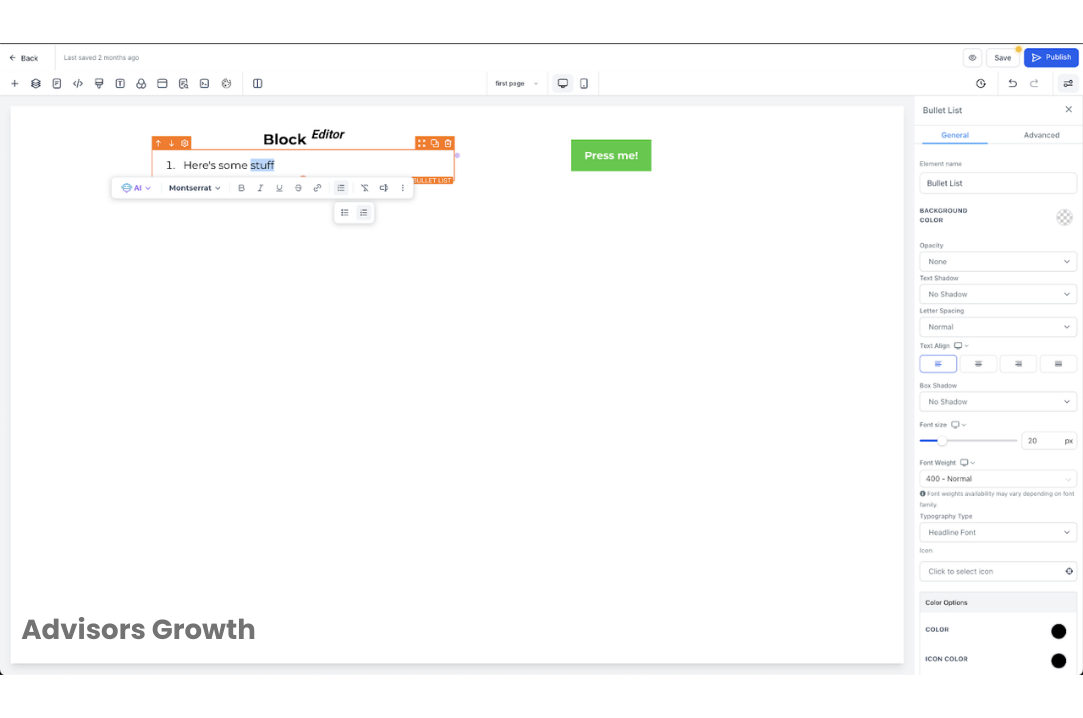
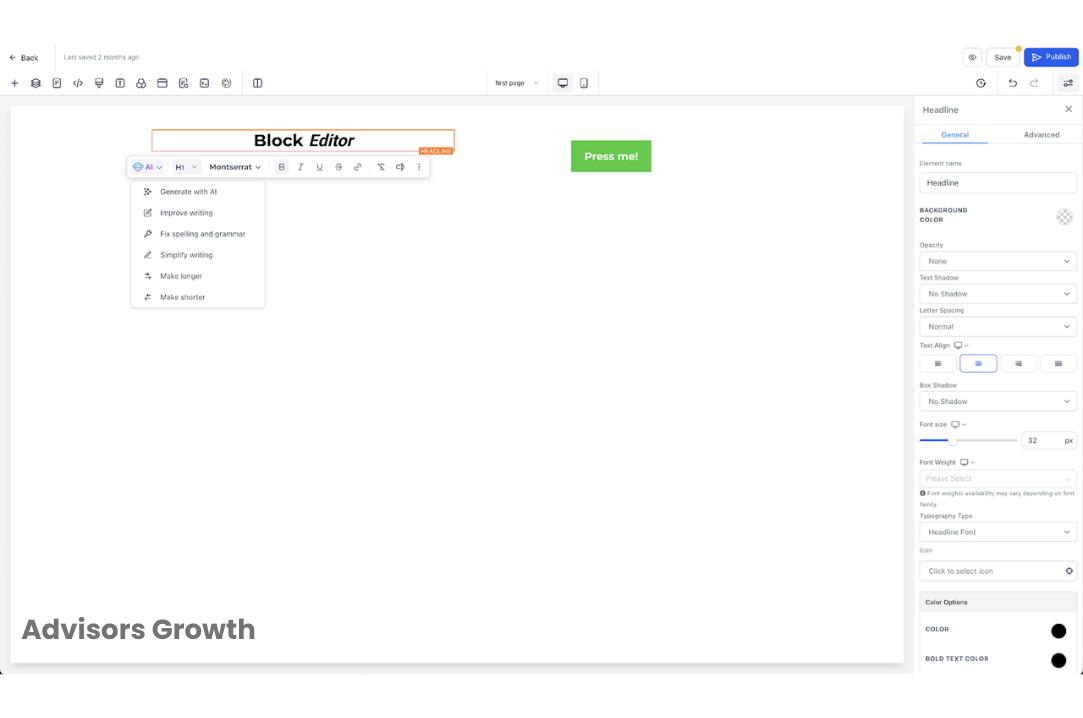
The Block Editor enhances the user experience with improved customization options and a streamlined interface. It allows you to apply custom fonts, use subscript and superscript, and manage bullet lists efficiently.
How to use:
Access Editor:
Edit a funnel or website by selecting the site tab from the sidebar in the desired location.
Add Elements:
Click on "Add Elements" and choose the text you want to format.
Customize Text:
Use the Block Editor menu to apply custom fonts, subscript, superscript, and organize bullet lists.
Enhancements include:
Improved UX: A more intuitive editing experience with a streamlined interface.
Custom Fonts for Highlighted Text: Change the font of highlighted text blocks directly from the Block Editor.
New Menu Options for Subscript and Superscript: Easily wrap text in subscript and superscript.
Dedicated Bullet List Section: Simplifies list creation and management.
Removal of Unwanted Paragraph Options: Improves usability by removing unnecessary options.
Bug Fixes and Improvements: Enhanced popups, positioning, and better handling.
By leveraging these custom elements, you can create a more dynamic and personalized website, tailored to meet your specific needs.