
Cart Mode in One-Step and Two-Step Order Forms
Cart Mode enables customers to purchase multiple products through a single order form, enhancing flexibility and potentially increasing sales. Here’s how to set up and configure Cart Mode:
How To Set Up Cart Mode
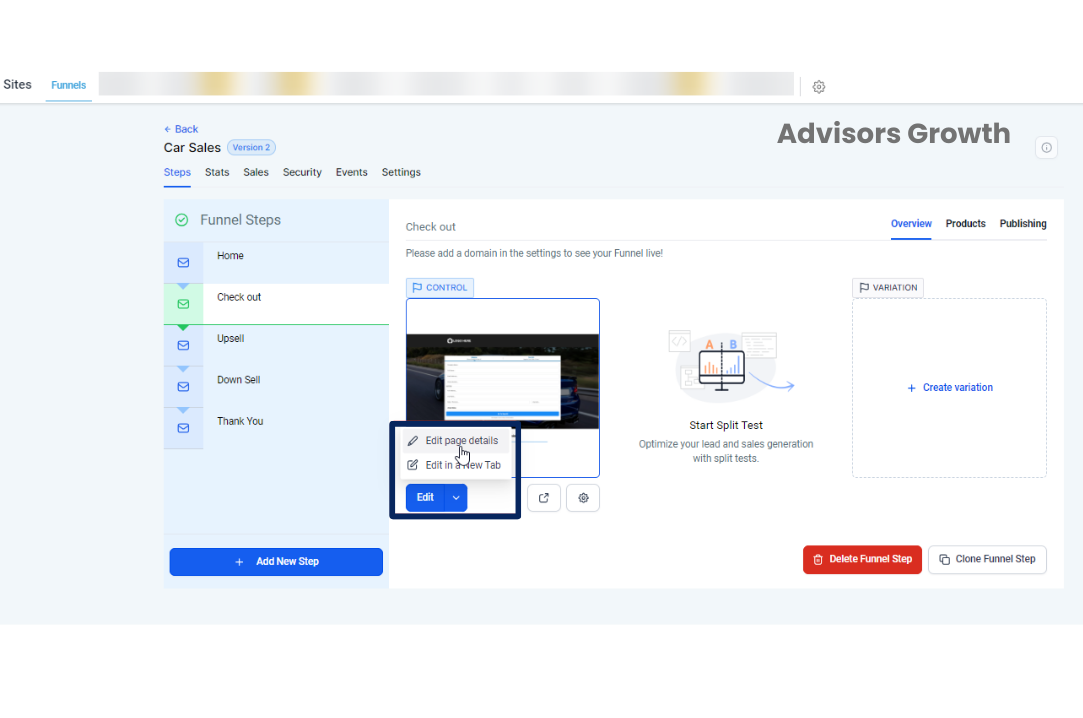
Step 1: Enable Cart Mode
Navigate to Your Funnel or Site:
Open the Funnel that contains your checkout page (One-Step or Two-Step).
Access Checkout Feature:
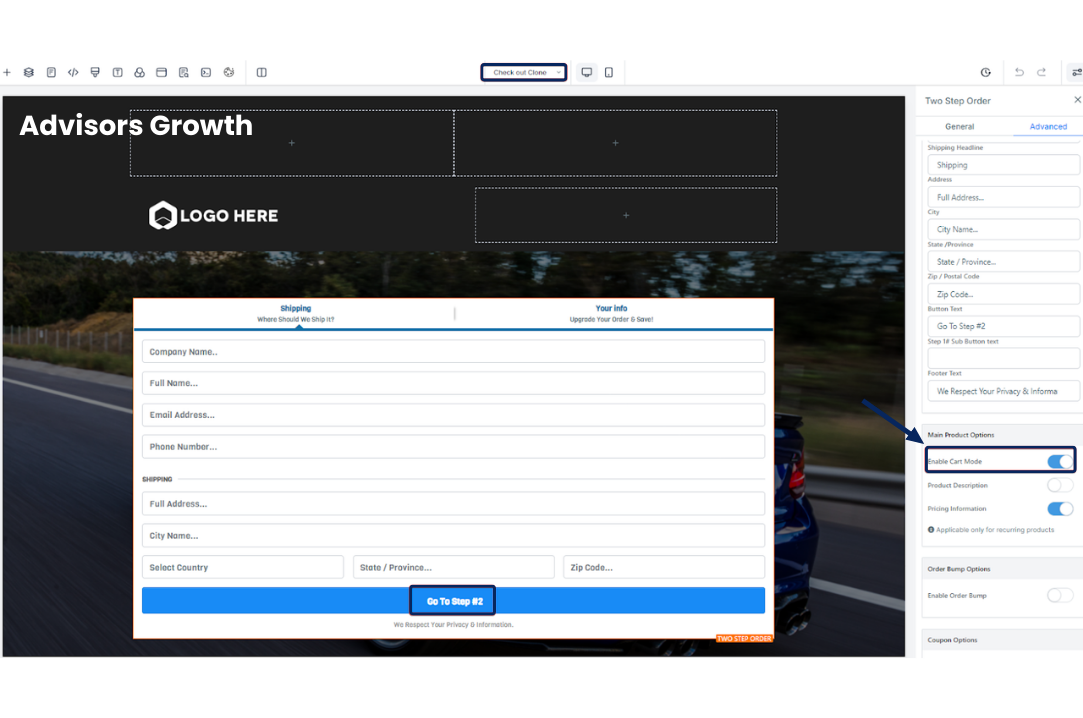
Click anywhere on the checkout feature to open the editing sidebar on the left.
Enable Cart Mode:
Toggle on the “Enable Cart Mode” option to allow customers to add multiple products to their cart in a single order.
 Step 2: Set Purchase Limits for Products
Return to Funnel Overview:
Navigate back to the Funnel Overview page.
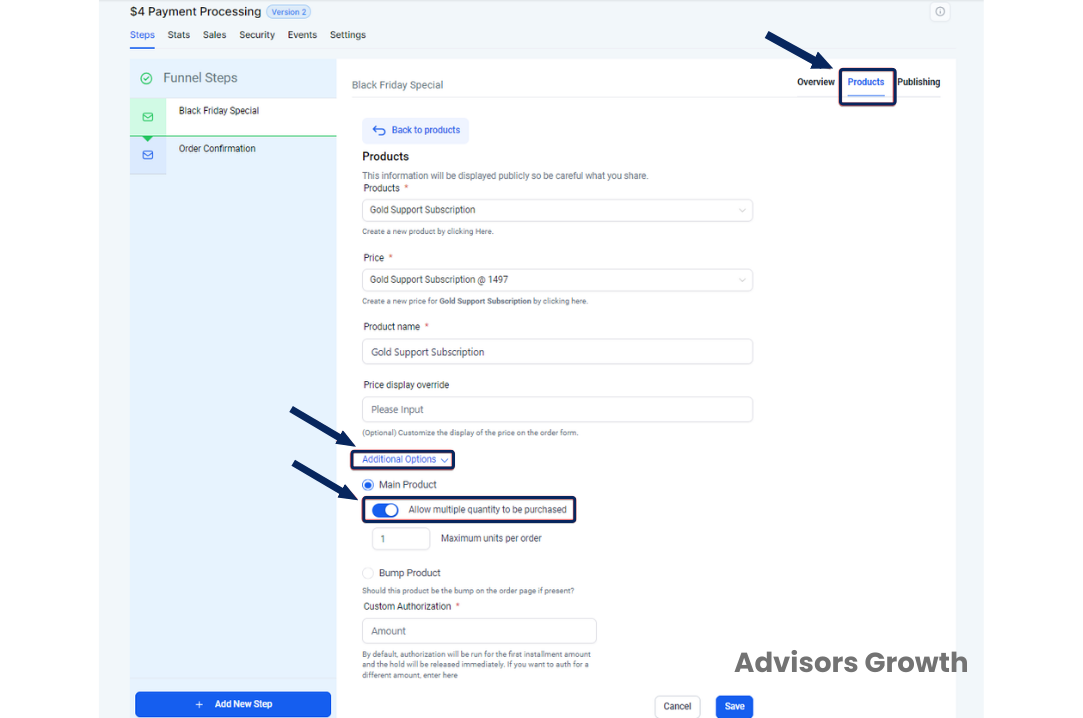
Select Products:
Click on “Products” to view your product list.
Choose Product:
Click the dropdown menu and select the product you want to set a quantity limit for.
Configure Purchase Limits:
Click on additional options.
Scroll down and toggle on “Allow multiple quantity to be purchased”.
Save Changes:
Save your settings to apply the purchase limits.
 By following these steps, you can effectively configure Cart Mode to support multiple product purchases and set quantity limits, enhancing the shopping experience for your customers.