
Box & Text Shadow Settings for Funnels and Websites
Enhancing the visual appeal of your funnels and websites is now more accessible than ever with the introduction of box and text shadow settings. These features allow you to add depth and dimension to your elements, giving your designs a more engaging and professional look.
Add Box and Text Shadows
Versatile Shadow Options
Box Shadows: Apply box shadows to various elements such as text, headings, paragraphs, images, and buttons.
Text Shadows: Add shadows to text-based elements to create more depth.
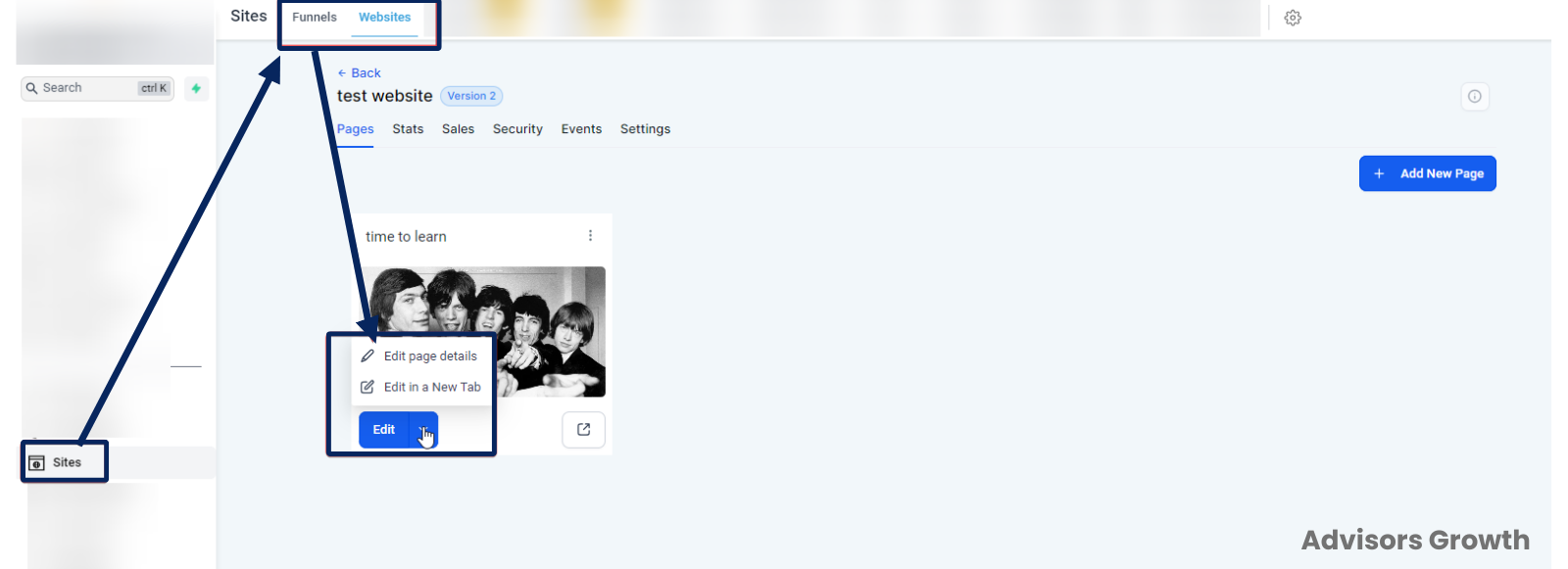 Advanced Customization
Access shadow settings through the advanced tab to tailor shadows to your design needs.
User-Friendly Shadow Editor
Two Sections
Easily choose between box shadow and text shadow with dropdown menus.
Easy Default Settings
Click the plus button to apply a default outer shadow with preset values, which you can further customize.
Multiple Shadows
Add multiple shadows to any element for more complex designs.
Detailed Customization
Edit each shadow by selecting outer or inner shadow and adjusting the X value, Y value, Blur, Spread, and Color.
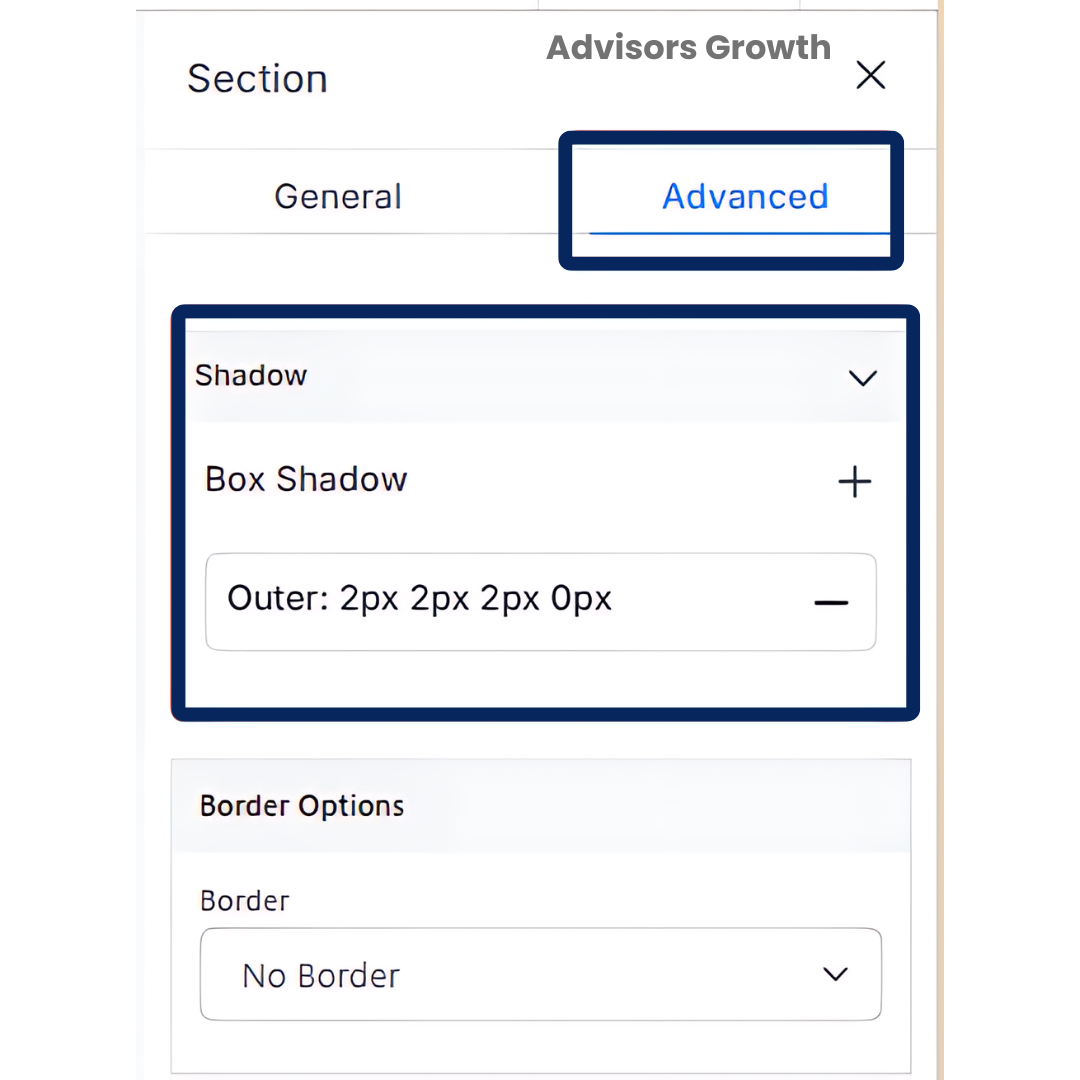 Enhanced Customization Parameters
Outer vs Inner Shadow
Outer Shadows: Create a sense of elevation, making elements appear raised above the background.
Inner Shadows: Add a recessed effect, giving the illusion of depth within the element.
Shadow Parameters
X Value: Controls horizontal shadow offset.
Y Value: Controls vertical shadow offset.
Blur: Determines the sharpness or softness of the shadow.
Spread: Expands or contracts the shadow size.
Color: Choose the shadow color to match your design palette.
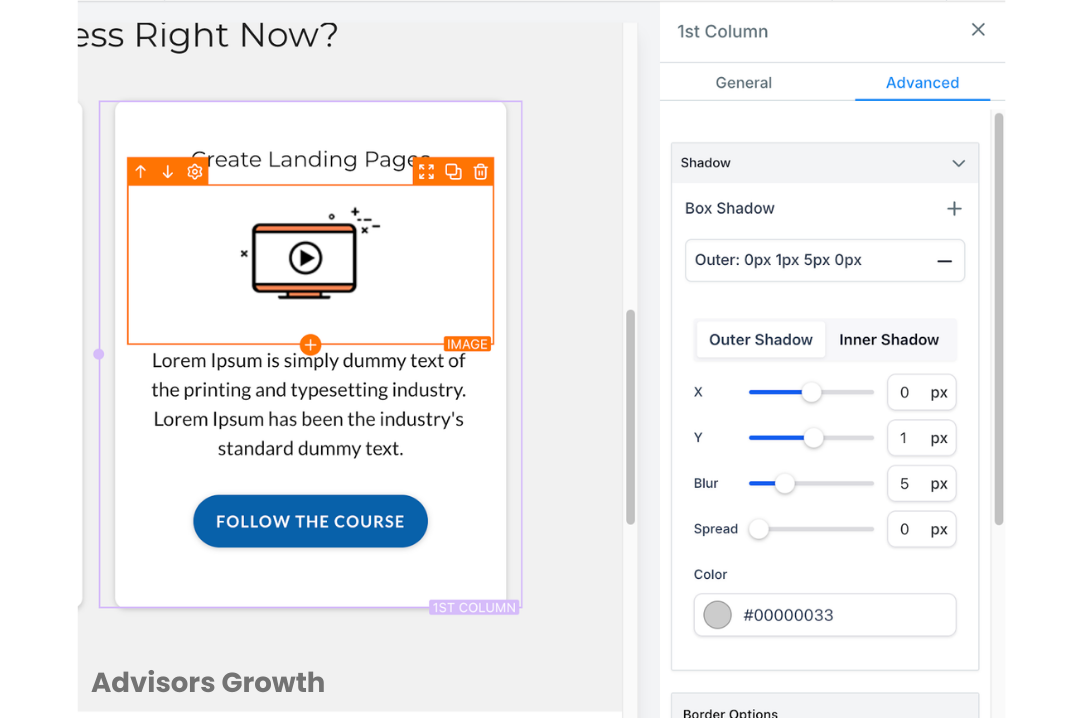 How to Use
Access the Advanced Tab
Open the funnel or website builder editor and navigate to the advanced tab.
Open the Shadow Dropdown
Click on the shadow heading at the top to reveal the shadow editor dropdowns.
Select Shadow Type
Choose between box shadow or text shadow by clicking the plus button next to each title. (Text shadow is only applicable to text-based elements.)
Apply Default Shadows
A default outer shadow will be applied with preset values. Adjust as needed.
Add Multiple Shadows
Click the plus button to add more shadows for a single element.
Edit Shadows
Click on the title of each shadow to customize settings like outer/inner, X value, Y value, Blur, Spread, and Color.
Combine Shadows
Experiment with different combinations for unique visual effects.
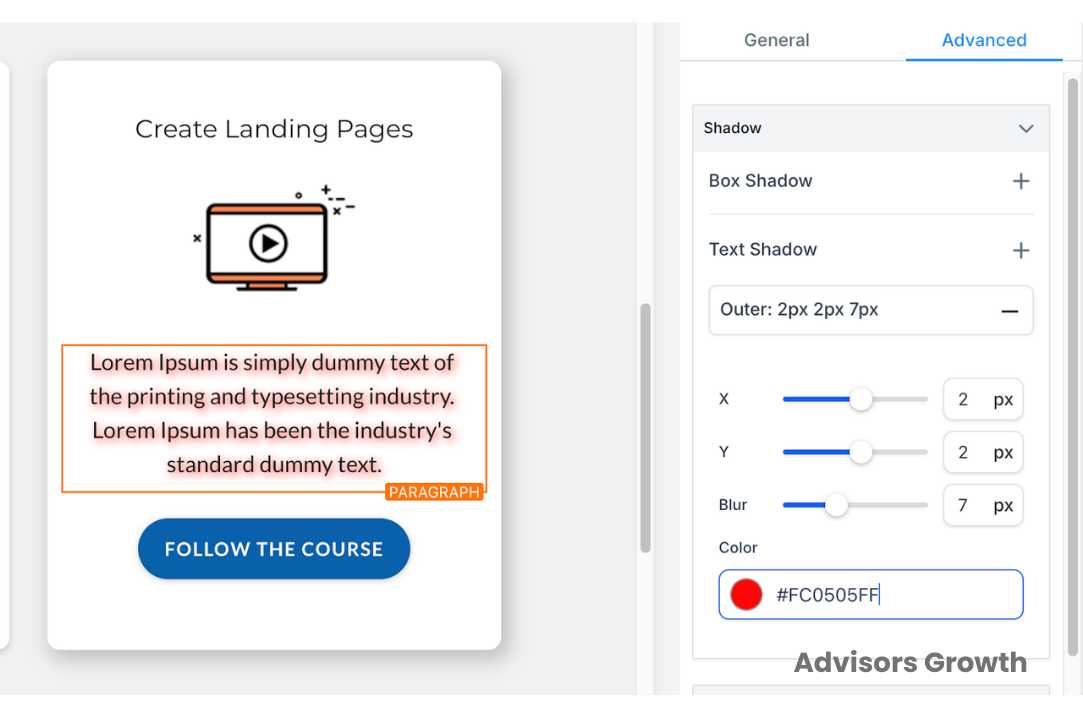 Pro Tips
Consistent Design: Use shadows sparingly to maintain a clean and professional look. Overuse of shadows can make your design look cluttered.
Soft Shadows for Text: When applying text shadows, softer shadows often enhance readability without overwhelming the text.
Experiment with Colors: Shadow colors don’t always have to be black or gray. Experiment with different hues that complement your design palette for a unique look.
Layering Shadows: For advanced designs, layer multiple shadows on a single element to create complex visual effects.
Use Cases
Highlighting Buttons: Use outer shadows on buttons to make them stand out, encouraging user interaction.
Elevating Images: Apply subtle box shadows to images to give them a floating effect, adding depth to your page.
Text Emphasis: Utilize text shadows to highlight important headings or call-to-action texts, drawing more attention to them.
Professional Aesthetics: Inner shadows can be used to give elements a more sophisticated and polished look, enhancing the overall aesthetics of your website.
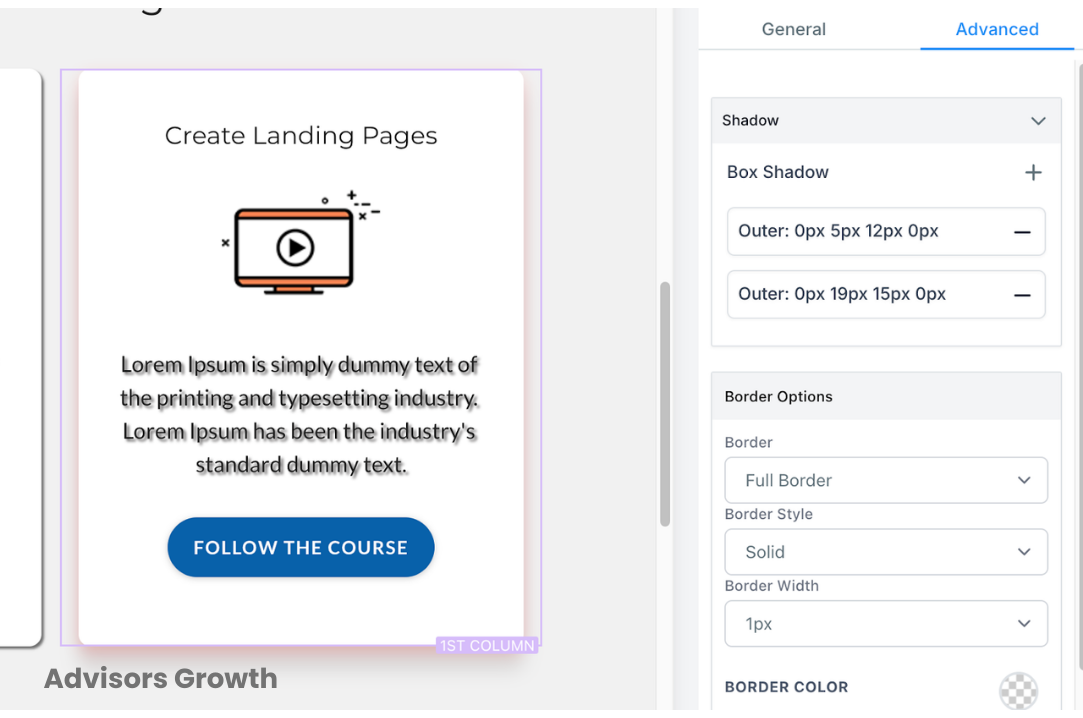 By using these settings effectively, you can significantly enhance the visual appeal and user experience of your funnels and websites on Advisor's Growth.